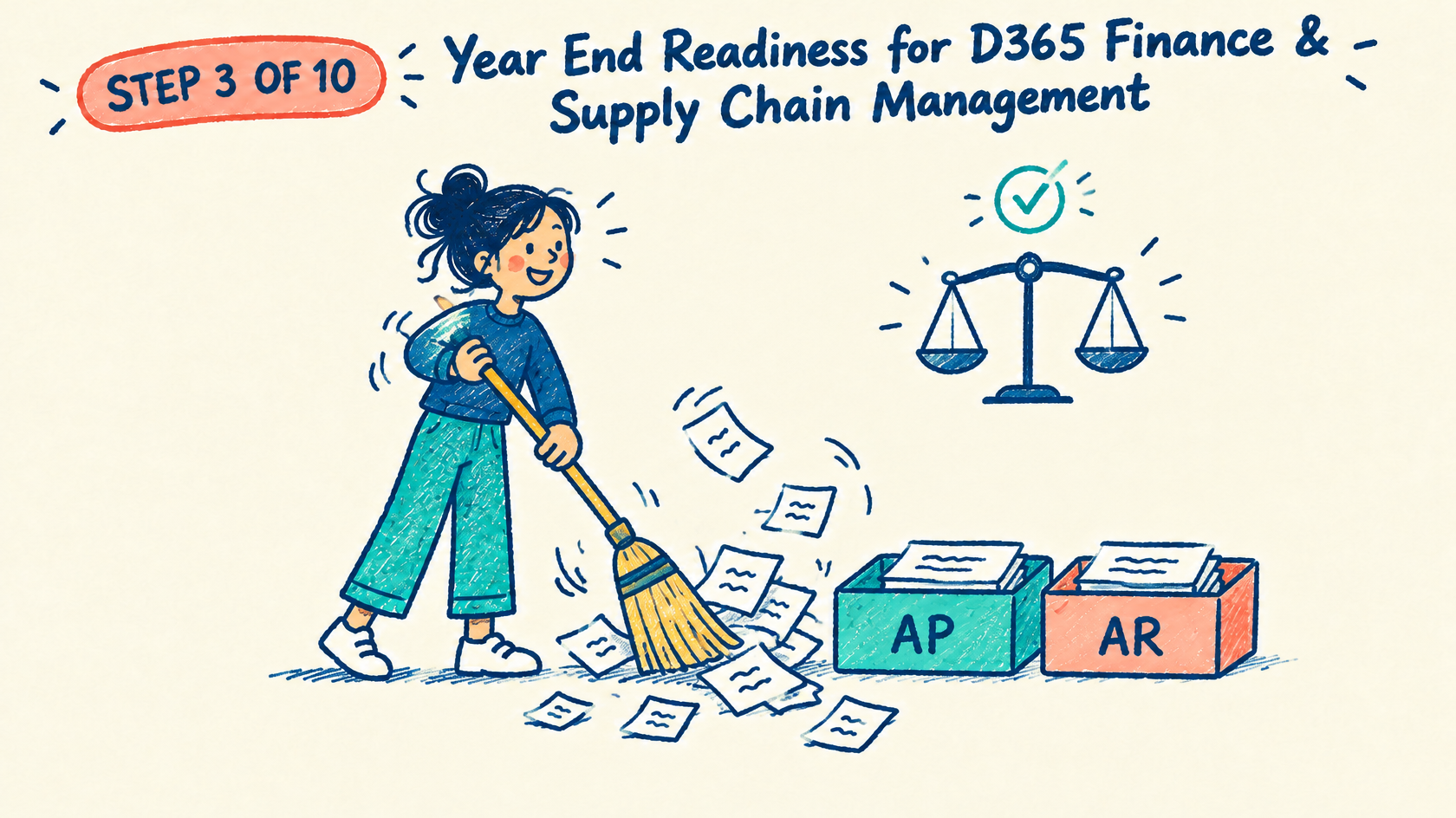
Year-End Readiness: D365 Finance & Operations, Step 3 of 10
Say it’s the second week of January and your controller is tying out the balance sheet. The AP subledger doesn’t agree to the control account, a few invoices are still unposted in a journal, and a December 28 customer payment has no invoice to land on. None of this is hard to fix, but it’s easier in December than after the period is locked.
Clear out the unposted invoices
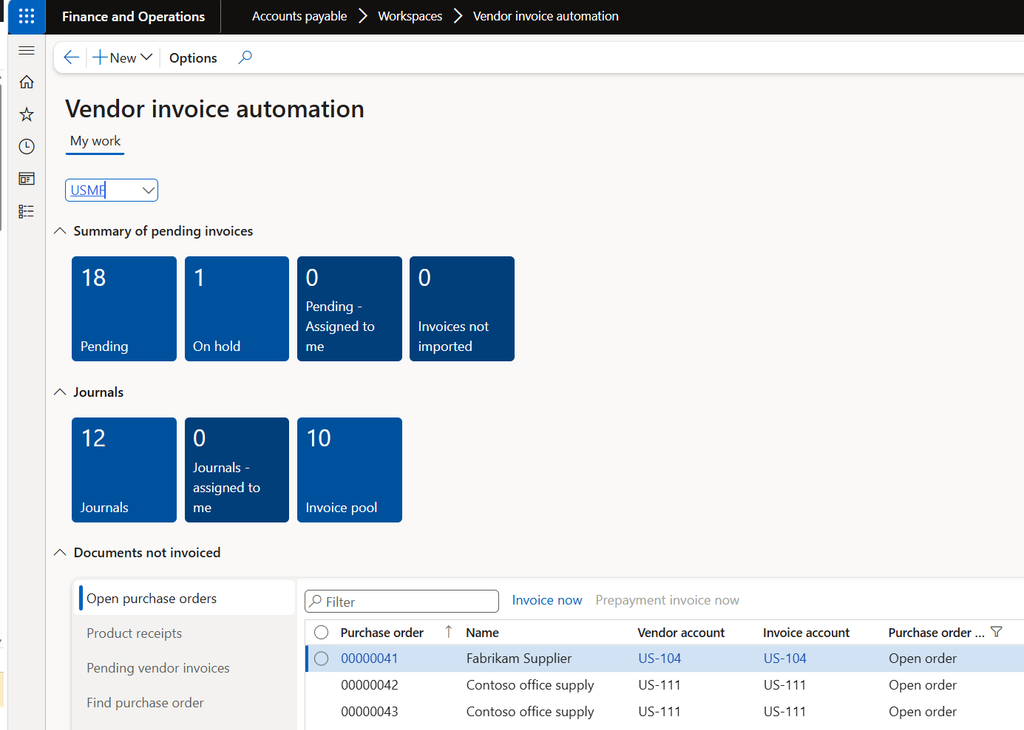
Start with anything entered but never posted. On the AP side, open Accounts payable > Invoices > Pending vendor invoices and look for invoices nobody finished. If you use the Vendor invoice automation workspace, the summary tiles show unposted journals, and the Documents not invoiced grids list open purchase orders and product receipts.
Next, check the invoice journals (Accounts payable > Invoices > Invoice journal) and the invoice register. Invoices keyed into the register accrue the expense to an “Invoice pending approval” account until someone runs them through the invoice approval journal, which swaps in the real expense account. Anything left there on December 31 is expense you haven’t classified.
Watch the date on journal lines. In the vendor invoice journal, the date is the posting date that updates the general ledger. If you use journal workflow and the approved posting date falls in a period that’s On hold or Closed, the system moves it to the first day of the next open period. That’s a quiet way for a December invoice to end up in January. Use Simulate posting before the final post.
On the AR side, Microsoft’s Close Accounts receivable page lists the posting tasks to finish: sales order invoices, packing slips, free text invoices, and journals. Confirm batch jobs have completed too.
Accrue what you’ve received but not invoiced
Say product arrives December 28 and the vendor’s invoice shows up January 5. The liability belongs in December. To see what’s waiting, go to Accounts payable > Purchase orders > Purchase orders received but not invoiced.
Whether a receipt hits the ledger depends on setup. Per Purchase order posting, you need Post product receipt in ledger on the Inventory and warehouse management parameters, plus Post physical inventory and Accrue liability on product receipt on the item model group. The inventory posting profile needs accounts for Purchase expenditure, uninvoiced and Purchase, accrual, which reverse when the invoice posts. For procurement categories, the category policy rule has an Accrue purchase expense on receipt option (see Project cost accrual on purchase receipts).
Compare the received-not-invoiced list with your accrual account balances. A big gap can mean some items or categories aren’t set up to accrue.
Settle payments and credit memos
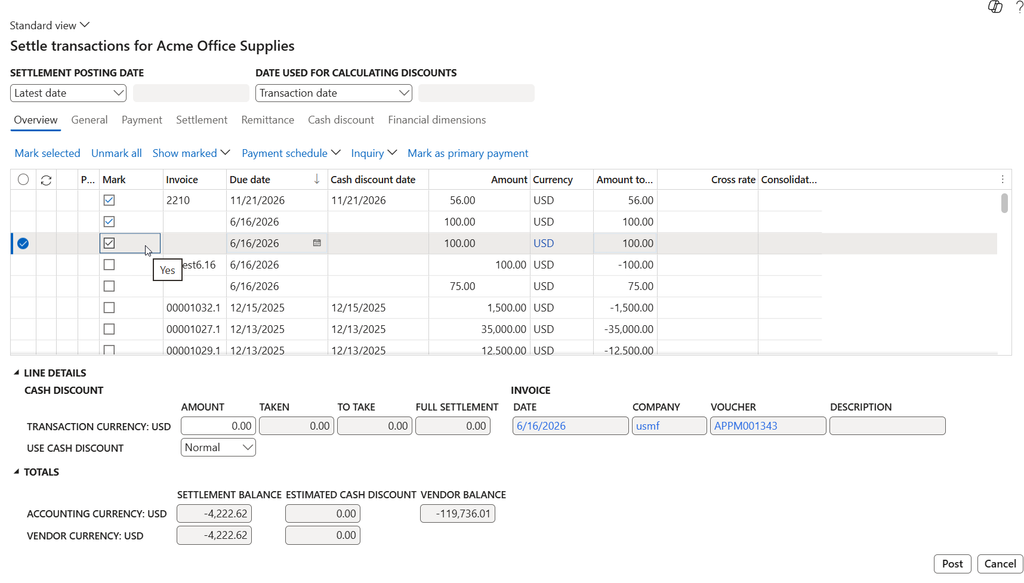
Payments and credit memos that were never applied show up as open credits on both aging reports. Per the Settlement overview, you can settle any transaction type against any other. Open Settle transactions from All customers or All vendors, or from an account’s Transactions page. The Payments not settled grid in the Vendor payments workspace finds stragglers, and the Customer payments workspace has the same tab for AR (see Customer prepayments).
If a transaction won’t settle, another journal or order may have it marked. Use Customer marked transaction details (Accounts receivable > Periodic tasks) or Vendor marked transaction details (Accounts payable > Periodic tasks), then Unmark selected transactions. An administrator may need to enable the Marked transaction detail form feature first, per the troubleshooting article.
Don’t settle just to tidy a report. A prepayment reserved against an order legitimately stays open until that order is invoiced.
Set your cutoff and prove the balances
Decide which date rules your cutoff. The posting date decides the period, and the document date is the date on the paper. The Vendor aging and Customer aging reports let you choose a Criteria: Transaction date (posting date), Due date, or Document date. On the customer report, Balance as of is the cutoff date for transactions. To compare against the ledger, run both as of the last day of the year using Transaction date, with Details and Payment positioning selected. The Vendor open transactions report, with its Open transactions per date, is meant for verifying vendor transactions against the ledger (see Vendor invoices overview).
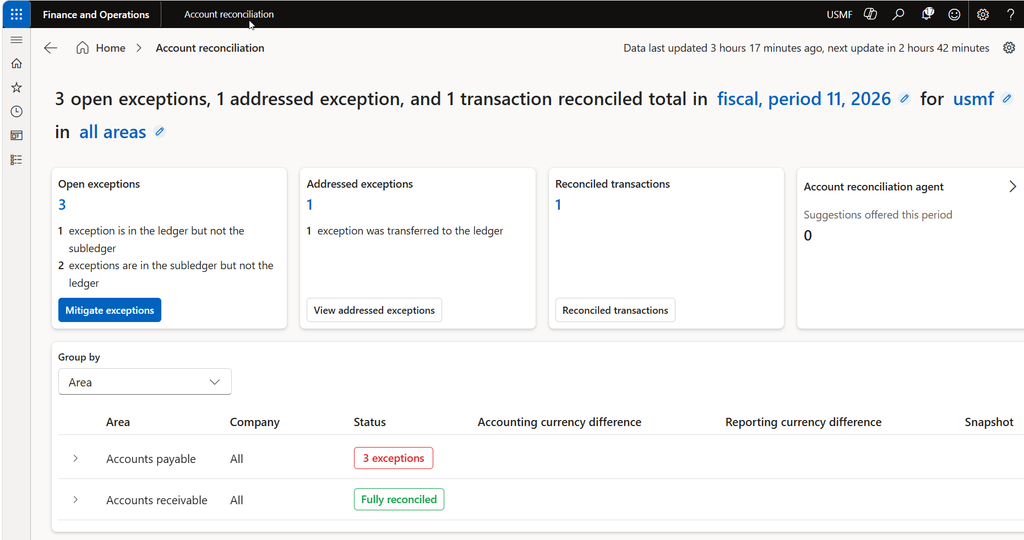
Then reconcile to the control accounts. The Account reconciliation workspace (Workspaces > Account reconciliation) compares the general ledger with the AP, AR, tax, and bank subledgers and lists exceptions such as In subledger not in ledger, In ledger not in subledger, and Amount mismatch. Period snapshots exist only once a period is on hold or permanently closed and fully reconciled.
Year-end checklist for AP and AR
- Review pending vendor invoices, invoice journals, and the invoice register, then post or clear everything dated in the old year.
- Confirm AR invoices, packing slips, and free text invoices are posted and batch jobs have finished.
- Review the received-not-invoiced list against your accrual accounts.
- Settle open payments and credit memos against the right invoices, and clear any blocked marks.
- Run both aging reports as of the cutoff date, then reconcile AP and AR to the control accounts.
Thank you for reading!
In Step 2, Ledger Calendars and Period Statuses: Who Can Post Where, we covered locking down who can post and when. Step 4 moves on to Inventory Close and Cost Reconciliation Before Year-End.
Sources
- Vendor invoice automation workspace
- Record a vendor invoice in the invoice journal
- Vendor invoices overview
- Key invoice data into accounts payable using an approval journal
- Key invoice data in accounts payable using a vendor invoice
- Close Accounts receivable
- Purchase order posting
- Project cost accrual on purchase receipts
- Settlement overview
- Troubleshoot issues with transactions that can’t be settled
- Vendor payments workspace
- Customer prepayments
- Vendor aging report
- Customer aging report
- Account reconciliation
Interested in learning more? Below are some of my latest posts:
Leave a Reply