
Year-End Readiness: D365 Finance & Operations, Step 7 of 10
Say your December bank statement shows a wire fee that nobody has booked, and a vendor check from the 28th that hasn’t cleared. In the same week, the Due to balance in one legal entity is off from its partner’s Due from by a few thousand dollars. Neither problem is big on its own, but both will hold up the close if you find them on the last day.
Get the bank statement into Finance and matched
If you use advanced bank reconciliation, the flow starts on the Bank statements page under Cash and bank management > Bank statement reconciliation. Select Import statement and pick the file. The bank account needs Advanced bank reconciliation set to Yes and a statement format that matches your bank’s file (BAI2, MT940, or camt.053). The import setup is documented here.
The statement has to be validated before you can reconcile it. Validation checks that the opening balance equals the prior statement’s closing balance, that dates don’t overlap, and that the lines add up to the ending balance. If you set Reconcile after import to Yes, validation, the reconciliation, and the Default matching rule set all run on upload.
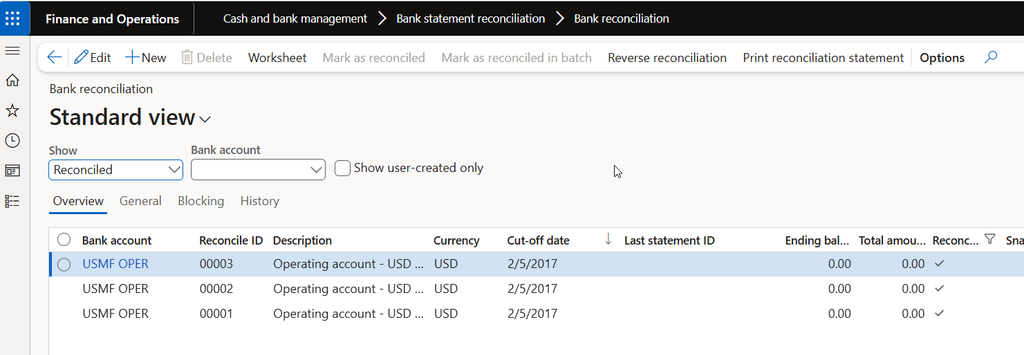
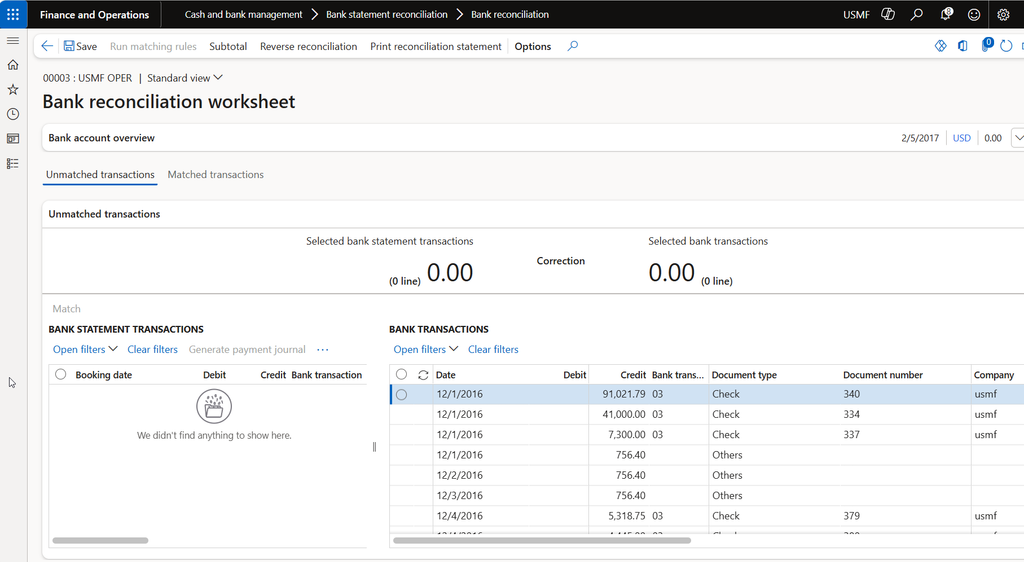
On the Bank reconciliation worksheet, unmatched statement lines sit above and unmatched bank transactions from Finance sit beside them. You select one side, select the other, and choose Match. Anything the bank charged that you haven’t booked, like interest or fees, can be flagged with Mark as new, and you post those lines afterward from the Bank statement page. When you mark the reconciliation as reconciled, correction amounts post to the accounts on your bank transaction type. That can’t be undone, so check your matches first.
Outstanding items and closed periods
If you don’t use the advanced feature, the manual route is Cash and bank management > Bank accounts > Bank accounts, then Reconcile > Account reconciliation. You enter the statement date and ending balance, open Transactions, and select Cleared for each item that appears on the statement. The Unreconciled amount should reach zero before you select Reconcile account.
Don’t mark anything cleared that isn’t on the statement. That December 28 check stays on the page as an outstanding item and clears against the January statement, which is what your bank rec should show.
One year-end detail: if a transaction needing a correction sits in a closed fiscal period, the Correction amount field isn’t available. Create a new line dated in an open period instead, with the original financial dimensions and the offset main account. When you finish, run the Unreconciled bank transactions report to see what’s still open.
Intercompany: both sides or neither
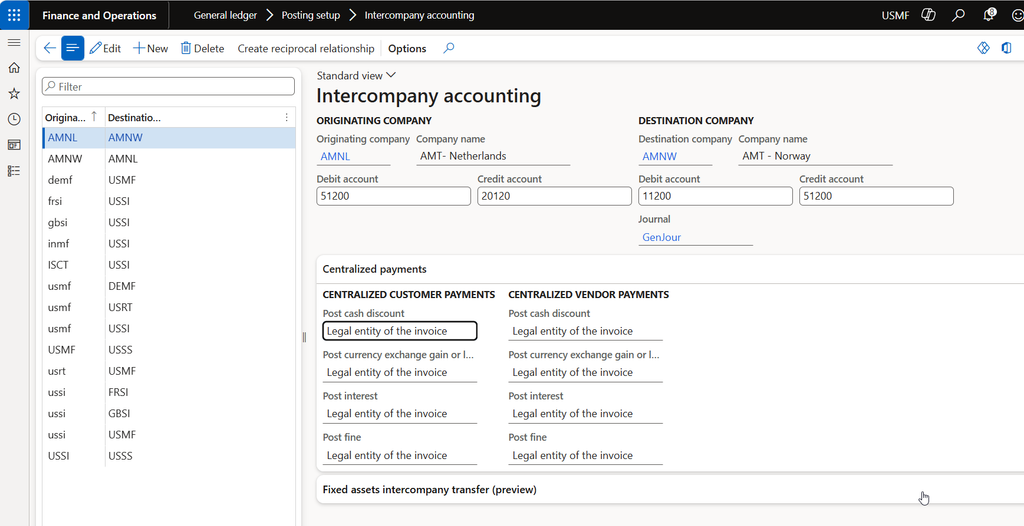
Intercompany accounting lets one journal post to more than one legal entity, with Due to and Due from entries keeping each company’s books in balance. Confirm the setup before December gets busy. Under General ledger > Posting setup > Intercompany accounting, each pair of legal entities is defined with an originating company and a destination company. You assign the Debit account (Due from) and Credit account (Due to) for each, plus the journal name used in the destination company.
Direction matters. In Microsoft’s example, setup exists only with USMF as the originator, so a user in USSI who enters a transaction with USMF finds it doesn’t post. If either entity can originate, create the reciprocal pair with Create reciprocal relationship.
Microsoft also recommends unique Due to and Due from main accounts for each company to make reconciliation and elimination easier.
Reconcile before you consolidate
When a general journal line uses the Offset company field, posting creates the matching voucher in the other company. From the journal, Voucher > Related vouchers shows you the offset side, which is the quickest way to prove both halves exist. Multi-line intercompany entries don’t default dimensions on the Due to and Due from lines, so check them after posting.
Then compare the balances. Pull the Due to account in one entity against the Due from account in the other, in the same currency, through the same period end.
Eliminations come after that. In the Consolidations module you can set up elimination rules, and process them during Consolidate online or through an Elimination journal and Elimination proposal. Those rules only remove what’s there. If one side is missing, the elimination leaves a balance you can’t explain. Per the consolidation overview, you must rerun consolidation whenever source entities change, so finish your fixes first.
Year-end bank and intercompany checklist
- Import and validate every December bank statement, and match or mark lines as new.
- Post bank fees and interest from the statement, then reconcile.
- Run Unreconciled bank transactions and review each outstanding item for age and reason.
- Confirm Intercompany accounting pairs exist in both directions for entities that originate transactions.
- Compare Due to against Due from for each entity pair, and correct differences at the source.
- Run consolidation and eliminations only after those balances agree.
Thank you for reading!
In the previous post, Step 6, we covered accruals, deferrals, and foreign currency revaluation. Next up is Step 8, Tax at Year-End: Sales Tax Settlement and 1099 Reporting.
Sources
- Reconcile bank statements by using advanced bank reconciliation
- Reconcile a bank account
- Set up advanced bank reconciliation import by using Electronic reporting
- Intercompany accounting setup
- Intercompany journals: Dimension values on multi-line vs single line journal
- View related intercompany voucher from journal
- Elimination rules
- Financial consolidations and currency translation overview
Interested in learning more? Below are some of my latest posts:
Leave a Reply