
Year-End Readiness: D365 Finance & Operations, Step 8 of 10
Say your December sales tax settlement hasn’t been run, and the balance on the sales tax payable accounts is still sitting there when the auditors start asking about it. Or say it’s January, and you find that a few contractors were never flagged for 1099 reporting. Both are fixable, and both are easier to fix before the year is closed. One note first: filing deadlines and rules vary and change, so confirm them with your tax advisor.
Settle sales tax for the final period
As transactions post, sales tax collects on your sales tax accounts. The Settle and post sales tax job settles those balances and offsets them to the sales tax settlement account for a given period. Afterward the liability sits in one place, ready to pay.
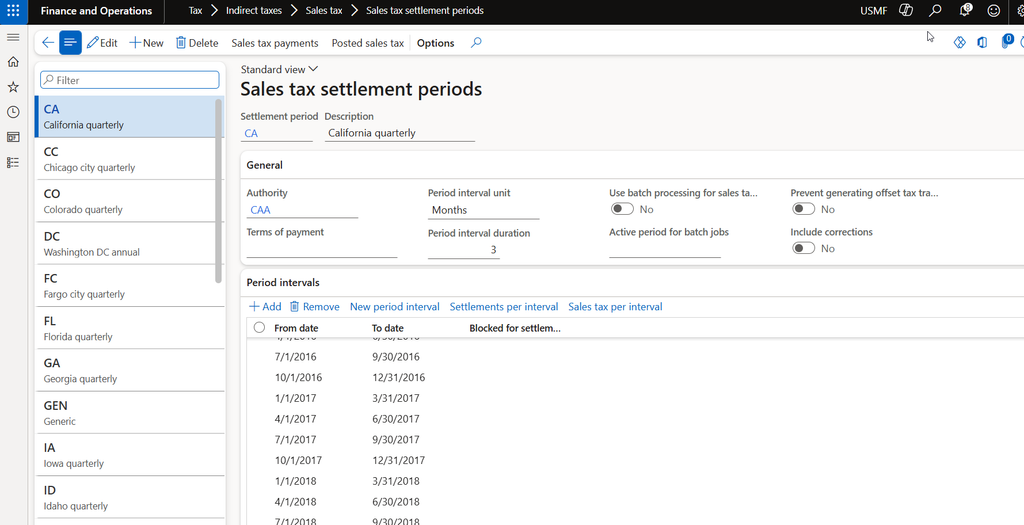
Your sales tax settlement periods (Tax > Indirect taxes > Sales tax > Sales tax settlement periods) control which intervals you can settle. Each period has an authority, from and to dates, and terms of payment. Open it first and confirm an interval covers the end of your fiscal year.
Then go to Tax > Declarations > Sales tax > Settle and post sales tax, pick the settlement period, enter the From date and Transaction date, and select OK.
Watch the version. Original is the first settlement for a period interval and can be processed only once. Transactions posted afterward are picked up by the latest corrections. So if someone backdates a vendor invoice into December after you’ve run the original, it settles as a correction. Make sure AP and AR have finished posting first.
Large periods can take a while. The settlement period has a Use batch processing for sales tax settlement option that Microsoft recommends for high transaction volumes.
Review the payment and clear the liability
After settlement, review the Sales tax payments report. Depending on your setup, it prints right away. If the feature that separates report generation from settlement is on, you’ll get a message that the voucher posted instead, and you can run the report yourself at Tax > Inquiries and reports > Sales tax inquiries > Sales tax payments.
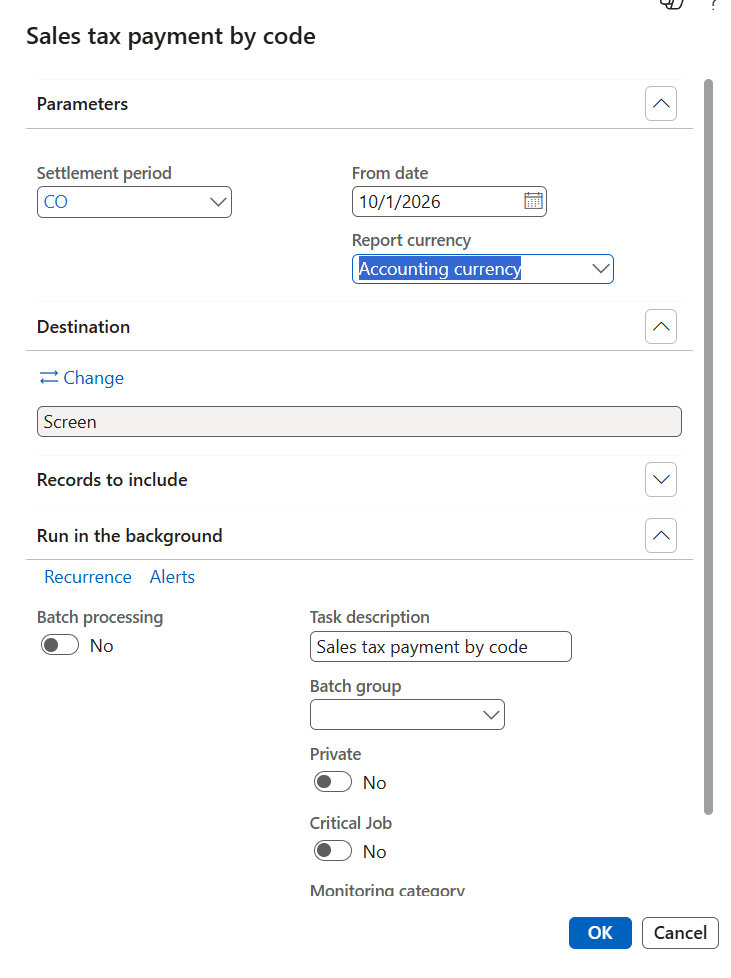
Tie the settled amounts to the sales tax accounts in the general ledger and to what your return will show. If you use reporting codes, the Sales tax payment by code report (Tax > Inquiries and reports > Sales tax reports) shows totals per code.
Then clear the liability. As the sales tax overview explains, if the authority on the settlement period is tied to a vendor account, the balance posts as an open vendor invoice you can include in a payment proposal. Otherwise, after you pay the tax, balance the settlement account against the bank account. Either way, that account should head toward zero.
Check 1099 vendor setup (US only)
This section applies to US legal entities. The system tracks 1099 amounts all year, but only for vendors set up correctly. Microsoft’s page on setting up vendors for 1099 reporting suggests doing this before transactions post, so at year-end it’s a cleanup pass.
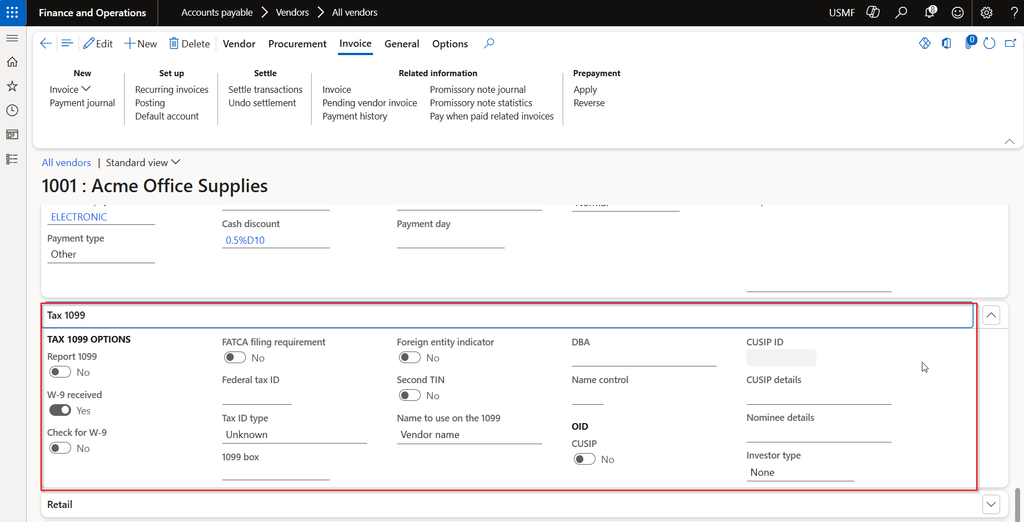
Go to Accounts payable > Vendors > All vendors, open a vendor, and check the Tax 1099 FastTab:
- Report 1099 is selected. If not, the vendor’s amounts won’t reach the report or the electronic files.
- Federal tax ID and Tax ID type are filled in.
- 1099 box has a default value, which Microsoft says is required for the vendor’s transactions to be included.
Missing tax IDs are the usual gap, so filter your 1099 vendors and look for blanks.
If you flagged a vendor after already paying them, select Update 1099 on the Vendors page to recalculate paid invoices in a date range. It runs one vendor at a time, though a Feature management option, Update tax 1099 information for multiple vendors, handles several at once.
Review 1099 amounts and generate the forms (US only)
Year-end 1099 reporting describes a typical process. Start at Accounts payable > Periodic tasks > Tax 1099 > 1099 fields and verify the fields and minimum amounts for the tax year. Microsoft also recommends reviewing IRS rule changes for that year.
Print the Tax 1099 detail report and filter it so you’re not scrolling every vendor. Fix problems at the source: the Tax 1099 transactions page can be edited, and you can clear 1099 settled on lines that shouldn’t count. With partial payments, the saved 1099 amount follows the payment, so a half-paid invoice carries half the 1099 amount. If another company paid through cross-company settlement, that company creates the statements.
Finally, open Vendor settlement for 1099s in the same menu. You can print paper forms or create an export file. If validation errors appear, the Tax 1099 validation errors page lets you enter missing software vendor and transmitter details, then recheck.
Year-end tax checklist
- Confirm a settlement period interval covers the end of your fiscal year.
- Finish AP and AR posting, run Settle and post sales tax, and review the Sales tax payments report.
- Pay the authority and clear the settlement account.
- Check Report 1099, tax ID and 1099 box on your 1099 vendors.
- Review Tax 1099 detail, correct transactions, then generate forms or the export file after confirming requirements with your tax advisor.
Thank you for reading!
The previous post, Bank Reconciliation and Intercompany Balances, tied out your cash and cross-entity balances. Next is step 9, Running the Year-End Close in Finance and Operations.
Sources
- Create a sales tax payment
- Set up sales tax settlement periods
- Sales tax overview
- Print the Sales tax payment by code report
- Year-end 1099 reporting
- Set up vendors for 1099 reporting
Interested in learning more? Below are some of my latest posts:
Leave a Reply