
Year-End Readiness: D365 Finance & Operations, Step 9 of 10
It’s the first week of January. December is posted, the reconciliations are signed off, and your CFO wants the new year’s opening balances. Then someone asks what happens if an auditor proposes an adjustment after you run the close. You can close the year, adjust, and close again, as long as you know what each run does.
Review the trial balance first
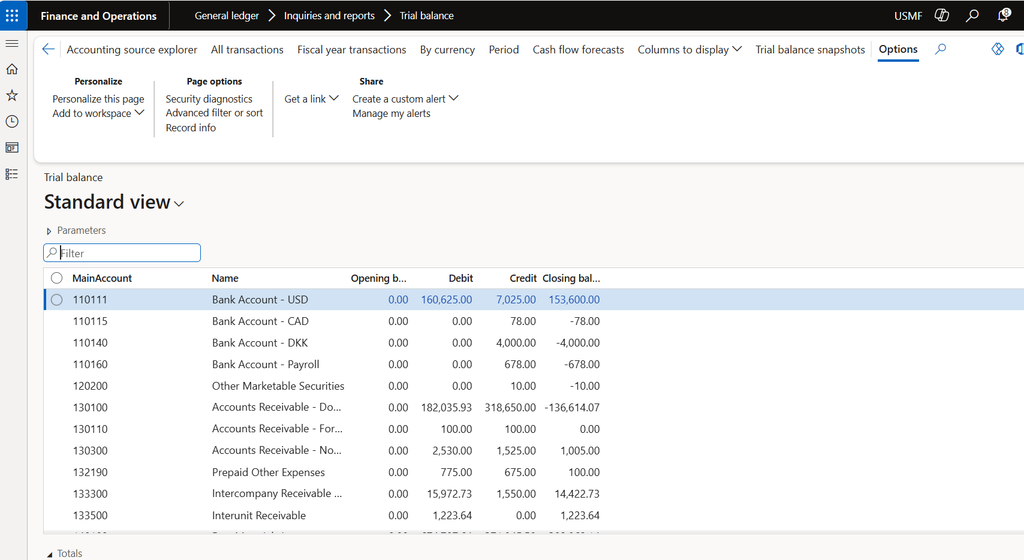
The year-end close moves balances without checking whether they’re right, so open the Trial balance page in General ledger for the final period and confirm that balance sheet accounts agree with your sub-ledgers and bank reconciliations. The period close article lists the usual pre-close steps: post all journals, run foreign currency revaluation, settle ledger transactions, process allocations, and post period-end adjustments. The Financial period close workspace can track those tasks, owners, and dependencies.
On version 10.0.41 or later, the Validate year-end close feature checks a legal entity and year before you commit, including ledger balances in your reporting currency, and suggests fixes.
Check the settings that shape the close
On each Main account, verify the Main account type. It decides whether a balance comes forward as an opening balance or gets closed into retained earnings.
Under General ledger > Ledger setup > General ledger parameters, on the Fiscal year close section, look at these:
- Create closing transactions during transfer: Yes posts a closing transaction in the year you’re closing that brings the accounts to zero, plus the opening transaction in the new year. No posts only the opening transaction.
- Delete existing year-end entries when re-closing the year: controls what a rerun does (more on that below).
- Set fiscal year status to permanently closed: Microsoft recommends No, because a permanently closed period can’t be reopened and you can’t post adjustments to it.
Then check your template on the Year-end close template setup page. A template covers legal entities that share a fiscal calendar, and you reuse it each year. You set the retained earnings account and how dimensions carry over. For profit and loss dimensions, Close all keeps each dimension combination as its own retained earnings balance. Close single rolls a dimension into one value you choose, or blank.
Run the close and read the results
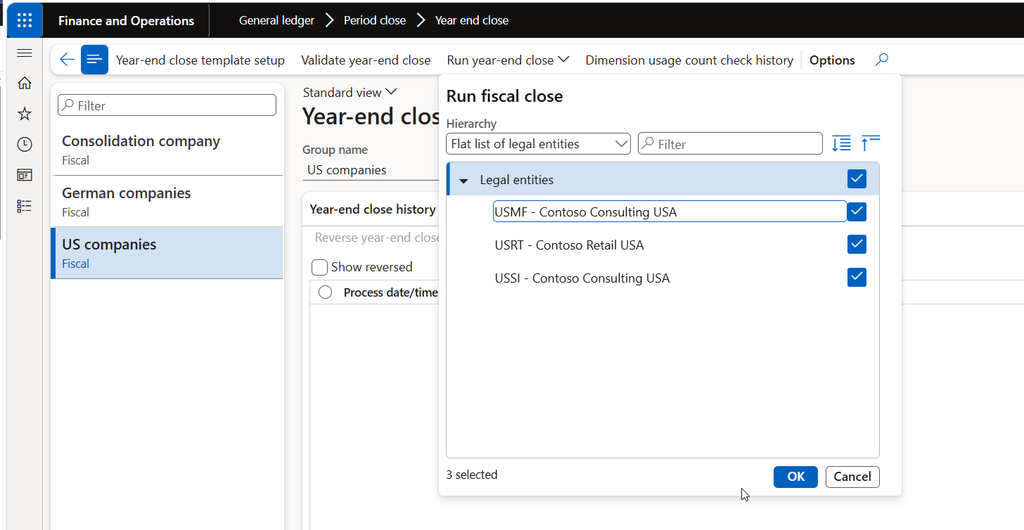
Go to General ledger > Period close > Year-end close, select your template, and choose Run year-end close. Pick the legal entities, the fiscal year, and a voucher number. It doesn’t come from a number sequence, so include the year, like YEC_2025, to find it later.
An Opening transaction always posts in the new year. It carries balance sheet balances forward and puts the net of your profit and loss accounts into retained earnings. If you chose closing transactions, a Closing transaction posts in the old year and zeroes the profit and loss accounts. That’s why an income statement can look empty after the close. The Trial balance page lets you choose which closing transaction types to show, so set that on purpose depending on whether you want the year’s activity or the post-close view.
Adjusting entries, reruns, and reversals
Microsoft expects most organizations to run the close more than once. Say your auditors propose an accrual dated December 31 after your first run. Reopen the period that’s On hold in the ledger calendar, post the entry, and rerun the close for only the legal entities that had adjustments.
What the rerun does depends on Delete existing year-end entries when re-closing the year. With Yes, the old vouchers are deleted and replaced by new ones based on current balances, so everything lands in one entry. With No, the original vouchers stay and a new set picks up only what was posted since. The audit trail differs, so pick with your auditors in mind.
Reverse year-end close is separate. It deletes all opening and closing vouchers for that entity and year as if the close never ran, and it doesn’t rerun anything. For a late adjustment, rerun instead.
If you use ledger settlement with the advanced awareness options, you can’t reverse a close once opening balances have been settled in the new year. Microsoft also says to turn those options on before the first close or after the last one for that year, not in between. See Awareness between ledger settlement and year-end close.
Year-end close checklist
- Review the final-period trial balance and reconcile balance sheet accounts.
- Confirm Main account type on every account, especially new ones.
- Check the Fiscal year close parameters and your template’s dimension settings.
- Run Validate year-end close, then run the close with a voucher that includes the year.
- Keep periods On hold and the year not permanently closed until adjustments are done.
- Rerun for affected entities after adjustments and file the voucher numbers with your audit support.
Thank you for reading!
Last time we covered tax at year-end, including sales tax settlement and 1099 reporting. Next is the final step in the series, After the Close: Audit Prep and Setting Up the New Year.
Sources
- Year-end close
- Close the fiscal year
- Year-end activities FAQ
- Awareness between ledger settlement and year-end close
- Close the general ledger at period end
- Financial period close workspace
- General ledger account balances
Interested in learning more? Below are some of my latest posts:
Leave a Reply