
Year-End Readiness: D365 Business Central, Step 1 of 10
Let’s pretend that it is now the second week of January. Your AP clerk is still keying December vendor invoices, the inventory cost adjustment hasn’t run, and someone just asked whether depreciation for the last quarter ever got posted. Nobody did anything wrong. The tasks simply had no dates, no owners, and no agreed order.
Year-end goes better when you plan it like a small project, and a one-page calendar is the first deliverable.
Build the timeline backward from the audit hand-off
Start with the date you want to hand your auditor a clean set of books. Work backward from there, with a date and a name next to each task:
- AR and AP cutoff: the last day for posting invoices, credit memos, and payments into the old year
- Fixed asset depreciation: calculated, reviewed, and posted
- Inventory cost adjustment and posting of inventory cost to the G/L
- Bank reconciliations through the last day of the year
- VAT or sales tax statements completed (US readers, confirm filing dates with your tax advisor)
- Adjusting entries, such as prepaids and accruals
- Closing the fiscal year and the income statement accounts
- Audit hand-off
Give each line one owner, not a department, and add a backup name for the people who will be on vacation.
Microsoft’s overview of period-end tasks groups the work by area and is a good list to borrow from. Business Central doesn’t force you to close periods, so the sequence is your decision, which is a reason to write it down.
Why the order matters
The G/L is the last stop. Subledgers feed it, so they need to be right first.
Take inventory. If you post a sale before the matching purchase invoice, or add freight afterward, item costs change. The Adjust Cost – Item Entries batch job forwards those changes to the related outbound entries. Then the Post Inventory Cost to G/L batch job puts the results into your inventory, adjustment, and COGS accounts. Microsoft says to run the cost adjustment first, so the amounts that reach the G/L are current. If Automatic Cost Posting is off in Inventory Setup, scheduling this step is on you.
Depreciation follows the same logic. The Calculate Depreciation batch job creates lines in the fixed asset G/L journal, and nothing hits the ledger until you post that journal. Review it first. Incorrect entries can be cancelled and rerun, per the depreciation page.
After the subledgers post, reconcile. Compare AR and AP to their G/L accounts, and use the Inventory – G/L Reconciliation page to compare inventory value entries with the ledger. The pre-closing reports, such as Customer – Trial Balance and Vendor – Trial Balance, help you tie out the balances.
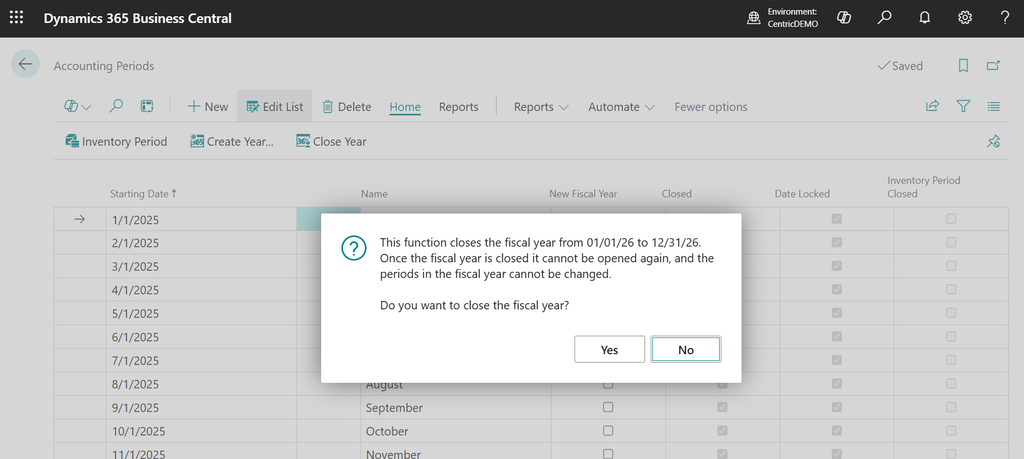
Only then should you close the year. Closing the books runs in sequence: close the fiscal year, post any prior-year adjusting entries, then run the Close Income Statement batch job and post the closing entry it creates. If you discover a missed depreciation run afterward, you can still post to the closed year, but you’ll repeat the income statement close.
Use the posting dates to hold your cutoffs
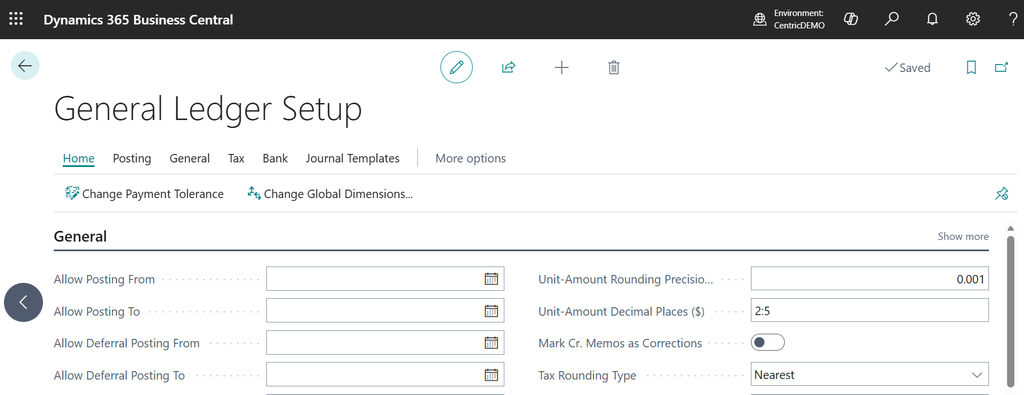
Closing a fiscal year on the Accounting Periods page does not stop posting. Microsoft’s accounting periods article says the Closed checkbox doesn’t prevent posting, and that posting dates are controlled by Allow Posting From and Allow Posting To on General Ledger Setup and User Setup.
So your cutoffs live there. Once AR and AP cutoff passes, move the dates on General Ledger Setup to keep general users out of the old year. User Setup dates override the company dates, so you can leave the window open for your close team only. Date formulas are also available, but they follow each user’s work date, so fixed dates are the stricter choice.
One timing note: if inventory periods aren’t in use, the Allow Posting From date decides when a cost adjustment entry posts. Check that date before you run the job.
Let Business Central hold the checklist
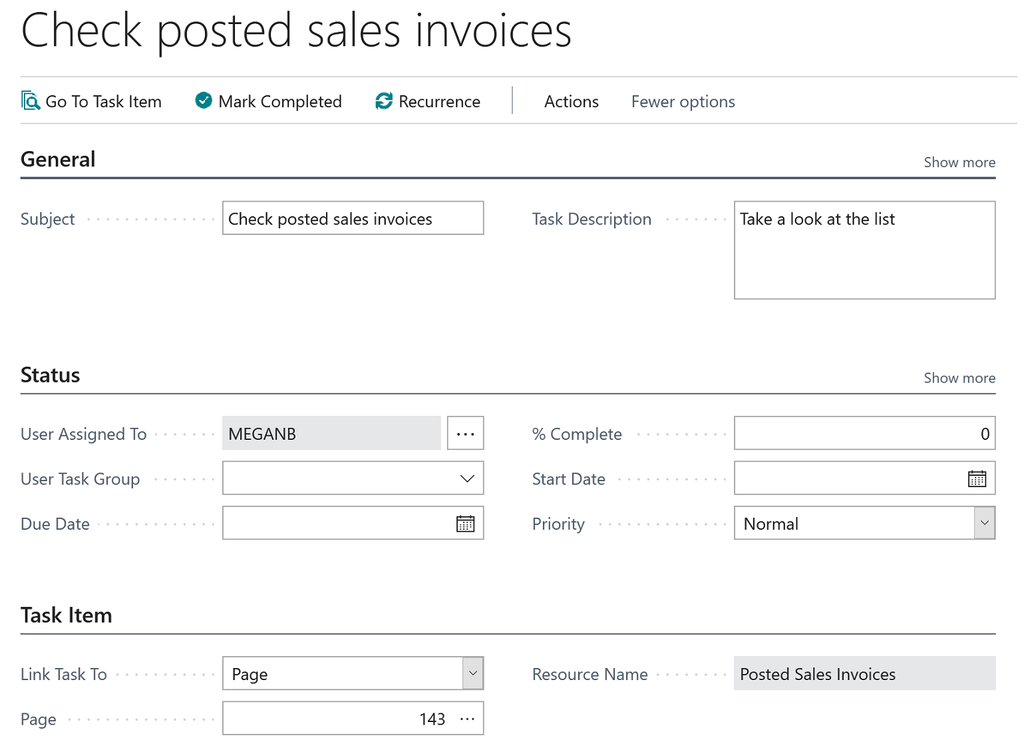
Business Central can carry your calendar. On the User Tasks page, create tasks with start and due dates, assign them, and link each one to the page or report where the work happens. Microsoft’s own examples include year-close items like depreciation checks, audit preparation, and AR and AP follow-up. User Task Groups let you assign a task to a team, and pending tasks show as a tile on the Business Manager, Bookkeeper, and Accountant Role Centers. If your team prefers Excel, keep the calendar there. It just needs dates and names.
Year-end calendar checklist
- Pick your audit hand-off date and work backward.
- List each task above with one owner, a backup, and a due date.
- Schedule cost adjustment before the inventory G/L posting, and both before you close the year.
- Decide when you’ll change Allow Posting From and Allow Posting To, and who gets a User Setup exception.
- Create the new fiscal year in Accounting Periods ahead of time. Business Central won’t let you close a year until the next one exists.
- Enter the tasks as User Tasks so everyone sees them on their Role Center.
Thank you for reading!
Next up in the series is Step 2, Accounting Periods and Posting Dates: Who Can Post Where, where we go deeper on the settings that keep your cutoffs in place.
Sources
- Closing years and periods
- Overview of tasks to close accounting periods
- Closing the books
- Close accounting periods
- Close income statement accounts
- Work with accounting periods and fiscal years
- Specify posting periods
- Adjust item costs
- Reconcile inventory costs with the general ledger
- Depreciate or amortize fixed assets
- Use pre-closing reports
- Define user tasks
Interested in learning more? Below are some of my latest posts:
Leave a Reply