
Year-End Readiness: D365 Business Central, Step 2 of 10
Imagine your AP clerk posts a vendor invoice dated December 28 on January 6, two days after you sent a preliminary trial balance to your CFO. You had closed the fiscal year in Business Central, so you assumed the door was locked. It wasn’t, and the numbers you shared just changed.
Accounting periods do not control posting dates
Microsoft’s documentation says it plainly: posting dates are controlled by fields on the General Ledger Setup and User Setup pages, and accounting periods don’t control posting dates.
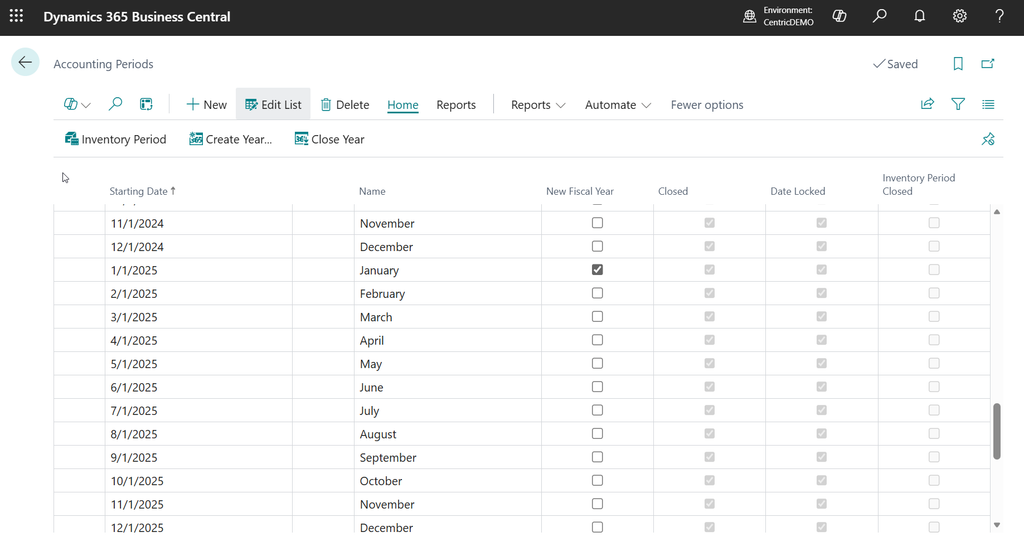
Accounting periods define your fiscal year and its reporting periods. To build one, open Accounting Periods and choose Create Year. Enter the Starting Date, the No. of Periods, and the Period Length (1M for monthly). For uneven periods, like a 4-4-5 calendar, enter them by hand.
Two checkboxes matter at year-end. Closed marks the fiscal year as closed, but Microsoft notes it doesn’t prevent posting. Date Locked stops anyone from changing a period’s start date. It affects structure only. The Close Year action selects both for every period in the year, and you can’t reopen the year or clear them afterward. You also need a new fiscal year created first, because you must always have at least one open year.
Here is the part that catches people. Even after you close a fiscal year, you can still post general ledger entries to it. Those entries get the Prior Year Entry flag, and you’d need to run Close Income Statement again afterward to move the new activity into equity.
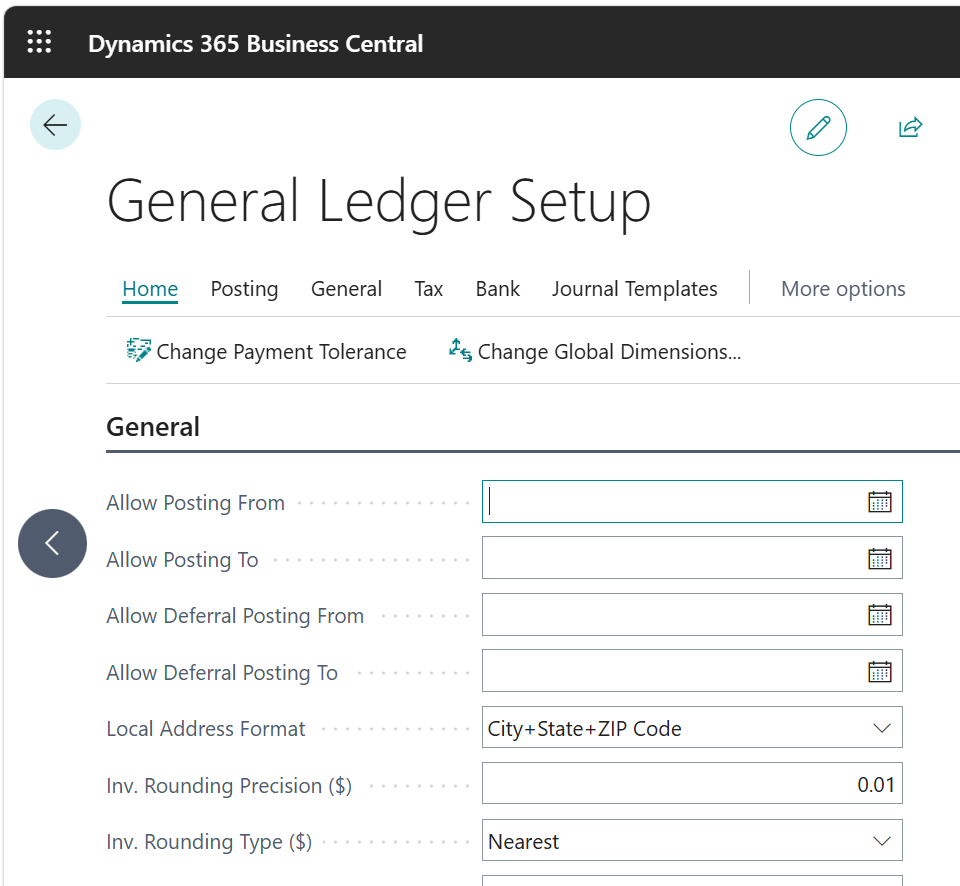
Allow Posting From and Allow Posting To
These two fields are your real lock. Open General Ledger Setup and enter dates in Allow Posting From and Allow Posting To. They apply to the whole company. For exceptions, open User Setup (Microsoft calls these time constraints for users) and give specific people their own range. A user’s range overrules the company range, which is how your close team keeps posting after everyone else is locked out.
When someone posts outside their range, Business Central stops them with the message “Posting date is not within your range of allowed posting dates.” Microsoft checks restrictions in this order: User Setup, then General Ledger Setup, then the General Journal Template (when the Journal Templ. Name Mandatory toggle is on).
You can also use Allow Posting From Date Formula and Allow Posting To Date Formula instead of fixed dates. A formula like -CM to CM means “the current month.” The catch is that formulas run against the work date, and users can change their work date on My Settings. If you want boundaries nobody can nudge, use fixed dates. The same pages carry Allow Deferral Posting From and Allow Deferral Posting To for deferrals.
Inventory periods, if you carry stock
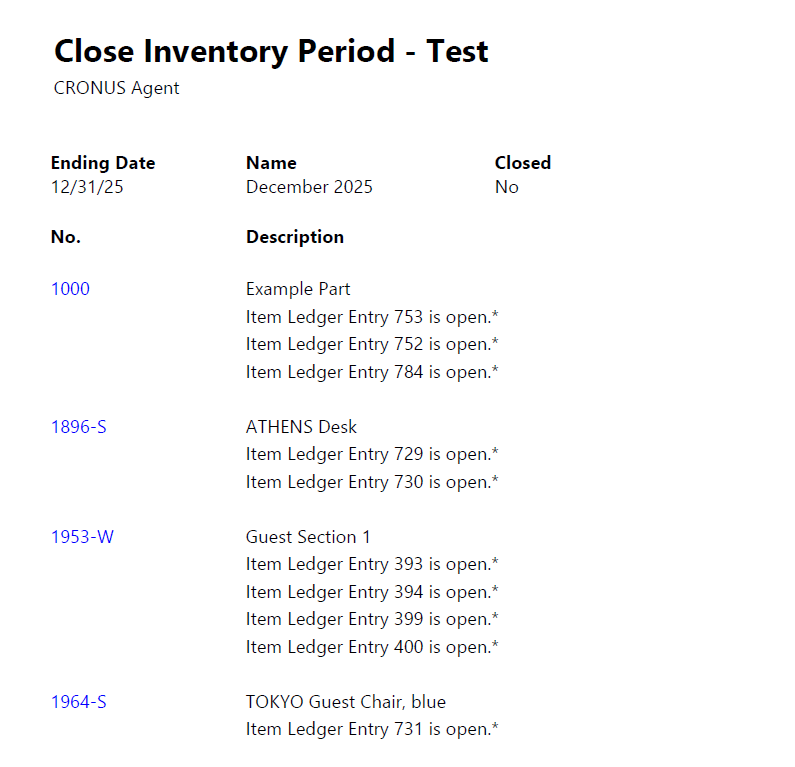
Inventory has its own gate. On the Inventory Periods page, each period is defined by an Ending Date. Once you close one, no inventory value changes can post before that date.
Before closing, run Adjust Cost – Item Entries, the Close Inventory Period – Test report, and Post Inventory Cost to G/L. Then choose Close Period. You can reopen a period later, but reopening also reopens every period after it.
Inventory setup also has an Earliest Allowed Valuation Date that works alongside inventory periods, and a posting is blocked if either setting blocks it. If cost adjustment fails with the “allowed posting dates” error, check the user range of whoever runs it. The adjustment entry may need a date outside it.
A sensible order for tightening things up
Microsoft doesn’t prescribe a schedule, so treat this as a suggestion.
- Before year-end: create next year’s fiscal year so Close Year is available when you need it.
- At cutoff: give your close team a User Setup range that covers the old year and the new one. Then move the General Ledger Setup range to the new year, so everyone else can only post there.
- During adjustments: run cost adjustment, post inventory cost to the G/L, and close inventory periods as the stock side finishes.
- After review: run Close Year, generate and post the closing entry, then pull the close team’s range forward too.
Because Close Year doesn’t block posting, the range fields do that job.
Year-end checklist
- Confirm the next fiscal year exists on Accounting Periods.
- Review General Ledger Setup and User Setup for every user with a custom range.
- Choose fixed dates or date formulas for your boundaries.
- Run cost adjustment before closing any inventory period.
- Close the year only after adjusting entries are posted, and move the posting range afterward.
Thank you for reading!
If you haven’t yet, take a look at the previous post, Year-End Planning in Business Central: Start With a Calendar. Next up is Customer and Vendor Cleanup Before the Books Close.
Sources
- Work with accounting periods and fiscal years
- Close accounting periods
- Closing the books
- Specify posting periods
- Work with inventory periods
- Restrict backdated cost postings
- Error message: Posting Date is not within your range of allowed posting dates
- Assign permissions to users and groups (Set up time constraints for users)
Thank you for reading! If you are interested in learning more, below are some of my latest posts:
Leave a Reply