
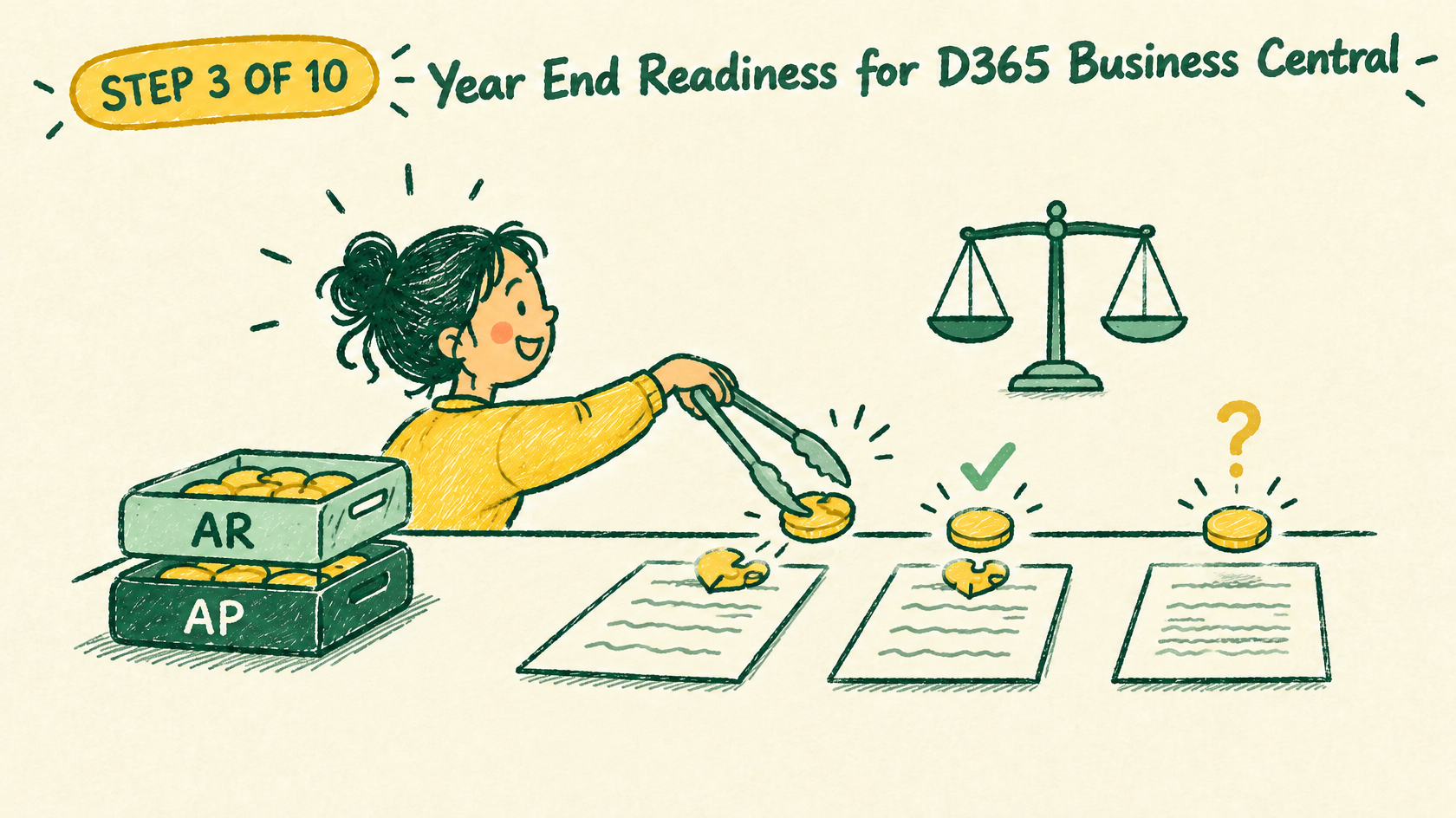
Year-End Readiness: D365 Business Central, Step 3 of 10
Say your AR lead runs the aged receivables report on January 2 and finds a customer payment sitting unapplied since October, two credit memos never matched to an invoice, and a few sales invoices still in the queue that belong in the old year. None of that is hard to fix. It just gets awkward once the period is locked.
Post or delete what is still in the queue
Microsoft’s period-end overview gives you the basic list. On the sales side, post all sales orders, invoices, credit memos, and return orders, plus every cash receipt journal. Do the same with purchase documents and payment journals, and don’t forget recurring journals.
Open the document lists (Sales Invoices, Sales Credit Memos, Purchase Invoices, Purchase Credit Memos) and ask of each one whether it belongs in this year. If yes, post it. If it was a mistake, delete it. Then check every batch in Cash Receipt Journals and Payment Journals, since a line nobody posted is a payment your customer thinks you received.
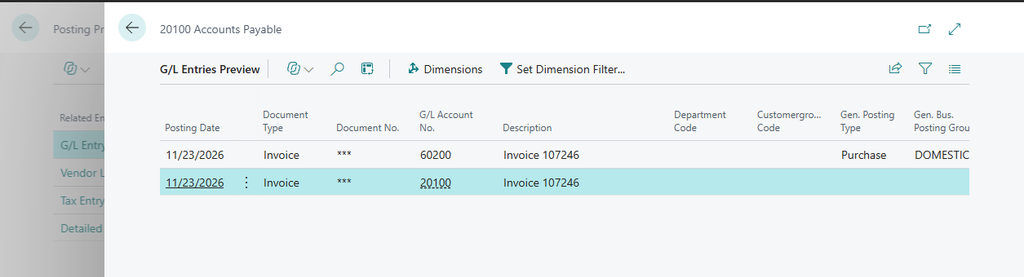
When you are not sure what a document will do, choose Preview Posting. The Posting Preview page lets you select G/L Entry and then Show Related Entries to see exactly what will hit the ledger, without posting anything. If you post in bulk with Post Batch, set tight filters so you do not pick up documents that are not ready, and check the Error Message Register afterward for anything that failed.
Apply and unapply payments and credit memos
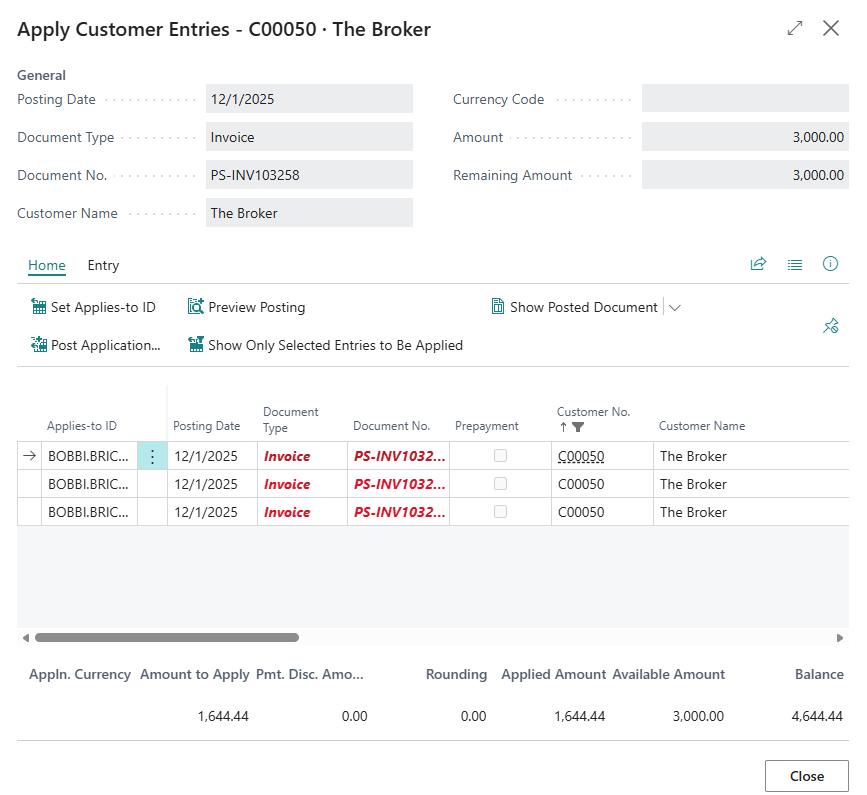
An unapplied payment leaves the invoice open on the aging report, so the customer looks like they owe money they already paid. Credit memos do the same thing in reverse. Applying customer entries works like this: open the customer card, choose Ledger Entries, select the payment or credit memo, and choose Apply Entries. On the Apply Customer Entries page, select the open invoices, choose Set Applies-to ID, check the Amount to Apply, and then choose Post Application. Vendors work the same way from the vendor card, on the Apply Vendor Entries page.
The Application Method on the card matters here. Apply to Oldest applies to the oldest open entry automatically, while Manual means somebody does it by hand.
If you find an application that went to the wrong invoice, select the ledger entry and choose Unapply Entries. Business Central posts correcting entries with the opposite sign, including any payment discount or currency gain or loss, and reopens the closed entries. If an entry was applied more than once, unapply the latest application first. Because unapplying posts new entries, do it while your posting dates are still open.
Posting date, document date, and reminders at the cutoff
Two dates sit on every sales and purchase document, and they do different jobs. The posting date is when the transaction is registered in the books. The document date should match the date on the invoice you sent or received, because Business Central uses it to work out the due date and finance charges. If they are always the same in your company, the Link Doc. Date to Posting Date toggle on Sales & Receivables Setup and Purchases & Payables Setup keeps them aligned. It does not affect journals.
Say a vendor invoice is dated December 30 but arrives January 4. The document date stays December 30. The posting date is the decision. If your posting period is still open (Allow Posting From and Allow Posting To on General Ledger Setup, with User Setup overriding for specific people), you can post it into the old year.
Reminders and finance charge memos need the same thought. Issuing them posts entries when Post Interest or Post Additional Fee is selected on the terms, creating customer ledger and G/L entries. Run Create Reminders or Create Finance Charge Memos only after your payments are applied, or you will charge interest on invoices that are already paid.
Aged reports and the G/L tie-out
Run the aging reports as of your year-end date. For receivables, Microsoft recommends the Aged Accounts Receivable Excel report over the legacy version. For payables, use Aged Accounts Payable. Both reconcile to the control accounts as long as direct posting is turned off on those G/L accounts.
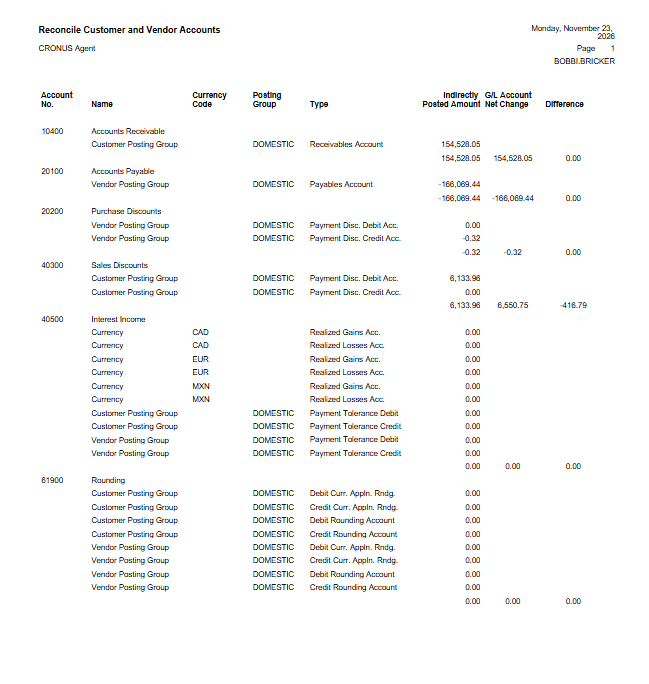
Then tie out. The Reconcile Cust. and Vend. Accs. report totals net change in the G/L and in the customer and vendor ledgers for a period, separated by posting group, and highlights differences. The Receivables-Payables report compares subledger balances to the G/L control accounts for a posting date and currency you choose. Your control accounts should match their subledgers to the penny. If they do not, the posting group breakdown tells you where to look.
Year-end checklist
- Post or delete every open sales and purchase document, and post every cash receipt and payment journal batch.
- Apply all payments and credit memos, and unapply anything matched to the wrong invoice.
- Decide the posting date for each cutoff item, and confirm the document date matches the invoice.
- Create and issue reminders and finance charge memos only after applications are complete.
- Run the aged receivables and payables reports as of year-end.
- Reconcile both subledgers to the G/L control accounts and document any difference.
Thank you for reading!
The previous post, Accounting Periods and Posting Dates: Who Can Post Where, covered locking down who can post and when. Next up is Inventory Costs at Year-End: Adjust Cost and Post to the G/L, where we make sure the inventory side ties out as cleanly as AR and AP.
Sources
- Overview of tasks to close accounting periods
- Preview Posting Results
- Post multiple documents at the same time
- Reconcile customer payments with a cash receipt journal or from customer ledger entries
- Reconcile vendor payments with the payment journal or from vendor ledger entries
- Update document dates with posting dates
- Specify posting periods
- Collect outstanding balances
- Aged Accounts Receivable Excel (report)
- Aged Accounts Payable (report)
- Reconcile Cust. and Vend. Accs. (report)
- Receivables-Payables (report)
Interested in learning more? Check out some of my latest posts:
Leave a Reply