

Budget models, planning worksheets, budget control configuration, encumbrance accounting, budget registers, and the design decisions that determine whether the budget is a reporting column or an actual operational control over spending.
D365 F&O Budgeting — Two Distinct Capabilities
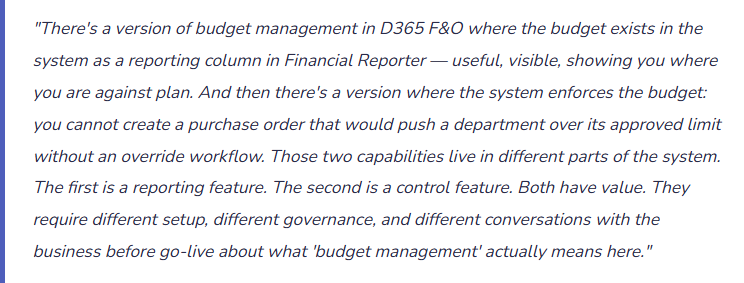
D365 F&O offers two separate but complementary budget-related capabilities that Finance teams sometimes conflate. Understanding the distinction prevents implementing the wrong one — or implementing both when only one is needed.
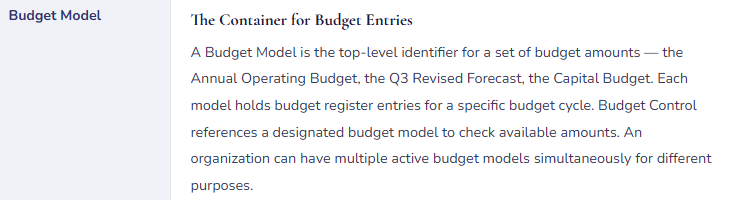
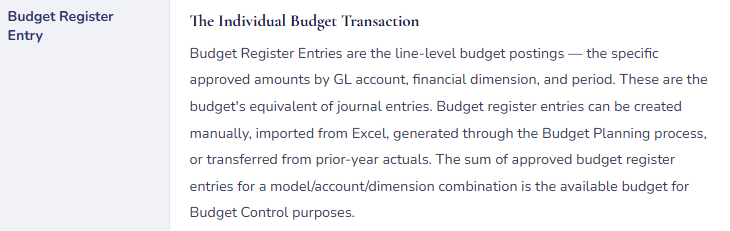
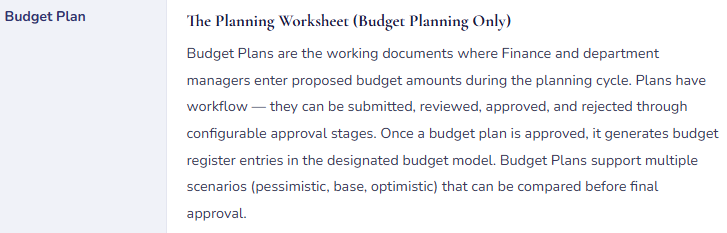
Budget Planning: A structured process for building the budget — worksheets, workflow for budget submissions and approvals, templates, scenario modeling, allocation rules for distributing budget from high-level to detailed account/dimension combinations. Budget Planning is the process of creating and approving the plan. Output is a set of budget register entries that represent the approved budget in the system.
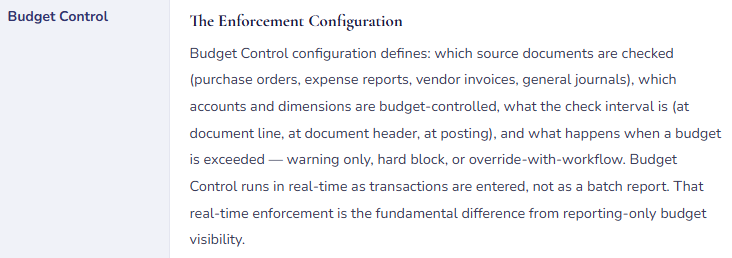
Budget Control: The enforcement layer that checks actual spending commitments (purchase orders, expense reports, journal entries) against available budget before allowing them to proceed. Budget Control is what makes “over budget” a system event rather than a reporting observation. It can be configured to warn only, or to block the transaction until an override is approved.
Many organizations need Budget Planning without Budget Control — they want a structured budget process and reporting visibility but aren’t ready to enforce hard stops at the transaction level. Some organizations need Budget Control without elaborate Budget Planning — they have a simple budget already and just want the system to enforce it. The capabilities are configurable independently. Implement what the organization is actually asking for, not both by default.
Budget Framework — How the Pieces Connect
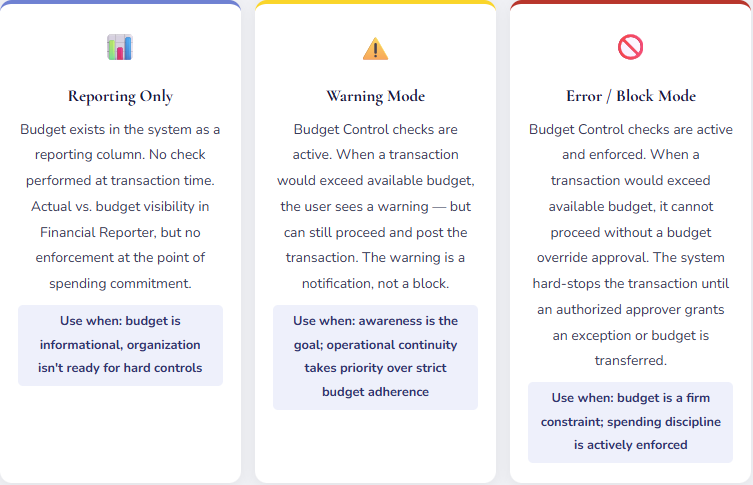
Budget Control — Three Modes, Three Different Conversations
Before configuring Budget Control, Finance needs to have a specific conversation with Operations and leadership about what should happen when a department’s budget is exceeded. The answer to that question determines which control mode to configure — and that’s a governance decision, not a system decision.
Encumbrance Accounting — Reserving Budget Before the Invoice Arrives
Budget Control’s most powerful feature is encumbrance accounting — the ability to reserve budget at the point of commitment, not at the point of expense. Without encumbrance accounting, a department with $50,000 of remaining budget creates five purchase orders totaling $48,000. Budget Control shows $2,000 available. Finance approves. Then the invoices arrive and post — and the department is over budget by $6,000 because three of those purchase orders came in above their estimated amounts. The budget check happened against available budget, but available budget didn’t account for the outstanding commitments.
With encumbrance accounting active, each approved purchase order reduces available budget at the time of PO approval — before any invoice arrives. The budget consumption is tracked through the full procurement lifecycle:
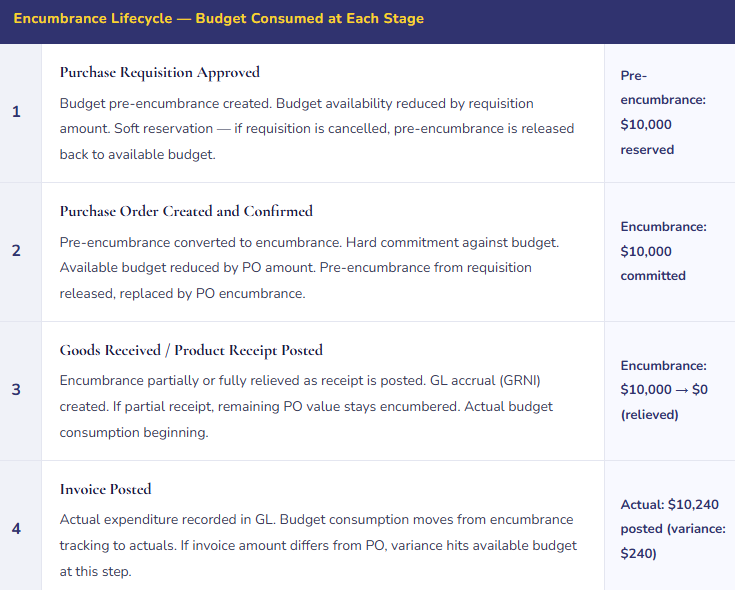
At any point in this cycle, Finance can see available budget by account and dimension — showing original budget, budget register adjustments, pre-encumbrances (outstanding requisitions), encumbrances (outstanding POs), and actual expenditures. Available budget = Original + Adjustments − Pre-encumbrances − Encumbrances − Actuals. That complete picture is what makes budget control meaningful. Without encumbrance, available budget is just original minus actuals — which ignores all the commitments already made but not yet invoiced.
Budget Planning — The Structured Annual Process
D365 F&O’s Budget Planning module provides workflow-driven budget preparation that replaces the email-and-spreadsheet budget process many Finance teams are managing manually. The planning process is configured through Budget Planning Configuration in the Budgeting module, which defines the stages, participants, and data flows in the annual budget cycle.
| Planning Element | What It Defines | Finance Configures |
|---|---|---|
| Planning Process | The overall budget cycle — name, date range, responsible organization, and the sequence of planning stages from submission through final approval | Annual budget cycle structure; links Budget Plans to the appropriate Budget Model for each planning stage |
| Planning Stage | Individual phases in the budget cycle (e.g., Department Submission → Finance Review → Executive Approval → Final). Each stage has a workflow and defines who can view and edit budget plans in that stage. | Stage sequence, associated workflow, which Budget Plan columns are editable vs. read-only at each stage |
| Planning Scenario | Alternative budget versions within a single planning process — Base Case, Optimistic, Conservative. Each scenario appears as a column in the Budget Plan worksheet for side-by-side comparison. | Scenario names and descriptions; the final approved scenario that generates budget register entries |
| Budget Plan Layout | The visual template for the Budget Plan worksheet — which rows (GL accounts), which columns (scenarios, periods), and whether period amounts display as monthly or quarterly | Row definitions mapped to account ranges; period columns configured to match the fiscal calendar |
| Allocation Terms | Rules for spreading budget from a summary level to detail — e.g., spreading an annual departmental total across months using a seasonal pattern, or distributing a divisional budget across cost centers by headcount | Allocation method (evenly, by period weight, by dimension), source and target dimension combinations |
Budget Transfers and Revisions — In-Year Flexibility
The approved budget is rarely the final budget. Priorities shift, circumstances change, and Finance needs a controlled mechanism to transfer budget between accounts or departments mid-year without reopening the entire budget approval process. D365 F&O handles in-year budget changes through Budget Register Entries with revision or transfer transaction types — formal budget adjustments that create an audit trail of every change to the original approved budget.
Budget transfers require governance: who can request a transfer, who approves it, what documentation is required. Budget Control in D365 can enforce this through the budget register workflow — a transfer request routes to an approver before the available budget is adjusted. Without that workflow, budget transfers are self-service, which defeats the purpose of the control. The workflow configuration for budget transfers is as important as the control configuration itself. Define it before go-live, not after the first department head asks for a transfer and discovers they can change their own budget without anyone’s approval.
Five Mistakes That Make the Budget Process More Work Than It Should Be
⚠️ Budget Loaded at Year Level Instead of Period Level — Monthly Variance Is Meaningless
The annual budget is loaded as a single amount against each account — $240,000 for marketing expense for the year. Budget Control checks against that single annual amount. By February, the department has spent $48,000 and Budget Control shows $192,000 available. Everything looks fine. But the budget model assumed marketing expense would be front-loaded — $40K per month in Q1 for trade show season, declining to $12K per month in Q3-Q4. The February actual of $48K against a $240K annual budget masks the fact that the department is $8K over the monthly plan for the second consecutive month. Financial Reporter shows budget vs. actual — but the budget column is $240,000 in every month because that’s what was loaded. The monthly comparison is useless.
Fix: Load budget at the period level — monthly amounts that reflect the intended spending pattern, not a single annual total spread evenly or displayed as a lump sum. Period-level budget loading makes monthly budget vs. actual comparisons meaningful. It enables Budget Control to enforce monthly budget availability when configured appropriately. And it produces the timing-sensitive variance analysis that tells Finance whether a February overage is a seasonal pull-forward or an actual overspend.
⚠️ Budget Control Enabled on Source Documents With No Override Workflow Defined
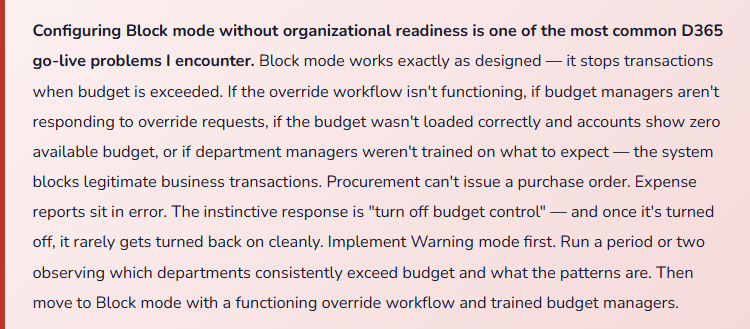
Budget Control is activated on purchase orders in Block mode. No budget override workflow is configured because “we’ll add it later.” A department manager submits a PO that exceeds available budget by $200 — a rounding difference from a vendor invoice that came in slightly over estimate. The PO is blocked. The department manager calls the Finance team. Finance has no mechanism in the system to approve an override — the override workflow doesn’t exist. The fix is to manually adjust the budget register to add $200 of available budget, which takes three approvals and two business days. The department manager is frustrated. Finance is frustrated. The vendor’s delivery timeline is impacted. The lesson should be: never turn on block mode without a functioning override workflow and a trained approver population.
Fix: Design and test the budget override workflow before activating block mode. Define who can approve overrides at different dollar thresholds, what documentation is required for an override request, and what the SLA is for override decisions. Test end-to-end in a sandbox: create a transaction that exceeds budget, submit the override request, approve it, confirm the transaction proceeds. Activate block mode in production only after the complete control-and-override cycle is tested and approved by Finance leadership.
⚠️ Encumbrance Accounting Not Activated — Budget Control Appears to Work But Doesn’t
Budget Control is active in Warning mode. Department A has $50,000 of available budget. A buyer creates three purchase orders for $18,000 each — $54,000 total. Each individual PO is checked against available budget at creation time. PO 1 is created: $50,000 available, $18,000 committed — system shows $32,000 available (without encumbrance). PO 2 is created: system checks $50,000 original against $18,000 actuals (none yet — no receipts posted) — shows $32,000 still available. PO 3 is created: same check, same result. All three POs are created without warning because Budget Control is checking actuals-only available budget, not accounting for the outstanding PO commitments. When invoices arrive, the department is $4,000 over budget. The Budget Control warning system failed not because it was misconfigured — but because encumbrance accounting wasn’t activated, so outstanding POs were invisible to the budget check.
Fix: If Budget Control is active for purchase orders, encumbrance accounting must also be active. The two are designed to work together — Budget Control checks available budget, encumbrance accounting reduces available budget as POs are created so that each subsequent PO is checked against a budget that already reflects all outstanding commitments. Implementing Budget Control without encumbrance is implementing half of a control that only works with both halves operating.
⚠️ Budget Not Updated When Assumptions Change — Variance Analysis Based on Obsolete Plan
The annual budget was built in October based on assumptions: headcount of 180, raw material prices at $42/unit, annual revenue of $28M. By March, headcount is 194, material prices have risen to $49/unit, and the revenue forecast is $31M. Nobody has updated the budget in D365. Budget vs. actual reports for Q1 show massive unfavorable variances across headcount-related costs, material costs, and revenue — because the budget doesn’t reflect current plan. Leadership asks Finance to explain the variances. Finance spends two days preparing a variance bridge that essentially shows “the assumptions in our budget are no longer our assumptions” rather than “here is where our actual performance diverged from current expectations.” The management information is noise rather than signal.
Fix: Establish a formal forecast update cadence — quarterly at minimum, monthly for volatile businesses. When significant assumption changes occur (major headcount change, material price movement above a defined threshold, revenue reforecast), update the budget register in D365 via a budget revision entry. Document the revision with the assumption change that drove it. The budget vs. actual variance should reflect operational performance deviation from a current plan — not the distance between today’s reality and a plan built on last year’s assumptions.
⚠️ Budget Transfers Self-Service — No Workflow, No Audit Trail, No Accountability
Budget transfers in D365 F&O can be configured with or without workflow approval. Without workflow, any user with access to the budget module can transfer budget between accounts and departments without approval. This isn’t a security oversight — it’s a governance decision that produces accountability collapse. A department manager short of budget in Q3 transfers $40,000 from a capital account to operating expense to cover an unanticipated cost. Finance sees the transfer in the audit log six weeks later during close preparation. The capital budget underspend now looks like good news on the capital side; the operating overspend looks managed because the transfer covered it. But the underlying problem — an unanticipated $40K operating expense — was never surfaced to the people who should have made the decision about how to address it.
Fix: All budget transfers should require workflow approval from a designated budget authority — typically Finance or the CFO, depending on amount. Configure workflow for budget register entries with Transfer transaction type before go-live. Set approval thresholds: small transfers (under $5K) may route to a department controller; large transfers route to Finance leadership. Every transfer should require documentation of the business reason. The audit trail of budget transfers is as important to the budget governance story as the actual vs. budget variance.
Do This / Don’t Do This
✓ Do This
- Distinguish Budget Planning (process) from Budget Control (enforcement) — implement what the organization needs
- Load budget at period level — monthly amounts, not annual lump sums
- Start with Warning mode; move to Block mode only when the override workflow is built and tested
- Activate encumbrance accounting whenever Budget Control is active on purchase orders
- Configure workflow for budget transfer entries — no self-service transfers without approval
- Update budget assumptions when significant changes occur — at minimum quarterly
- Test the complete control-and-override cycle in sandbox before activating Block mode in production
- Include budget model loading in the fiscal year-start checklist
- Define override approval thresholds by dollar amount and document them
- Train department managers on Budget Control behavior before go-live — surprises produce workarounds
✗ Don’t Do This
- Implement Block mode without a functioning override workflow
- Activate Budget Control on POs without enabling encumbrance accounting
- Load annual budget as a single period amount — monthly comparison becomes meaningless
- Allow budget transfers without workflow approval
- Let the annual budget stand unchanged through material assumption shifts
- Configure Budget Planning without testing the Excel integration before training users
- Enable budget control on source documents without training the people who create those documents
- Forget to include budget model as a required field in the account structure — it’s the connection between transactions and budget check
Up Next:
Budget control manages spending commitments. For the final post in this arc, we’re going into the reporting and data management infrastructure that supports everything Finance produces: Electronic Reporting, Data Management, and the F&O Reporting Ecosystem — Electronic Reporting (ER) for regulatory and statutory output, Data Management Framework for data import/export, and how the full D365 F&O reporting stack fits together from trial balance to regulatory filing. For Finance teams who need to understand not just what reports exist but how data moves in and out of D365 F&O and what produces each type of output.
Until then — load your budget monthly, activate encumbrance with your budget control, and test the override workflow before you turn on block mode. In that order.
— Bobbi
D365 Functional Architect · Recovering Controller
Leave a Reply