

You never see them working. But when they’re wrong, you absolutely know it. Here’s what posting profiles actually are, why they matter, and how to get them right.
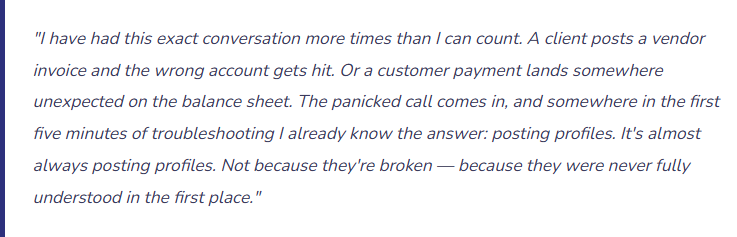
Let’s Start With the Big Question: What Is a Posting Profile?
When you post a transaction in D365 Finance — a vendor invoice, a customer payment, an inventory adjustment, a depreciation run — you don’t manually tell the system which accounts to debit and credit. You just post the transaction, and the system figures out the accounting automatically. Have you ever stopped to wonder how it knows?
The answer is posting profiles.
A posting profile is a configuration table that maps a specific combination of business entities and transaction types to specific general ledger accounts. It’s the rulebook the system consults every single time a financial transaction hits the ledger. It runs silently, instantly, and constantly — every time a journal posts, every time an invoice is confirmed, every time a payment is applied. You never see it happening. But if the rules are wrong, you see the results.
This is also why we saved posting profiles for after the chart of accounts and financial dimensions discussions. You cannot configure posting profiles correctly without a finalized COA. The accounts your posting profiles point to have to exist, have to be the right type, and have to be assigned to the right dimension structures. Everything we’ve talked about in this series so far was building toward this moment.
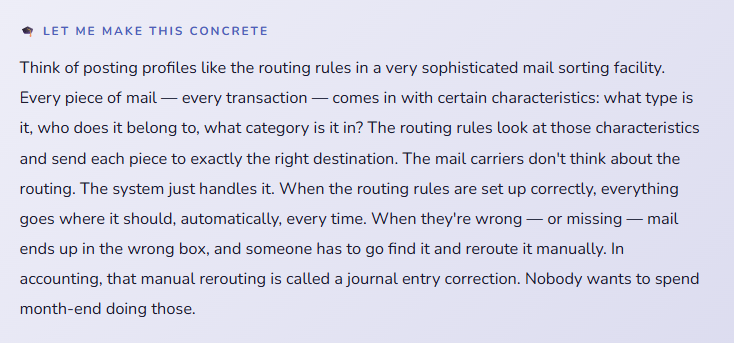
The Big Picture: Posting Profiles Exist in Every Module
Here’s the thing that surprises most people when they first get into the detail: posting profiles are not one thing. They exist in every major module in D365 Finance and Operations, and each one controls the accounting for that module’s transactions. There is no single unified posting configuration page — there’s a separate one in Accounts Payable, Accounts Receivable, Inventory, Fixed Assets, Project Management, and more.
That means that when you’re setting up D365 F&O, posting profiles are not a single conversation — they’re a series of conversations, one per module, all of which require a finalized chart of accounts and dimension structure to complete. This is why scope and sequence matters in an implementation. You can’t do these in the wrong order and expect things to work.
- Accounts Payable Posting Profile
- Controls where vendor balances, prepayments, and payment discounts land when AP transactions post.
- Key accounts: Vendor summary, Prepayment, Cash discount taken
- Accounts Receivable Posting Profile
- Controls where customer balances, deposits, bad debt write-offs, and interest charges post.
- Key accounts: Customer summary, Prepayment, Bad debt expense, Interest
- Inventory Posting Profile
- The biggest one. Controls where inventory value, cost of goods sold, purchase price variance, and inventory adjustments land. Also connects to item groups and warehouse configurations.
- Key accounts: Inventory asset, COGS, Purchase accrual, Price variance, Inventory adjustment
- Fixed Assets Posting Profile
- Controls acquisition cost, accumulated depreciation, depreciation expense, and gain/loss on disposal for every book and asset group combination.
- Key accounts: Asset cost, Accum. depreciation, Depreciation expense, Disposal gain/loss
- Project Accounting Posting Profile
- Controls how project costs, revenue, WIP, and billing transactions hit the ledger — varies significantly based on project type (fixed price vs. time & material vs. investment).
- Key accounts: Project WIP, Revenue recognition, Billing, Cost accruals
- Cash & Bank Management
- Controls where bank transactions, outstanding checks, deposits in transit, and bank fees post. Tied directly to bank account setup in the system.
- Key accounts: Bank balance, Bridging, Outstanding payments, Bank fees
Each of these deserves its own deep-dive, and we’ll work through them in future posts. For now, I want you to understand the architecture — that posting profiles are module-specific, that each one controls different account destinations, and that together they define every automated accounting entry your system will ever make. That is not a small thing.
Let’s Walk Through One: Accounts Payable Posting Profiles
AP is usually the best place to start because it’s the one most finance teams are immediately hands-on with, and it illustrates the logic that carries across every other module’s posting setup.
The AP posting profile in D365 F&O allows you to define different account destinations based on which vendor or vendor group the transaction belongs to. This is the key insight: posting profiles aren’t flat rules that apply universally to everything. They’re lookup rules. The system looks at the specific entity involved in the transaction and finds the matching profile row to determine where to post.
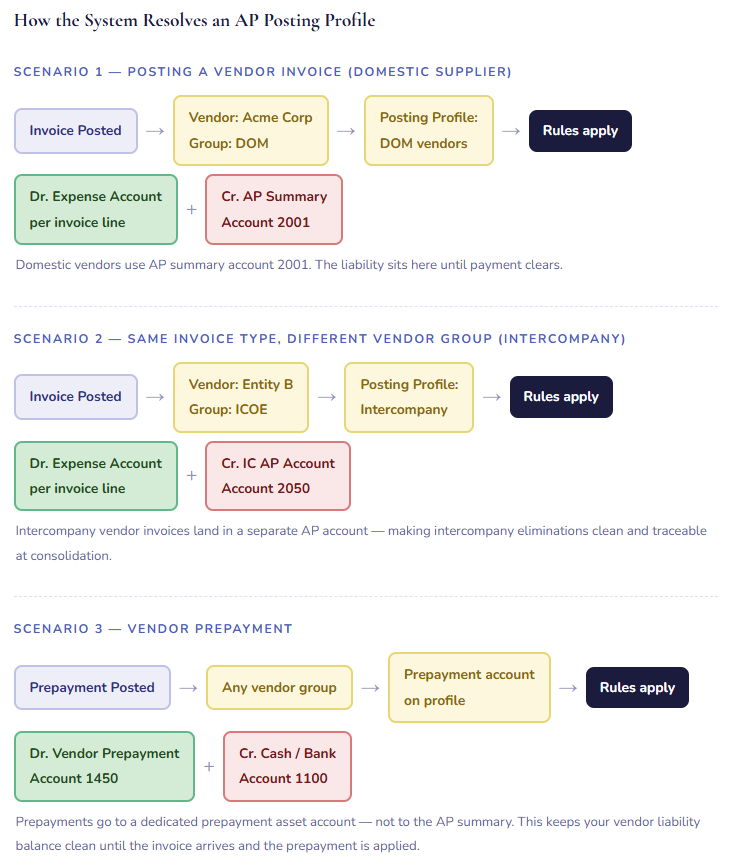
Notice how in every scenario, the system is silently consulting the posting profile to decide where things land. No one is choosing accounts manually. No one is writing a journal entry. The accounting is automatic — and it’s correct, as long as the profile was set up correctly in the first place.
Notice also the prepayment scenario. This is one of the most common posting profile gaps I see in implementations: the prepayment account isn’t configured, or it’s pointed at the same AP summary account as regular invoices, which means prepayments and standard payables are commingled. That makes your vendor liability balance misleading and your balance sheet harder to reconcile. It’s a small configuration detail with outsized accounting consequences.
The Accounts Receivable Posting Profile — Same Logic, Customer Side
The AR posting profile works exactly the same way on the customer side — different accounts by customer group, specific accounts for prepayments, write-offs, interest, and cash discounts. Let me show you the key accounts and what they control, because these are the ones that most directly affect your day-to-day AR operations and your collections process.
| Account Setting | What It Controls | Why It Matters |
|---|---|---|
| Summary Account (AR) | Where customer balances live when invoices are posted and outstanding. The AR subledger rolls into this account. | This must match your AR balance sheet account and be reconciled regularly. Mismatches between the subledger and this account are a red flag — and a common reconciliation headache if the account isn’t set up correctly from day one. |
| Prepayment / Customer Deposit | Where customer cash receipts land when they’re received before an invoice exists. Should be a liability account — you owe the customer delivery of goods or services. | Missing or misconfigured prepayment accounts cause customer deposits to hit AR rather than a liability account — overstating revenue and understating what you owe. Auditors will find this. It’s better if you find it first. |
| Bad Debt Write-Off | The expense account that gets hit when an uncollectable customer balance is written off. | You want this in a specific bad debt expense account — not buried in a general expense line — so your allowance for doubtful accounts and write-off activity is visible and auditable. If your allowance methodology is any part of your financial review process, this account matters. |
| Interest / Fee Income | Where late payment interest and dunning fees land when applied through the collections module. | If your organization charges interest on overdue balances, this needs to be a clearly named income account. Revenue from late fees should not comingle with your primary product or service revenue. |
| Cash Discount Taken | The account that absorbs early payment discounts when customers pay within discount terms. | This is often set up incorrectly as a revenue contra — when it should really be an expense account that represents the cost of offering early payment terms. Small detail, meaningful impact on how your P&L reads. |
Inventory Posting Profiles — The Complex One
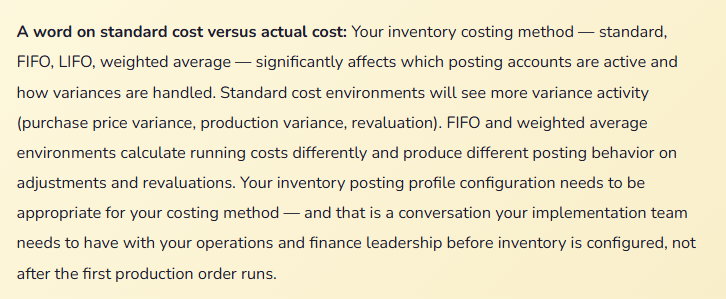
I want to spend a bit more time here because inventory posting is where I see the most configuration errors, and where the downstream consequences are most painful. If AP and AR posting errors affect your balance sheet and subledger reconciliation, inventory posting errors can affect your cost of goods sold, your inventory valuation, and your gross margin — all at the same time.
In D365 F&O, inventory posting is not controlled by a single posting profile in the way AP and AR are. It’s controlled by a combination of item groups, posting types, and account assignments that together define where every inventory-related transaction lands. The matrix is larger and more complex — but the logic is the same.
| Transaction Type | Posting Account | Plain English Explanation |
|---|---|---|
| Issue (Sale) | COGS Account e.g. 5100 | When inventory is sold, its cost moves from the inventory balance sheet account to COGS. This is your cost of goods sold — and if this posting is wrong, your gross margin is wrong. |
| Receipt (Purchase) | Inventory Account e.g. 1320 | When goods are received against a purchase order, the inventory asset account increases. The offsetting credit goes to a purchase accrual account until the vendor invoice is matched and posted. |
| Purchase Accrual | Accrual Account e.g. 2100 | The temporary liability that exists between receiving inventory and posting the vendor invoice. This account should zero out when the PO is fully invoiced. Persistent balances here are a signal of unmatched receipts — worth reviewing at every period close. |
| Purchase Price Variance | PPV Account e.g. 5900 | When the invoice price differs from the PO price, the difference lands here. For standard cost environments, this is expected and monitored. For actual cost environments, it can signal purchasing process issues worth investigating. |
| Inventory Adjustment | Adjustment Account e.g. 5800 | Physical inventory count variances, write-downs, and manual inventory corrections post here. This account should be reviewed at every period close — large balances are worth explaining. Small persistent adjustments may point to a process or system configuration issue. |
| Intercompany Revenue / Cost | IC Revenue / COGS e.g. 4800 / 5500 | When inventory moves between legal entities, the selling entity recognizes intercompany revenue and the buying entity records intercompany cost. These need to be on dedicated intercompany accounts for consolidation eliminations to work cleanly. |
Fixed Assets Posting Profiles — Precision Required
Fixed asset posting profiles are the ones that make auditors pay the closest attention — because they control how your organization records asset acquisition, depreciation, and disposal, all of which directly affect your balance sheet and your tax reporting.
In D365 F&O, the fixed asset posting profile is configured by asset group and transaction type. Different asset groups — machinery, vehicles, leasehold improvements, IT equipment — can and should post to different accounts, especially if your financial statements show fixed assets by category or if your depreciation rates and methods differ by asset type.
| Transaction Type | Account | What Happens |
|---|---|---|
| Acquisition | Asset Cost e.g. 1510 | When an asset is acquired, its cost is capitalized here. This is the gross asset value you’ll see on the balance sheet. |
| Depreciation | Depr. Expense e.g. 6800 | Periodic depreciation charges post to this P&L expense account. If you have multiple asset categories with different useful lives, you may want separate depreciation expense accounts for visibility. |
| Accumulated Depreciation | Accum. Depr. e.g. 1520 | The contra asset that accumulates over the life of the asset. Net book value = Acquisition cost minus Accumulated Depreciation. These two accounts need to be clearly paired and reported together. |
| Disposal — Sale | Gain/Loss on Sale e.g. 7100 | When an asset is sold, the system calculates gain or loss based on net book value versus sale proceeds and posts the difference here. Having a dedicated account for this makes it easy to identify and explain significant asset disposals at year-end. |
| Disposal — Scrap | Loss on Disposal e.g. 7110 | When an asset is scrapped with no sale proceeds, the remaining net book value is written off to loss on disposal. Separate from the sale account so the nature of each disposal is visible. |
The most common fixed asset posting profile mistake I see is not having separate accounts for different asset categories — all machinery, all IT equipment, all leasehold improvements hitting the same acquisition and depreciation accounts. This makes your balance sheet less informative than it should be, complicates depreciation reporting, and makes it harder to manage assets by category. If your organization tracks fixed assets at any meaningful scale, the extra setup time to configure category-specific accounts is absolutely worth it.
The Mistakes That Cause the Most Pain
I have seen posting profile errors cause everything from mild month-end confusion to genuinely material misstatements that required restatement. Here are the ones that show up most consistently.
- Configuring Posting Profiles Before the COA Is Final
- This is the sequencing error that creates a cascade of rework. If you configure your AP posting profile pointing to account 2001 as your vendor summary account, and then two weeks later the COA design changes and that account gets renumbered or restructured, every posting profile that references it has to be updated. In a complex implementation, those references multiply quickly. Configure posting profiles only after the COA design is locked, signed off, and done being debated.
- Posting profile configuration is a Phase 2 activity in your build sequence — after COA, dimensions, and account structures are finalized. Treat any deviation from that sequence as a risk item that needs escalation.
- Using the Same Summary Account for Everything
- Some implementations — especially migrations from simpler systems — configure a single vendor summary account and a single customer summary account and call it done. The system technically works. But you lose visibility into intercompany balances, domestic versus international payables, prepayments versus standard balances. When you go to eliminate intercompany payables at consolidation and everything is in one account, you are doing that work manually. That is a very unpleasant way to close a period.
- Design your posting profiles with the end-of-period processes in mind. Consolidation, intercompany elimination, subledger reconciliation — if any of those processes depend on being able to separate certain transaction types by account, build that separation into your posting profiles from the start.
- Not Testing Every Posting Profile Before Go-Live
- This sounds obvious and yet it happens constantly. A team configures the AP posting profile and tests a few vendor invoices. They confirm it looks right and move on. But they never tested a prepayment. They never tested a credit memo. They never tested a payment with an early discount. Go-live arrives, the first vendor prepayment gets posted — and lands in the AP summary account instead of the prepayment asset account. The data has to be corrected. The correction takes time. During that time, the balance sheet is wrong.
- Build a posting profile test script that covers every transaction type in every posting profile, for every account. Vendor invoice, credit memo, prepayment, payment with discount, payment without discount. Customer invoice, credit memo, deposit, write-off. Run every test scenario before UAT. Confirm the account that gets hit is the account you intended. Every single one.
- Inventory Posting Profiles Configured Without Operations in the Room
- Inventory posting sits at the intersection of finance and operations, and the people who understand the warehouse processes — how goods are received, how transfers work, how production orders consume materials — are often not in the posting profile design conversation. Finance configures the accounts. Operations goes live. The first production order runs, and inventory lands in an account nobody expected because the production transaction type wasn’t configured for the right posting rule. Fixing inventory posting after live transactions exist is particularly messy because inventory transactions can’t simply be reversed and reposted the way journal entries can.
- Bring your warehouse manager, your production supervisor, or your operations lead into the inventory posting profile design. Walk through every transaction type they’ll use. Make sure the account destination for each one reflects both the accounting treatment Finance needs and the operational reality of how the transaction actually happens.
- Forgetting the Offset Account Logic on Journals
- When users post manual general journals in D365 F&O, the system can use a default offset account defined in the journal setup. If those defaults aren’t configured thoughtfully, users end up with journal lines that offset to unexpected accounts — or to no account at all, causing out-of-balance errors that are confusing and time-consuming to sort out. Journal setup and posting defaults are part of your posting profile conversation, even if they live in a slightly different configuration area.
- During UAT, have your most frequent journal entry users test their most common journal types. Watch where the offset accounts land. If they’re not defaulting correctly, trace it back to the journal setup configuration — not the COA.
A Practical Approach: How to Tackle Posting Profile Setup
Here’s the sequence that consistently produces clean results. This is not the order that feels fastest — it’s the order that avoids rework.
The Right Sequence for Posting Profile Configuration
01 Finalize your COA and account structures first. I know I keep saying this. That’s because it keeps being true. Every posting profile points to specific accounts. Those accounts need to exist, be the right type, and be properly structured before you start assigning them to posting rules.
02 Document your intended posting logic before you configure it. For each module, build a matrix: transaction type, entity group, intended debit account, intended credit account. This becomes your configuration reference and your test script. If someone asks why account X is set up that way, you have an answer. If an audit asks the same question three years from now, you still have an answer.
03 Configure module by module and test as you go. Don’t configure all six modules’ posting profiles in one sprint and test them all at the end. Configure AP, test AP completely. Then move to AR. Then inventory. Catching a posting profile error in module-specific testing is far less disruptive than catching five of them simultaneously in UAT.
04 Test every transaction type, not just the common ones. The vendor prepayment. The customer deposit. The inventory adjustment. The asset disposal. The intercompany transfer. The ones you test least are the ones that fail at the worst possible time — usually at period close, when you have the least patience for troubleshooting.
05 Pull a trial balance after each testing cycle and review it. After posting your test transactions, pull a trial balance and check that every account that was supposed to be hit was hit — and no account was hit unexpectedly. An unexpected debit or credit on an account you didn’t intend is a posting profile misconfiguration waiting to become a live data problem.
06 Document what you configured and why. Six months after go-live, your team will encounter a transaction that behaves unexpectedly, and the first question will be “why is it configured this way?” If the configuration rationale was captured during implementation, that question has a fast answer. If it wasn’t, someone is going to spend a long time reverse-engineering a decision that took twenty minutes to make. That documentation is not glamorous work. It is, however, extremely kind to future-you.
Quick Reference: Do’s and Don’ts
✓ Do This
- Finalize COA and account structures before starting posting profile configuration
- Document intended account logic for every transaction type before configuring
- Set up separate summary accounts for different vendor and customer groups
- Configure dedicated prepayment accounts for both AP and AR
- Build category-specific posting accounts for fixed assets
- Involve operations in inventory posting profile design
- Test every transaction type — not just invoices and payments
- Pull a trial balance after each testing cycle and review unexpected balances
- Set up intercompany accounts from day one if you have multiple entities
- Document configuration decisions with the reasoning behind them
✗ Don’t Do This
- Configure posting profiles against a COA that hasn’t been finalized
- Use a single summary account for all vendor or all customer transactions
- Skip prepayment account setup because “we don’t do many prepayments”
- Configure inventory posting without involving operations
- Assume posting profiles are set correctly because the first two test transactions looked right
- Leave intercompany posting to “figure out later”
- Skip fixed asset category-specific accounts for larger asset portfolios
- Make posting profile changes after go-live without a formal change process and impact assessment
- Mix prepayments and standard balances in the same summary account
- Rely on memory to explain why accounts were configured the way they were
The honest summary: Posting profiles are the place where all the foundation work you’ve done on your COA and financial dimensions becomes real. They’re what transforms a list of accounts into a working, automated accounting engine. When they’re right, you barely know they exist — transactions post correctly, subledgers reconcile, period close is orderly. When they’re wrong, you know it immediately, and the fixes are almost always more work than the original configuration would have been.
They reward careful, sequential, well-documented setup. They punish rushing. That’s not a bad lesson for this entire series, honestly.
Up Next:
We’ve built the foundation — COA, financial dimensions, and posting profiles. Next, we’re going to put it all together and walk through the Accounts Payable module end-to-end in D365 F&O: from vendor setup to purchase orders to invoice matching to payment runs. The full lifecycle, in plain language, with the “and here’s why it works this way” explanations that make the process actually make sense.
If your AP team is going live soon — or already live and still figuring things out — that one’s for them.
Until then: document your posting logic, test every transaction type, and remember that month-end close is a lot more peaceful when the accounts are right from day one.
— Bobbi
D365 Functional Architect · Recovering Controller
Leave a Reply