
Set It Once · A back-to-basics series · D365 Finance & Operations
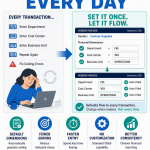
Open in Excel pulls a live grid into a spreadsheet, lets you edit like a pro, and publishes your changes straight back into F&O.

Here is a small confession from the consulting side of the desk. Many of the change requests I see that ask for a developer could have been solved by the person who filed them, in Excel, in about ten minutes. They just did not know the button was there or how the functionality works.
F&O has a feature called Open in Excel. It pulls a live grid out of the system, drops it into a real Excel workbook, lets you edit like you would edit any spreadsheet, and then pushes your changes straight back into F&O. No data project, no import template, no ticket. It is the fastest way to do a bulk update that exists in the product, and it is sitting in the toolbar of nearly every list page.
The idea in one minute: A live spreadsheet, not an export
This is not the same as exporting to a static file. The workbook stays connected to F&O through a small add-in. Data you change in the sheet does not just sit there, it publishes back to the system when you click Publish. Think of it as editing the same data, only in a tool your fingers already know.
1. Edit a list in Excel and publish it back
- Open the list page you want to update, for example general ledger, released products or open customers.
- In the top command bar, click the Open in Microsoft Office icon, then choose the Open in Excel option offered for that grid.

- Open the downloaded workbook and choose Enable editing. If the add-in prompts you to sign in, you will need to do so in order for the functionality to work.
- Make your edits in the sheet, the same way you would edit any spreadsheet.
- In the Data Connector pane on the right, click Publish. Your changes flow back into F&O.
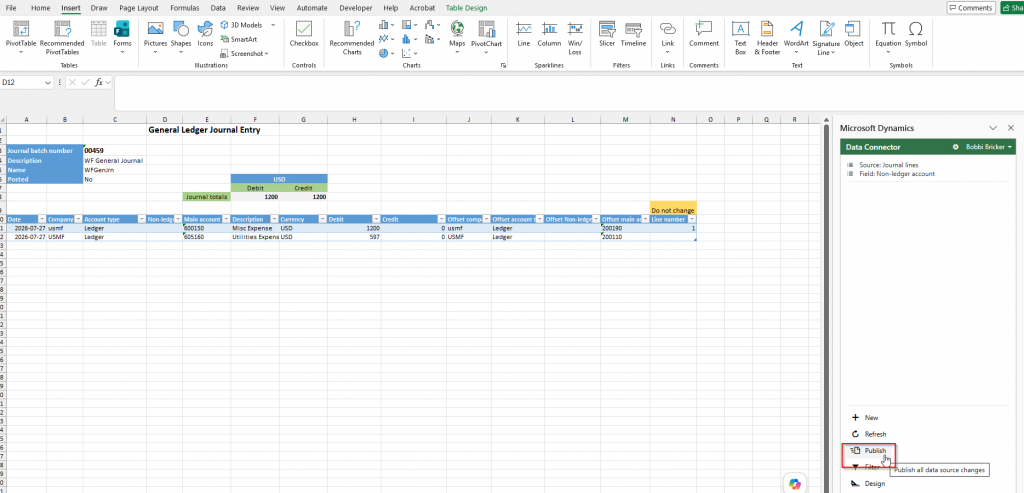
Important Note: This is an extremely powerful tool, please ensure that it is being used in accordance to your company policy.
If you don’t see them, you can add the fields you actually need
- In the workbook, open the Data Connector pane and click Design.
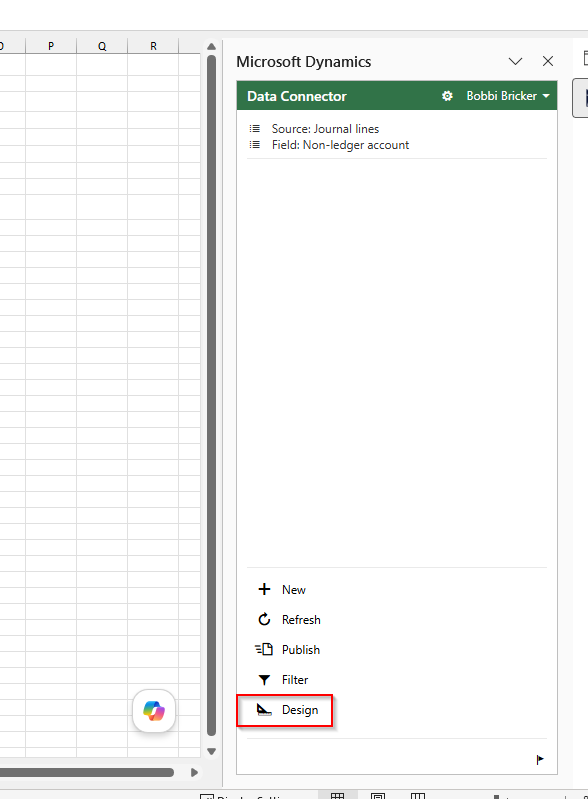
- Add or remove columns for the entity so the sheet holds exactly the fields you want to touch.
- Click Update to refresh the data with your new layout.
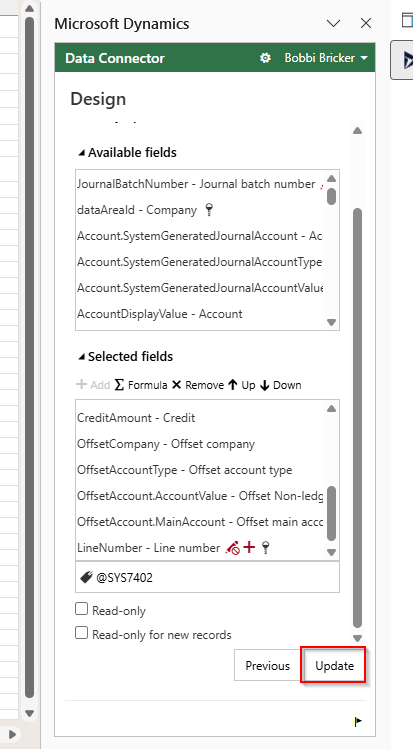
- Edit and publish as before. If this is a layout you will use more than once, save it and and you can reuse it the next time you need to make a bulk update.
The one-time setup, in plain terms
The first time you use this, Excel may ask to trust the Data Connector add-in and sign you in to your organization. That is a normal one-time prompt, not a red flag. Say yes, and every future workbook just works.
The next time a mass update lands on your desk, before you email anyone, ask whether it is a grid you can open in Excel. More often than not, it is, and you are done before the reply would have come back.
Up Next: Build Your Home Base in Finance & Operations – Workspaces, Tiles, and Favorites
Thank you for reading!
Interested in learning more? Below are my latest posts:



Leave a Reply