

Picture your Monday morning. You open Business Central, click into the Purchase Invoices list, and start rebuilding the same filter you built last Monday. Status equals Pending Approval. Vendor equals a specific one you’re keeping an eye on. Sort by due date. You do this every week, sometimes every day, and it eats five or ten minutes before you’ve actually looked at a single invoice.
There’s a feature sitting right there in the list page toolbar that fixes this, and most people never touch it.
The idea in one minute
Business Central lets you save a filtered, sorted list as a named view that you can jump back to with one click. Set your filters once, save them with a name, and that exact configuration is waiting for you every time you open that list, on any device, in any browser. No more rebuilding. No more remembering which combination of fields you used last time. You just click the view and you’re there.
How you actually create one
Open any list page in Business Central (this works on list pages specifically, not worksheets or lookup windows). Click the filter icon at the top of the list, or press Shift+F3, and set your filters the normal way. Once the list shows exactly what you want, look for the Save View icon near the filter pane. Click it, and a text box pops up defaulting to “All (Copy).” Rename it to something you’ll recognize later, like “My Invoices to Approve” or “Flagged for Review,” then hit Enter.
That’s it. The view now shows up as its own tab at the top of the list, right alongside the default “All” view. Click between tabs and the list re-filters instantly to whatever that view was saved with.
In the screen shot below, you can see that I’ve made changes but haven’t saved them yet, the “My Deposits to Review” view has been changed and can be renamed/saved.
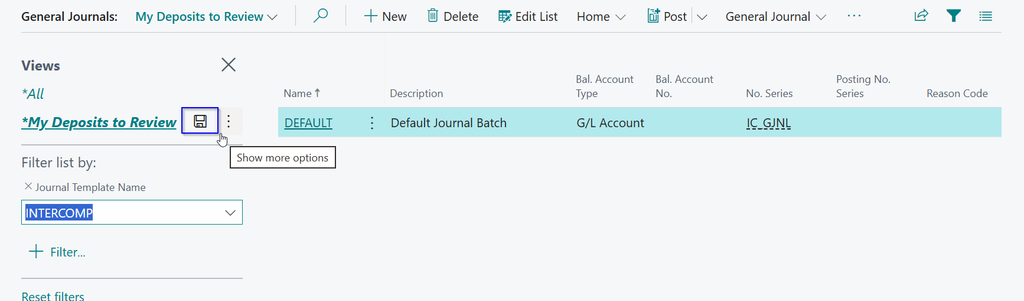
A couple of practical notes worth knowing before you start saving views everywhere. If your filter uses a relative date expression, like the last week or today, the FAQ page confirms that Business Central saves the expression itself, not a frozen date range. So a view filtered to “this week” actually shows this week, whenever you open it. That’s a small detail, but it’s the difference between a view that’s still useful in three months and one you have to rebuild anyway.
You can also rename or remove a view later through its “Show more options” icon, and if your list gets cluttered with views you no longer need, the personalizing banner lets you hide or reorder them without deleting anything. Views themselves live in your personal settings in the database, so they follow you across sessions, but they aren’t something you can hand off to a coworker directly. If you want someone else to see the same filtered list, you’d copy the URL and send that instead, since the FAQ page notes views can’t be shared as a saved object the way, say, a report layout can.
Why this matters for the human-in-the-loop part of your job
Here’s where this connects to what we talked about in the first post in this series, “Make the System Work Like You Do.” If part of your role now involves checking a review queue, invoices an AI agent flagged as unusual, a list of vendors that don’t match your Known Senders exceptions, or anything else routed to you for a judgment call, that queue is really just a filtered list. And a filtered list you have to rebuild every single time you check it is friction you don’t need.
Save that filter as a view once. Name it something obvious. From then on, checking your review queue is a single click, not a five-minute setup exercise before you even get to the thinking part. Your job in a human-in-the-loop workflow is to bring judgment to the exceptions that need it. A saved view means you spend your time on that judgment instead of on plumbing.
This is a small feature. It won’t show up on a highlight reel of AI capabilities. But it’s exactly the kind of thing that makes the difference between a review process people actually keep up with and one that quietly gets skipped because it’s annoying to open. ✅
A quick starting point
If you check the same filtered list more than once a week, that’s a good candidate for a saved view. Start with whatever queue is currently eating the most of your setup time and give it a name you’ll recognize at a glance.
Thank you for reading!
Next up in this series, we’re talking about the tool most finance people already trust more than anything else in their tech stack: Excel. Post #3, “Excel Is Still Your Best Friend,” looks at how it still fits into a human-in-the-loop process even as more of the routine work moves to automation.
Sources
- Views – Business Central | Microsoft Learn
- Frequently Asked Questions about List Views – Business Central | Microsoft Learn
Interested in learning more? Below are some of my latest posts:

Leave a Reply