

Be honest: when someone hands you a list of numbers and asks “does this look right to you?”, what’s the first thing you do? If you’re anything like me, you dump it into Excel, throw a filter on it, sort a column or two, and start poking around. That instinct doesn’t go away just because the data came out of Business Central. And it shouldn’t.
This is post #3 in my “Human in the Loop, With Tips” series for Business Central (BC). Last time, in Save Yourself the Re-Filtering, I talked about keeping your filtered views ready to go instead of rebuilding them every morning. This week I want to show you a feature that a lot of finance folks either don’t know exists or forgot was there: editing Business Central data directly in Excel, live, with a real connection back to your BC data.
The idea in one minute 💡
Business Central has a feature called Edit in Excel that opens a list page as a connected Excel worksheet. It’s not a static export. You edit the data using normal Excel tools, sort, filter, PivotTable, whatever you’d normally do, and then publish your changes straight back into Business Central from inside Excel. No re-typing, no copy-paste, no separate import file.
What “Edit in Excel” actually does
Most list pages in BC have a Share icon at the top, and tucked under it is the Edit in Excel action. Click it, and Business Central opens the list in Excel with an add-in pane running alongside your worksheet. That add-in is what keeps the connection alive. Depending on how your organization has things configured, the workbook opens right in Excel for the web in your browser, or it downloads for you to open in the Excel desktop app.
Here’s the part I really like: it respects most of the filters you already had applied on the BC page. So if you filtered your customer list down to a specific region before clicking Edit in Excel, that same filtered set is what shows up in the worksheet. You’re not starting from a giant unfiltered dump every time.
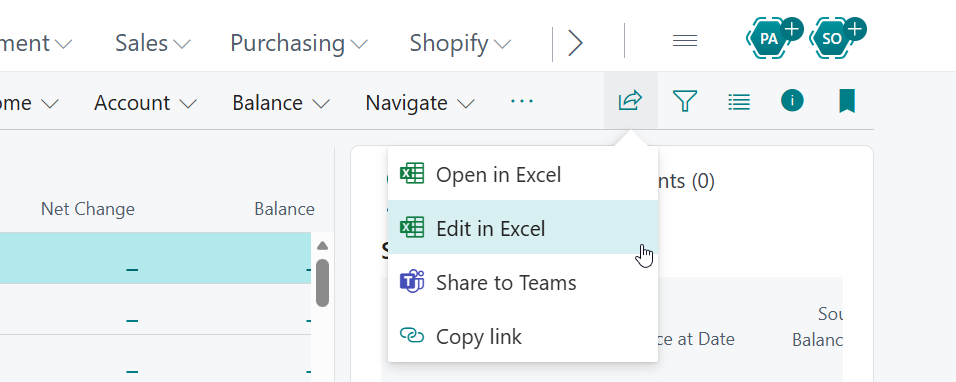
Once you’re in Excel, you edit like you normally would. Change a value in a cell, fix a typo, adjust a date. When you’re ready, you use the controls in the add-in pane to publish those changes back to Business Central. There’s also a Refresh option in that same pane, so if someone else updates the records while you’re working, you can pull the latest version before you publish anything. Worth knowing: this is different from the plain Open in Excel option, which only lets you view and export data. Edit in Excel is the one that writes back.
Why this matters as AI takes on more of the busywork
Here’s where this ties into the bigger theme of this series. As AI tools take over more of the first-pass data entry and drafting work in D365, ✅ it becomes even more important that a human actually looks at what got generated before it becomes the official record. That review step is the whole point of “human in the loop.” An AI agent can draft a batch of vendor entries or suggest edits to a price list, but somebody who understands the business still needs to sanity-check it.
And Excel is genuinely one of the best tools ever built for that kind of review. You can sort a column to spot the outlier. You can build a quick pivot to see if the totals make sense. You can eyeball a hundred rows in a way that’s just harder to do scrolling through a BC list page. Edit in Excel means you don’t have to choose between that familiar review workflow and getting your corrections back into the system cleanly. You get both.
A couple of practical notes
A few things to keep in mind before you dive in. The Edit in Excel add-in currently works in Excel for the web and the Excel desktop app on Windows, but it’s not supported on the Excel app for macOS. And if you’re pulling a list with a lot of columns while your system is set up to use OneDrive, Business Central will cap the export at 100 columns so the workbook stays usable in Excel for the web. If the add-in isn’t installed yet, BC will walk you through installing it, or you may need to ask your administrator, since getting the add-in set up is sometimes an IT-managed step. ⏳
Thank you for reading!
Next time in the series, I’m looking at how to trace a number back to the transactions behind it, in post #4, “See the Story Behind the Numbers.”
Sources
Interested in learning more? Below are some of my latest posts:





Leave a Reply