
Year-End Readiness: D365 Finance & Operations, Step 2 of 10
Say it’s the second week of January. Your board package went out Friday, and on Monday someone in AP posts a vendor invoice dated December 28. If December is still open, that invoice lands in the ledger and your numbers move after everyone has already seen them. The ledger calendar is how you stop that.
Fiscal calendar versus ledger calendar
A fiscal calendar is the structure: fiscal years and the periods inside them. It can run January through December or any dates you choose, such as July 1 to June 30. Per Microsoft Learn, a fiscal calendar is independent of your organization, so several legal entities can share one. You maintain it on the Fiscal calendars page.
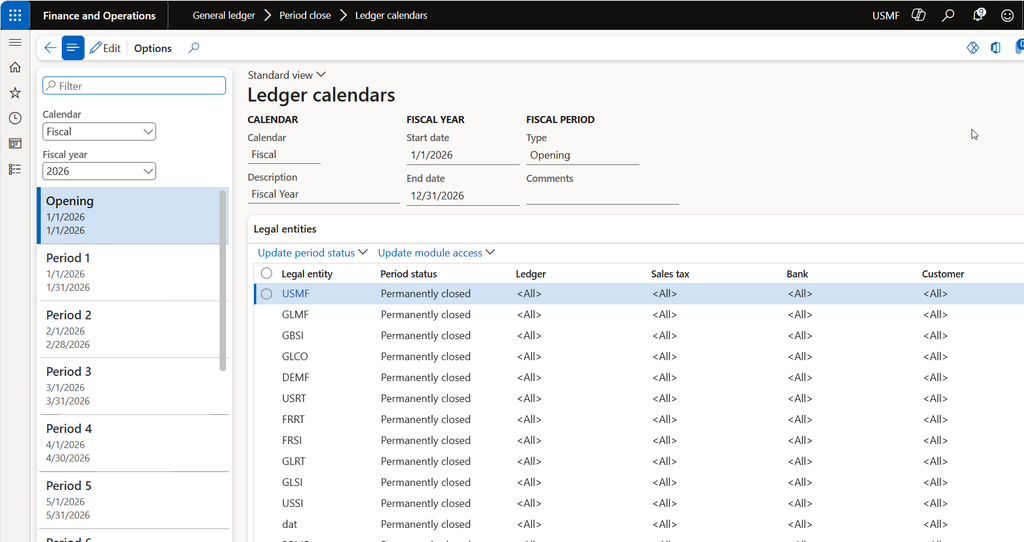
The ledger calendar is where that structure meets a specific legal entity. You pick the fiscal calendar for each legal entity on the Ledger page (General ledger > Ledger setup > Ledger). After that, the Ledger calendars page (General ledger > Calendars > Ledger calendars) is where you set period statuses and posting permissions.
Status is set per legal entity because entities sharing a calendar won’t all be ready to close on the same day. One can hold December while a slower one finishes.
The three statuses and the risk of old periods
A period can be Open, On hold, or Permanently closed.
- Open: the period can be posted to, as long as the user has access.
- On hold: nobody can post, but you can reopen the period.
- Permanently closed: the period can never be reopened, and adjustments can’t be posted.
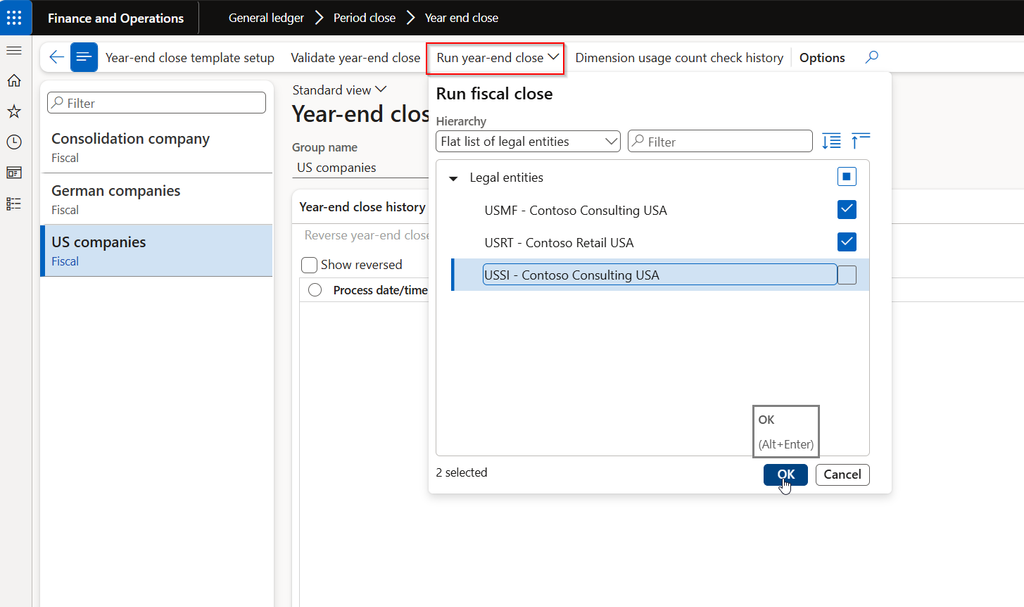
Microsoft’s period-end guidance says to use On hold for routine closes and not Permanently closed, since you can’t take it back. The year-end close page recommends leaving the Set fiscal year status to permanently closed parameter at No. Save Permanently closed for after your audit is finished.
Old periods left open are an invitation. A backdated invoice, a journal with the wrong date, or an integration that defaults to an old date can post quietly into a year you thought was done. Holding a period is easy to undo, so err on the side of holding.
Controlling modules and user groups
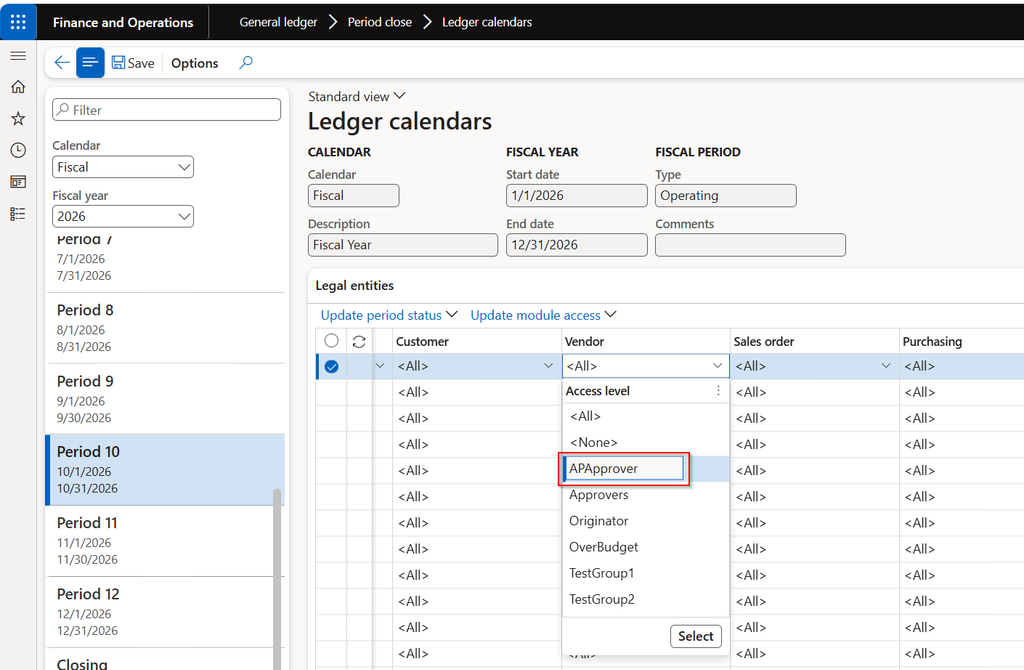
Status is the blunt tool. Module access is the precise one. Each period has access settings by module, and Microsoft’s troubleshooting article lists Ledger, Sales tax, Bank, Customer, Vendor, Sales order, Purchasing, Inventory, Production, Project, Fixed assets, and more. For AP and AR you’ll work with the Vendor and Customer entries.
For each module you choose All, None, or a specific user group. All is the default. Per the mass period close article, None means no one can post to that module even though the period is open, and a user group means only its members can post.
That lets you keep the Ledger open to your accounting team for adjusting entries while Vendor and Customer are shut to everyone except a small cleanup group. With several entities, Update module access and Update period status change them in one pass.
Close the subledgers first, then the ledger
Microsoft’s list of period-end steps starts with completing the tasks for the other modules, such as Accounts receivable, Accounts payable, and Inventory. Holding the ledger period comes last. Subledger activity produces ledger entries, so your AP and AR balances need to agree with their control accounts before you lock anything. If you hold the ledger first, a late subledger posting is either rejected or sends you back to reopen the ledger.
Here’s a staging sequence for a calendar year that adapts to any fiscal year end.
- Through December: keep current periods Open and hold earlier months as you finish them.
- Early January: set December access for Vendor, Customer, and Inventory to None, or to a small group finishing cutoff work. Keep Ledger open to your accounting team.
- After subledgers reconcile: finish adjustments, then restrict Ledger to a controller group.
- When December is final: put the year’s periods On hold and run year-end close.
- If an adjustment turns up: reopen only the period you need, post, hold it again, and rerun year-end close.
- After the audit: consider Permanently closed, and confirm with your auditors first.
If you use budget control, Microsoft recommends completing the purchase order year-end process before you close or hold the last period of the year.
Year-end checklist
- Review period statuses on Ledger calendars for each legal entity, and hold any prior-year periods still Open.
- Pick the user group that handles late posting and set module access for Vendor, Customer, and Inventory.
- Reconcile the subledgers before you restrict the Ledger.
- Confirm Set fiscal year status to permanently closed is set to No.
Thank you for reading!
If you missed the previous post, Build Your Year-End Calendar Before December Builds It for You, it pairs well with this one. Next up is Subledger Cleanup: Getting AP and AR Ready for the Cutoff.
Sources
- Fiscal calendars, fiscal years, and periods
- Maintain periods for your organization (training module)
- Mass financial period close
- Close the general ledger at period end
- Year-end close
- Troubleshoot inventory closing, recalculation, and reverse operations
Interested in learning more? Below are some of my latest posts:
Leave a Reply