
Year-End Readiness: D365 Finance & Operations, Step 1 of 10
It’s the second week of January. Someone asks who owns the final depreciation run, and three people look at each other. AP is still keying December invoices, the inventory close is waiting on receipts nobody has matched, and the auditors want a hand-off date. Every one of those gaps comes from a missing schedule, and you can fix that now while the calendar is still quiet.
Start with dates, owners, and cutoffs
Write the year-end plan like a small project plan. Every activity gets a date, a named owner, and a definition of done. Cover the AP and AR cutoffs, inventory close, depreciation, bank reconciliations, tax prep, the final close, and the audit hand-off.
For example, lets say the AP lead sets Friday as the last day to enter December invoices. Everyone downstream now knows when the numbers stop moving.
If you use budget control, add the purchase order year-end process to your plan. Year-end close says non-closed budget-controlled documents must be closed or moved first.
Put the activities in the right order
Order matters because each step feeds the next. Microsoft’s Close the general ledger at period end article starts with completing the tasks for the other modules, such as Accounts receivable, Accounts payable, and Inventory. The ledger comes after the subledgers because it takes what they post. Here’s a sample sequence you can adjust:
- Subledger cutoffs. Confirm AP and AR are done and all journals are posted.
- Inventory close as of year-end.
- Fixed asset depreciation, posted through the fixed assets journal.
- Bank reconciliations through year-end.
- Foreign currency revaluation, ledger settlements, and allocations.
- Adjusting entries, consolidation, and a first pass at the financial statements.
- Tax reporting prep. Confirm requirements and deadlines with your tax advisor.
- Periods set to On hold, year-end close, and audit hand-off.
The inventory close settles issues to receipts and can update the general ledger with the adjustments. Until it runs, issues post at running average cost, so a GL review done first covers numbers that are about to change. Once it’s done, you can’t post before the closing date unless you reverse the close, so get receipts financially updated first. You’re also warned if you try to close a financial period without it (moving average is the exception).
Depreciation follows the same logic. The depreciation proposal creates a journal in the fixed assets journal, and the entries don’t hit the ledger until you post it. Post it before anyone signs off on the P&L.
One more point on the last step. Putting periods On hold stops further posting, and the period can be reopened if an adjustment turns up. Microsoft’s Mass financial period close article says not to set a period to Permanently closed until all adjustments and audits are complete, because it can never be reopened.
Build the plan in the Financial period close workspace
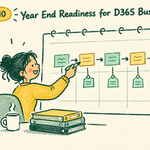
The Financial period close workspace tracks tasks across companies, areas, and people, so the plan lives in the system instead of a spreadsheet.
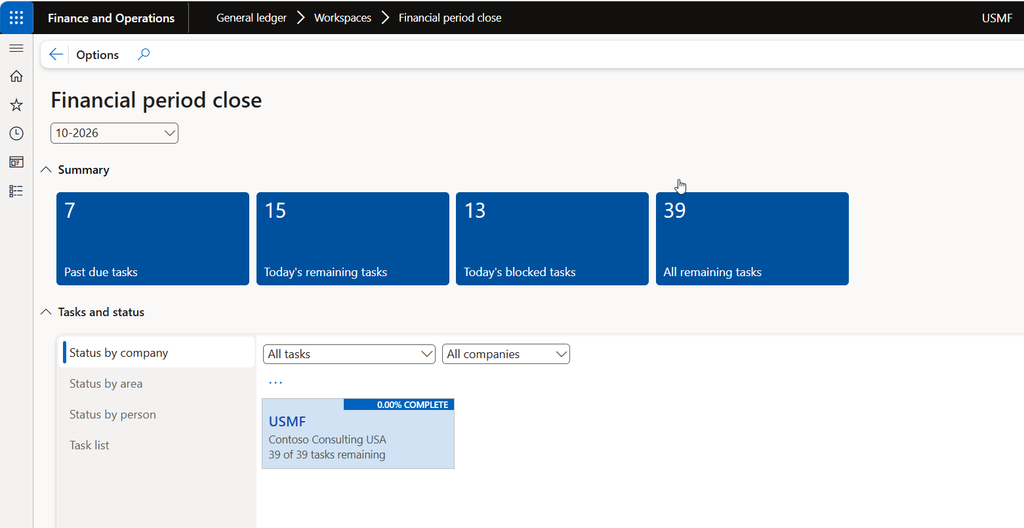
Setup starts at General ledger > Period close > Financial period close configuration. Its tabs cover Resources (who sees what), Task areas (such as Accounts payable or General ledger), Calendars, and Templates. On the Calendars tab, mark holidays as Closed so no task lands on December 25.
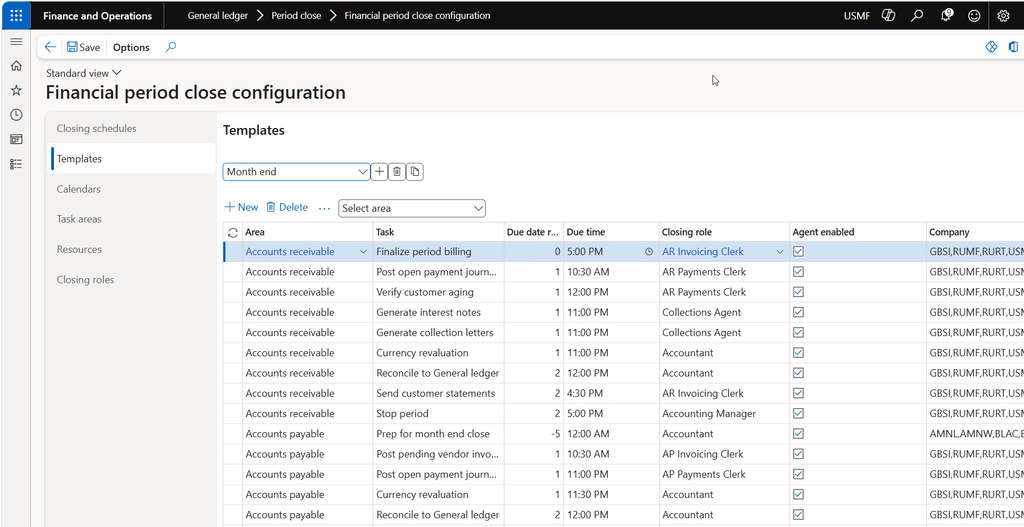
In a template, each task gets a relative due date, which is the number of days before or after the period end date, plus a due time. You can set dependencies so a task can’t be marked complete until the tasks before it are. That enforces “inventory close before GL review” without relying on memory. A task link takes people straight to the page where the work happens.
You can create separate templates for different period types, such as month end and year end, so build a year-end template instead of stretching your monthly one. Then create a closing schedule, which pairs the template with a period end date and the companies involved. The system generates the dated tasks. When you’re finished, mark the schedule Closed. The history stays in the All financial period close tasks list, which exports to Excel for your auditors.
Where the rest of the series fits
The posts that follow take these pieces one at a time. Step 2 covers ledger calendars and period statuses, which control who can post where while you work through your plan.
Year-end checklist
- List every year-end activity and give each an owner, a date, and a definition of done.
- Write down the AP and AR cutoff dates and share them with the whole team.
- Sequence the tasks so subledgers finish before general ledger review.
- Build a year-end template, add dependencies, and create the closing schedule.
- Confirm tax requirements and the audit hand-off date with the right advisors.
Thank you for reading!
This is the first post in the series, so there’s no previous step. Up next is Step 2, Ledger Calendars and Period Statuses: Who Can Post Where.
Sources
- Financial period close workspace
- Close the general ledger at period end
- Year-end close
- Inventory close
- Mass financial period close
- Create a depreciation proposal
Leave a Reply