
Year-End Readiness: D365 Business Central, Step 5 of 10
Depreciation is one of the few year-end entries that should nearly run itself. It still goes sideways when a truck sold in October is still on the register, a December purchase has no depreciation start date, and the fixed asset report doesn’t agree with the trial balance.
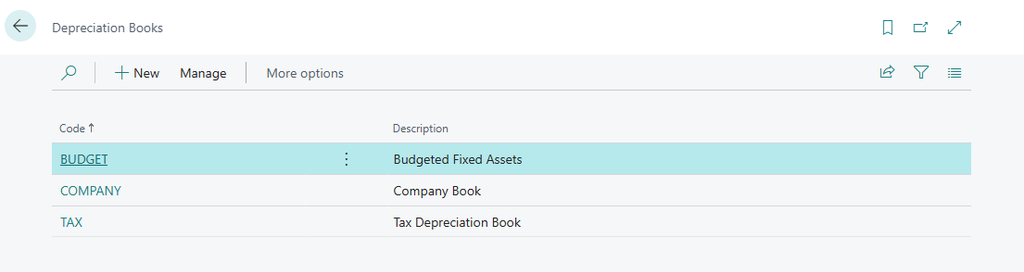
Confirm how your depreciation books post to the G/L
Every fixed asset has at least one depreciation book, which holds the method, the life, and the starting date. The book also decides where transactions get posted. On the Integration FastTab of the Depreciation Book Card, you turn on each fixed asset activity you want to post through the Fixed Asset G/L Journal. Activities you leave off go through the Fixed Asset Journal instead, which suits an internal management or tax book that never touches the general ledger.
Open Depreciation Books and look at your financial reporting book. If depreciation isn’t ticked there, your batch job output will land somewhere you don’t expect. The G/L accounts themselves come from the asset’s FA posting group, so scan FA Posting Groups for blanks too.
Run the Calculate Depreciation batch job
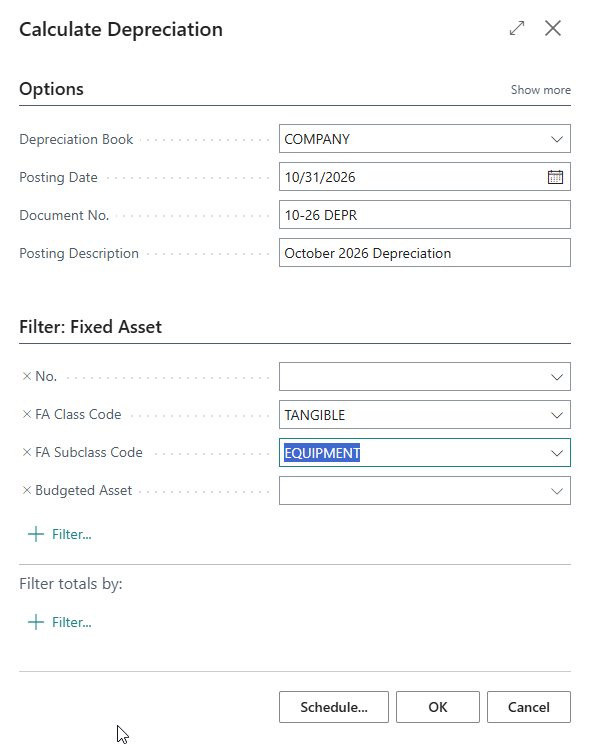
Search for Calculate Depreciation. On the request page, pick the depreciation book and enter a date in the FA Posting Date field on the Options FastTab. That is your depreciate-until date, since the job calculates up to and including it. For a calendar year-end, use December 31. Choose OK, and the batch job creates lines in the Fixed Asset G/L Journal. It doesn’t post them.
Open FA G/L Journals, review the lines, check No. of Depreciation Days, and choose Post. The job skips assets that are sold, blocked, inactive, or set to the manual method, so land and anything you depreciate by hand need their own journal lines.
If you made a mistake, use the Cancel FA Ledger Entries batch job and run the calculation again. Reverse Transactions isn’t available for fixed asset entries.
Post disposals and check new acquisitions
Say you sold a delivery van in October. You post that from the Fixed Asset G/L Journal with FA Posting Type set to Disposal, then choose Insert FA Bal. Account. That action only works if the Disposal Account and Disposal Bal. Account fields are filled in on the asset’s FA posting group. Posting the disposal calculates and records the gain or loss. A disposal must be the last entry for an asset, so get depreciation posted through the sale date first, because book value at disposal drives the gain or loss.
Selling only part of an asset means splitting it first, and a trade-in is two transactions, the sale and the new purchase. To trace a disposal into the G/L, open the asset’s ledger entries, select a Disposal line, and use Find Entries.
Now look at acquisitions. When only the acquisition cost has been posted, depreciation starts from the Depreciation Starting Date on the FA depreciation book. A December purchase with a January start date will correctly show no depreciation yet. A purchase with a blank or wrong date won’t. The Fixed Asset – Acquisition List report shows assets acquired in a date range, and it can include cards that were created but never acquired. If an acquisition posted with the wrong date, fix it quickly with Cancel Entries, since the FA posting date feeds many calculations.
Reconcile the fixed asset subledger to the G/L
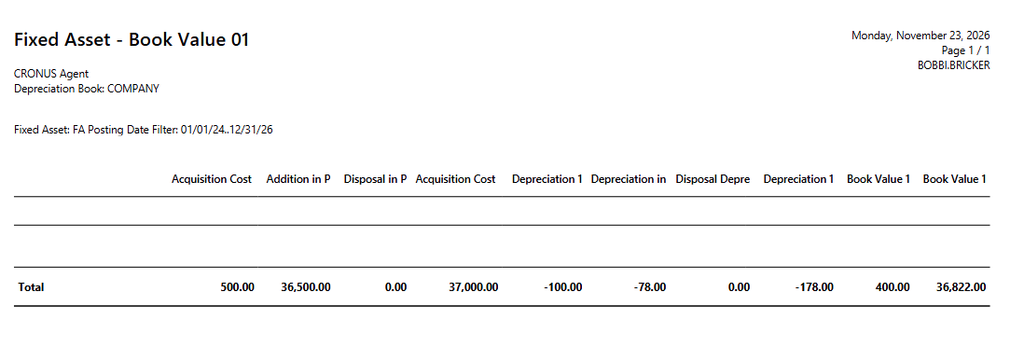
Run Fixed Asset Book Value 01 as of year-end. It shows acquisition cost, depreciation, and book value at the start and end of the period and for the period itself, one line per asset. You can group by FA class. Compare the totals to your cost and accumulated depreciation accounts on the trial balance.
When something is off, two reports narrow it down. The FA Posting Group – Net Change Report shows net change by G/L account for each posting group. With G/L integration on, those amounts should equal the net change in the G/L accounts. Fixed Asset G/L Analysis is built for validating disposal entries. It works from posting dates, while the older Fixed Asset Analysis report (now labeled legacy, with an Excel version as its replacement) uses FA posting dates. That difference can explain a timing variance, so check which date each report uses.
Year-end fixed asset checklist
- Confirm the Integration settings on your financial reporting depreciation book.
- Run Calculate Depreciation with December 31 as the FA Posting Date, review the journal, and post it.
- Post all pending disposals after depreciation is current, and check the gain or loss.
- Run the Fixed Asset – Acquisition List and confirm new assets have a starting date.
- Run Fixed Asset Book Value 01 and the FA Posting Group – Net Change Report, and tie both to the trial balance.
Confirm tax or statutory depreciation rules with your tax advisor.
Thank you for reading!
Last time, in Step 4, we covered Inventory Costs at Year-End: Adjust Cost and Post to the G/L. Next up is Step 6, Accruals, Recurring Journals, and Exchange Rate Adjustments.
Sources
- Depreciate or amortize fixed assets
- Dispose of or retire fixed assets
- Set up fixed asset depreciation
- Set up general fixed assets information
- Acquire fixed assets
- Fixed assets reports in Business Central
- Fixed Asset Book Value 01 (report)
- Fixed Asset G/L Analysis (report)
- FA Posting Group – Net Change Report (report)
- Work with the number of depreciation days
Interested in learning more? Below are some of my latest posts:
- Fixed Assets at Year-End: Depreciation and Disposals in Business Central
- Inventory Costs at Year-End: Adjust Cost and Post to the G/L
- Customer and Vendor Cleanup Before the Books Close
- Accounting Periods and Posting Dates: Who Can Post Where
- Year-End Planning in Business Central: Start With a Calendar
Leave a Reply