
Year-End Readiness: D365 Business Central, Step 4 of 10
Say a freight invoice for a December shipment lands in the first week of January, and your count adjustments post with a December 31 date. Now the inventory report shows one number and the balance sheet shows another. The gap is cost that never made it from the inventory ledger to the general ledger. Two batch jobs close it, and the order matters.
Run Adjust Cost first
When you sell an item before its purchase is fully invoiced, or a freight charge arrives after the sale, the cost on the sale can be wrong. The Adjust Cost – Item Entries batch job fixes that. It forwards cost changes from inbound entries, such as purchases, to the outbound entries they were applied to, such as sales. It creates adjustment value entries, so cost of goods sold matches what the items really cost. Microsoft recommends running it for all items, using filters only to shorten the runtime or fix one item.
Business Central can also adjust as you post. The Automatic Cost Adjustment field on the Inventory Setup page defaults to Always, but as inventory volume grows companies often shorten it to Day or Week to protect posting speed. With a short window, a late invoice does not forward its cost to the sale until someone runs the batch job, per the cost adjustment design details. So run the batch job by hand before you pull any year-end numbers.
Post inventory cost to the G/L
Adjusting changes the inventory ledger. The general ledger hears about it when cost is posted. The Automatic Cost Posting checkbox on Inventory Setup is on by default and does this with each posting. If yours is off, run Post Inventory Cost to G/L yourself, after Adjust Cost so the amounts are current.
On the request page, Posting Method lets you post per posting group (fewer entries) or per entry (more detail). Clear the Post checkbox and you get a test report instead of postings. The Post Invt. Cost to G/L – Test report also lists errors ahead of time.
Check the report for Skipped Entries. Per the reconciliation design details, a value entry in a closed accounting period is skipped, and you must change the General Ledger Setup or User Setup posting range before it will post.
Reconcile inventory to the G/L
Run the Inventory Valuation report as of your year-end date. The Cost Posted to G/L column should equal Ending Date Value. If it doesn’t, Post Inventory Cost to G/L hasn’t run. Filter by location to compare inventory posting group totals to the matching G/L accounts. In the US, Canada, and Mexico, use the localized version (report 10139) instead.
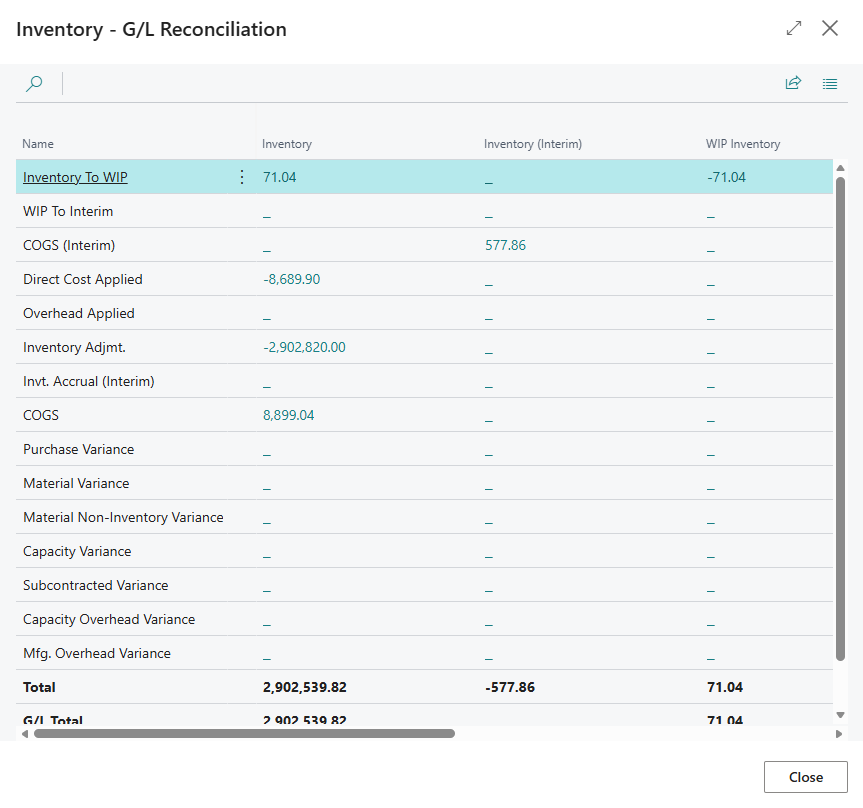
For a closer look, open Inventory – G/L Reconciliation. It shows what the value entries say each inventory account should hold next to what the G/L holds, with a Difference column. Add filters, select Show Warning to explain any gaps, then choose Show Matrix.
Count the stock and close the inventory period
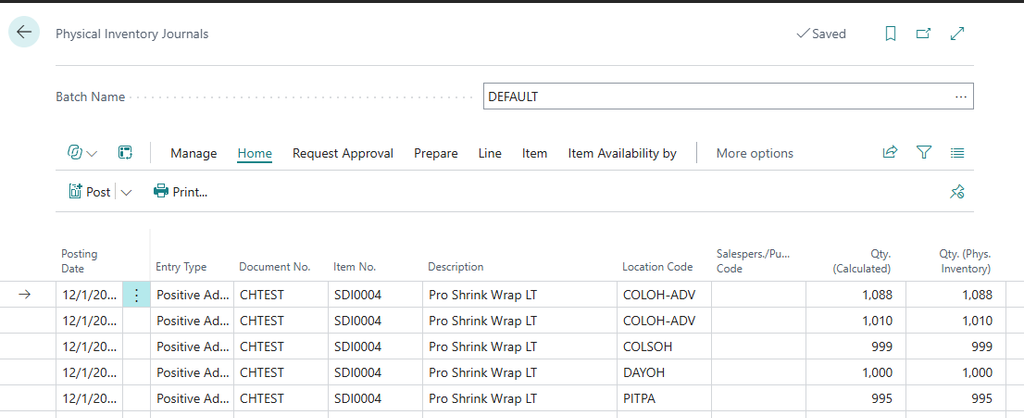
Counts typically happen at fiscal year-end, and differences should be posted before inventory valuation. In a basic warehouse setup, open Physical Inventory Journals, choose Calculate Inventory, print the Physical Inventory List, then enter what was counted in Qty. (Phys. Inventory) and post. Locations with directed put-away and pick use the Warehouse Physical Inventory Journal instead. For several counters, physical inventory orders and recordings give you more control.
I couldn’t find a documented “freeze” switch for count journals, so the discipline is procedural. Microsoft tells you to keep the originally calculated journal lines and not recalculate, because expected inventory may change while the count is out. Hold receipts and shipments during the count if you can, and use separate journal batches per location. Wrong-location postings get fixed with a reclassification journal or transfer order, not the count journal.
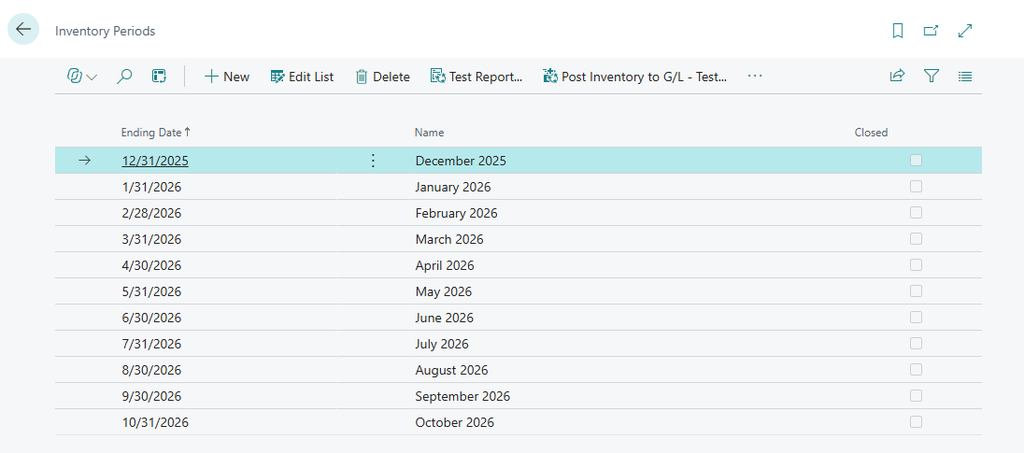
Once counts are posted and reconciled, close the inventory period. On the Inventory Periods page, create a line with the period’s Ending Date and a name. Then run Adjust Cost, run the Close Inventory Period – Test report, run Post Inventory Cost to G/L, select the period, and choose Close Period. It won’t close if there are open outbound entries (negative inventory) or unadjusted costs. Afterward, no inventory changes can post before the ending date. You can reopen it, but that also reopens every later period.
Year-end inventory checklist
- Confirm the Automatic Cost Adjustment and Automatic Cost Posting settings on Inventory Setup.
- Post all receipts, shipments, and count adjustments dated in the year.
- Run Adjust Cost – Item Entries for all items, then Post Inventory Cost to G/L.
- Review Skipped Entries and fix anything blocked by posting dates or setup.
- Compare the Inventory Valuation report and Inventory – G/L Reconciliation to your G/L inventory accounts.
- Close the inventory period.
Thank you for reading!
Last time we covered Customer and Vendor Cleanup Before the Books Close, and next up is Fixed Assets at Year-End: Depreciation and Disposals in Business Central.
Sources
- Adjust item costs
- Design details: Cost adjustment
- Set up general inventory information
- Reconcile inventory costs with the general ledger
- Design details: Reconciliation with the general ledger
- Inventory Valuation (report)
- Count, adjust, and reclassify inventory using journals
- Count and adjust inventory using documents
- Work with inventory periods
Interested in learning more? Below are some of my latest posts:
- Fixed Assets at Year-End: Depreciation and Disposals in Business Central
- Inventory Costs at Year-End: Adjust Cost and Post to the G/L
- Customer and Vendor Cleanup Before the Books Close
- Accounting Periods and Posting Dates: Who Can Post Where
- Year-End Planning in Business Central: Start With a Calendar
Leave a Reply