

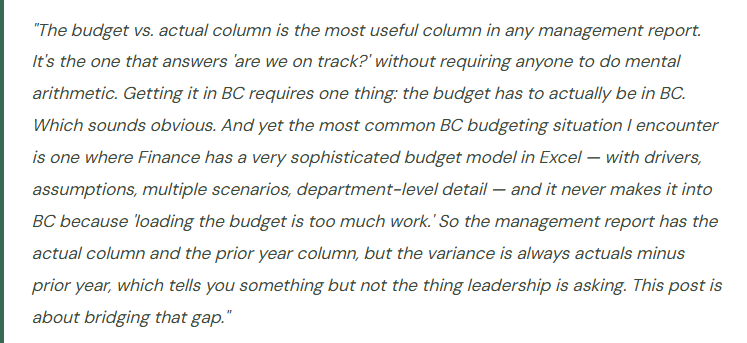
BC’s native budget tool, how to enter and maintain budgets by account and dimension, building the budget vs. actual column that management actually uses, and the honest conversation about what BC does well — and when to reach for a dedicated planning tool instead.
How BC’s Budget Feature Works
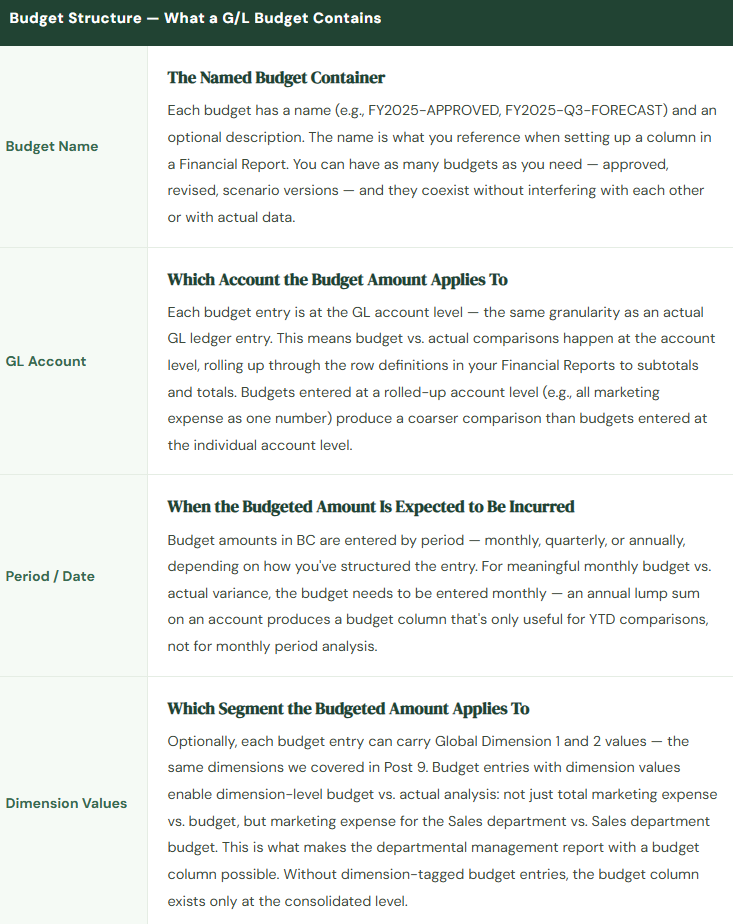
BC’s native budget tool is straightforward: you create a G/L Budget — a named budget that holds planned amounts by GL account, period, and optionally by dimension values. Once a budget is created and amounts are entered, those amounts become available as a column in Financial Reports and in the Analysis by Dimensions view. The budget doesn’t flow through the posting setup, it doesn’t affect the trial balance, and it doesn’t interfere with actual transaction processing — it’s a parallel set of planned amounts that BC stores and makes available for comparison.
One organization can have multiple named budgets simultaneously — the approved annual budget, a revised forecast, a stretch scenario, a prior-year actual budget used for prior-year comparison. Financial Reports can display any named budget in a column, so you can show actuals vs. approved budget vs. current forecast in the same report if you’ve entered all three. This multi-budget capability is one of the more useful features Finance teams don’t always discover until they’ve been using BC for a year.
Getting the Budget Into BC — Four Methods
The practical obstacle most Finance teams face isn’t understanding BC’s budget structure — it’s the data entry effort to get the budget from wherever it was built (usually Excel) into BC. There are four methods, each suited to different volumes and workflows.
⌨️ Manual Entry in BC Budget Page
- Open the G/L Budget page in BC and enter amounts directly. The budget entry page shows a matrix of accounts vs. periods — familiar to anyone who has used a budget spreadsheet. You can filter by dimension values to enter departmental budgets separately.
- Best for: small budgets, simple organizations, updates to individual line items mid-year. The most direct method when the budget has modest line counts.
📊 Edit in Excel (Live BC Connection)
- BC’s Edit in Excel feature opens the budget data in Excel with a live two-way connection to BC. You can fill in or modify budget amounts in Excel and publish them back to BC with a single click. The spreadsheet is still Excel — familiar format, familiar formulas — but the data lands in BC without a separate import step.
- Best for: Finance teams that build and maintain budgets in Excel but want the result in BC. The most practical method for organizations with existing Excel budget models — it preserves the familiar workflow while eliminating the manual re-entry step.
📋 Copy Budget Function
- BC allows you to copy an existing budget — including prior-year actuals — into a new budget name with an optional percentage adjustment. Use this to create a new budget starting from last year’s actuals (e.g., FY2025 budget = FY2024 actuals × 105%), then adjust the individual line items where the percentage adjustment doesn’t reflect the plan.
- Best for: creating a starting-point budget quickly. The Copy Budget function is particularly useful for creating a rolling forecast: copy the approved budget, update the remaining months with revised estimates, name it as the current forecast. Repeat quarterly.
⚡ Import via Configuration Package
- For large, complex budgets with hundreds of lines and dimension combinations, BC’s RapidStart configuration package import can load budget entries from a structured Excel or CSV file in bulk. Requires a correctly formatted import template matching BC’s G/L Budget Entry table structure — more technical than the other methods, but the only practical option for very high-volume budget loads.
- Best for: initial budget load at go-live when migrating from a prior system, or annual budget loads with complex dimension combinations across many accounts. The Edit in Excel method is usually sufficient before reaching for this one.
Budget vs. Actual in Financial Reports — Making the Comparison Column Work
This is where the budget entry investment pays off. Once budget amounts are in BC, the Financial Reports you built in Post 6 can include a budget column — and that column updates in real time as actual transactions post through the year. No export, no manual reconciliation, no “let me get you the updated version.”
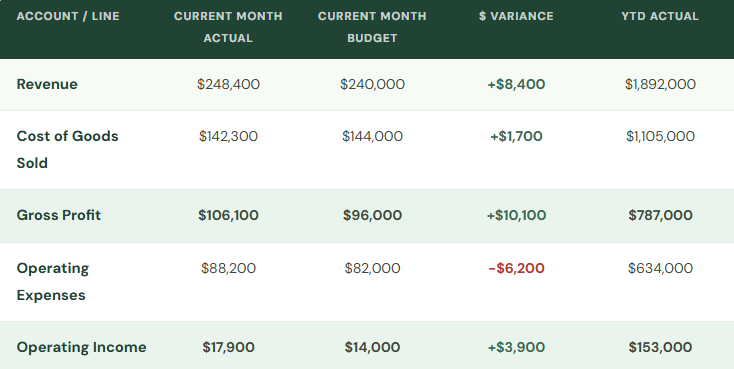
In BC’s Financial Reports, the budget column is configured in the Column Layout — the column type is set to Budget at Date (for the period budget) or Budget (for the full year), and the specific budget name is referenced in the column definition. A variance column is added using a Formula column type that subtracts the budget column from the actual column. All of this is configuration, not calculation — once the column layout is built, it applies to every Financial Report that uses it and updates automatically as data changes.
What BC’s Budget Tool Does Well — and Where to Reach for Something Else
I want to be honest here, because I’ve seen Finance teams frustrated when their BC budget implementation doesn’t deliver what they expected. BC’s budget feature is genuinely good for specific use cases and genuinely insufficient for others. Knowing the difference saves the implementation effort and the post-go-live disappointment.
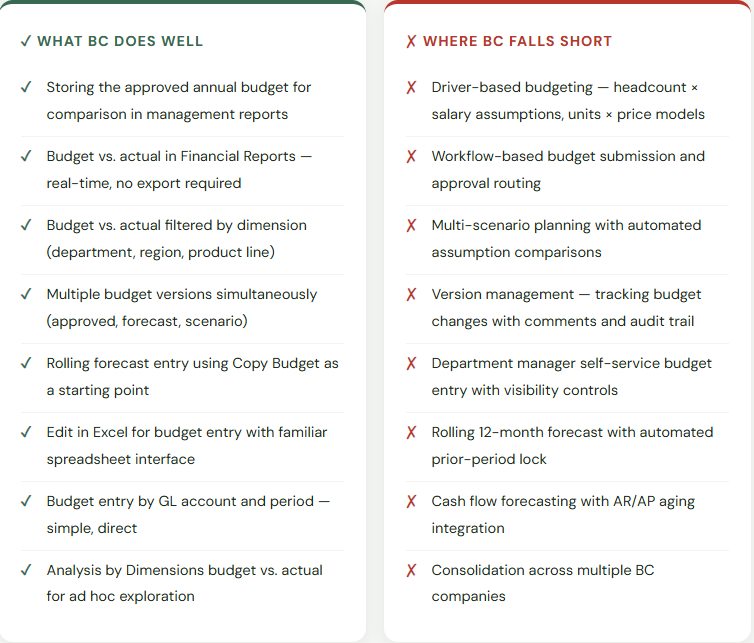
The recommendation I give every BC Finance team: use BC’s budget tool to store and report the final approved budget — the version that drives your monthly management report’s variance column. Keep your planning process — the driver models, the scenario analysis, the department submission workflow, the version management — in whatever tool actually supports it: Excel, Anaplan, Planful, Adaptive, Vena, or simply a well-structured Excel model with clear version control. The goal is to have the final approved numbers in BC, where they can produce the variance column automatically. The planning process that arrives at those numbers can and often should live elsewhere.
This is not a criticism of BC. It’s a recognition that budgeting and forecasting for a $50M business with five departments and multiple scenarios is a planning process, not just a data entry task. A dedicated planning tool handles the process. BC handles the comparison. Both are doing what they’re designed for.
The Budget Mistakes That Make the Variance Column Useless
⚠️ Budget Entered as an Annual Lump Sum Instead of Monthly
A budget entered as a single annual amount on January 1 produces a budget column that shows the full year’s budget every month for January, and zero for all subsequent months — because all the budget is in the first period. The YTD comparison is meaningful but the monthly period comparison is nonsensical. Finance teams that enter the budget this way typically abandon the budget column in monthly management reports within two cycles because it produces unhelpful variances in every month except December.
→ Enter budget amounts monthly — twelve entries per account per year, not one. Use the Edit in Excel method to make monthly entry efficient. If the budget is legitimately flat (equal amounts each month), BC’s Copy Budget function can spread an annual amount evenly across twelve periods. A meaningful monthly variance column requires a monthly budget.
⚠️ Budget Entered Without Dimension Values — Departmental Report Has No Budget Column
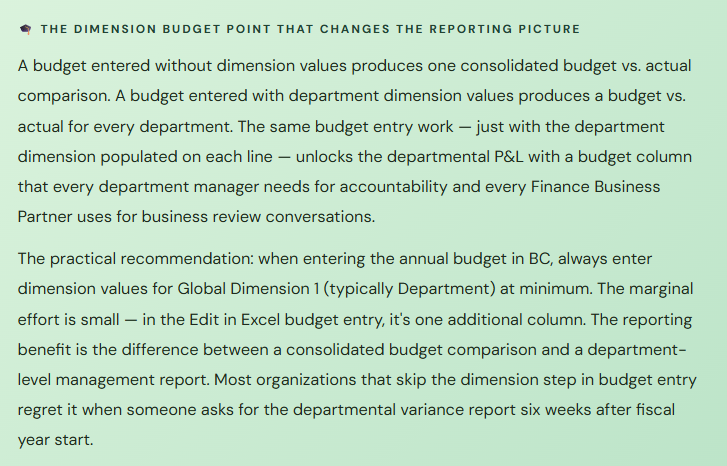
The approved budget was built by department. Leadership wants to see departmental variance in the monthly review. Finance enters the consolidated budget in BC without dimension values because it was faster. The consolidated income statement has a budget column. The departmental P&L has no budget column. Finance reverts to maintaining a separate Excel comparison for departmental variance and manually reconciling it to BC actuals — which is exactly the workflow BC was supposed to eliminate.
→ Enter budget amounts with Global Dimension 1 values at minimum. In the Edit in Excel budget entry view, add the Dimension 1 column and populate it for every line. This is the single most impactful step in making BC’s budget feature useful for departmental management reporting. The effort is modest; the reporting benefit is significant.
⚠️ The Budget Is Loaded Once at Fiscal Year Start and Never Updated
The annual budget was entered in BC in January. By March, it’s clear that one business unit is growing faster than planned and another is restructuring. The budget doesn’t get updated in BC. By June, the variance column is showing such large differences for known, explained reasons that nobody is using it to identify emerging issues anymore. The management report still has the budget column — it just says nothing useful. The real forecast exists in someone’s Excel file.
→ Create a separate named budget in BC for the current forecast — FY2025-Q2-FORECAST, for example. Refresh it quarterly by copying the original budget and adjusting the remaining periods for the revised plan. The Financial Report column layout can display both: original budget and current forecast. This gives leadership both the accountability comparison (actuals vs. approved budget) and the planning comparison (actuals vs. current forecast) — without abandoning the original budget or pretending the forecast doesn’t exist.
Quick Reference: Do’s and Don’ts
✓ Do This
- Enter budget amounts monthly — twelve periods per account, not one annual lump sum
- Include Global Dimension 1 values on all budget entries for departmental variance reporting
- Use Edit in Excel for efficient bulk budget entry with the familiar spreadsheet interface
- Create separate named budgets for approved annual budget and rolling forecast
- Build the budget vs. actual column in Financial Reports before fiscal year start — test it with estimated data
- Use Copy Budget to create a rolling forecast starting from the approved budget each quarter
- Keep the planning/driver modeling process in a dedicated tool; use BC to store the final approved numbers
- Update the forecast budget in BC quarterly so the variance column remains meaningful
- Train the team on the Edit in Excel budget workflow before fiscal year start, not during budget season
✗ Don’t Do This
- Enter the full annual budget as a single January entry — monthly variance will be meaningless
- Skip dimension values on budget entries and then wonder why the departmental variance report has no budget column
- Load the budget once at fiscal year start and never update it — the variance column loses meaning by Q2
- Try to build a driver-based planning model inside BC’s native budget tool — it’s not designed for that workflow
- Maintain the “real” forecast in Excel outside BC while keeping a stale annual budget in BC — both become unreliable reference points
- Present departmental budget variance reports to department managers before confirming budget amounts are entered with the correct dimension values
- Neglect to build the budget column in Financial Reports before go-live — it’s a setup step, not automatic
The simple principle behind all of this: a budget is only useful if someone is comparing it to actuals. Actuals without a budget show you what happened. Actuals with a budget show you whether what happened was the plan. The entire value of the budget feature in BC is the comparison — and the comparison only works if the budget is current, monthly, dimension-tagged, and in the system. All of that is achievable in BC for most mid-market organizations. It requires deliberate setup, one productive budget entry session at fiscal year start, and a quarterly refresh habit. The return on that investment — a management report where every leadership conversation starts with “here’s what was different from the plan and why” rather than “here’s what happened” — is the kind of finance function that earns a seat at the operational table.
Up Next:
We’ve covered the financial operations modules, the close process, fixed assets, and now budgeting. For our final post in this arc, we’re going into a module that applies to every organization that tracks work for clients, manages internal projects, or needs to see profitability by engagement: Jobs and Project Management in Business Central — job cards, job tasks, WIP accounting, billing, and how BC connects project costing to the general ledger. If you bill by the hour, manage fixed-fee engagements, or want to know whether your projects are actually profitable before the invoice is sent, this post is the one.
Until then — enter your budget monthly, add those dimension values, and build the budget vs. actual column before the fiscal year starts.
— Bobbi
D365 Functional Architect · Recovering Controller
Leave a Reply