
What dimensions are, how to design them for your management reporting needs, how default dimensions automate the coding, and how Analysis by Dimensions turns your GL data into the answers your leadership is actually asking for.
What a Dimension Actually Is
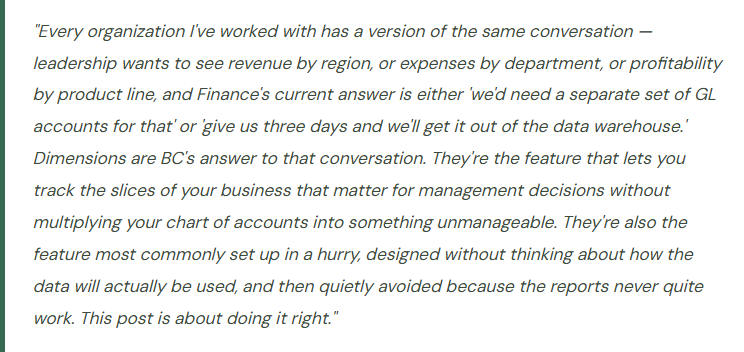
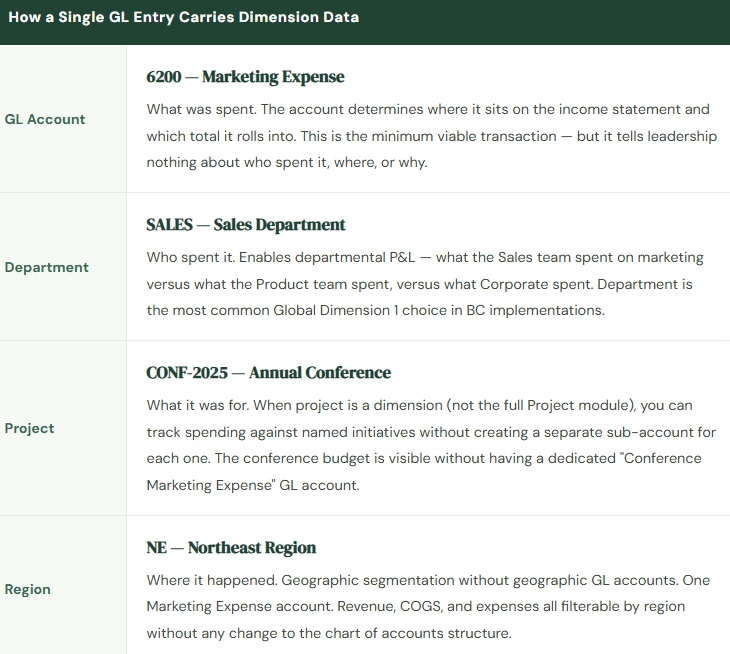
A Dimension in BC is an additional classification tag you attach to a GL entry — a piece of metadata that describes the transaction beyond just what account it hit. When you post a marketing expense, the GL account tells you what type of cost it was. A Department dimension tells you which department incurred it. A Region dimension tells you which geography. A Project dimension tells you which project.
The key insight: dimensions don’t change where a transaction posts in the GL. They sit alongside the GL entry as classification data, and BC uses that classification data to filter and slice reports. You can see total marketing expense (the GL account). You can also see marketing expense for the Northeast region (the GL account filtered by Region = Northeast). You can see marketing expense for the Northeast region on the Retail product line (filtered by both Region and Product Line). The GL account doesn’t change. The dimension values produce the slices.
Global Dimensions vs. Additional Dimensions
BC distinguishes between two types of dimensions, and this distinction matters for how you design your dimension structure.
Global Dimensions — specifically Global Dimension 1 and Global Dimension 2 — are stored directly on every GL entry as indexed fields. This means they’re fast to filter on, always visible in ledger entry screens, available as filter fields throughout BC without any additional setup, and accessible in standard reports and the Financial Reports column filters. The two global dimension slots are the most commonly used and the most useful for ongoing management reporting. Choose your two most universal, most frequently reported dimensions as globals.
Shortcut Dimensions (3 through 8) appear as column fields in journal lines and transaction entry screens, making them easy to enter at transaction time. They’re stored on ledger entries but are less deeply indexed than globals — filtering on them is supported but slightly less immediate in performance terms. For dimensions you use regularly but don’t need to slice on in every report, shortcut dimensions work well. You can define up to six shortcut dimensions beyond the two globals.
Global Dim 1 & 2
- The Two Slots Worth the Most Thought
- Stored as indexed fields on every GL entry. Available as filter columns throughout BC. The choice that most organizations make: Department as Global Dimension 1, and whatever the second most universal reporting segment is — Region, Division, Cost Center — as Global Dimension 2.
- Once set and transactions are posted, changing global dimensions is technically possible but extremely disruptive. Choose them with the people who will use the management reports, not just the people setting up the system.
Shortcut Dims 3–8
- Additional Reporting Slices
- Appear as visible entry fields in journal lines. Stored on ledger entries. Used for dimensions that are needed on some transactions but not universally — Project, Campaign, Equipment, Location when not already a location dimension.
- The practical limit isn’t the number of shortcut dimensions you can define — it’s the number your team can realistically populate consistently on every transaction. More dimensions = more opportunities for gaps.
Default Dimensions
- The Automation That Makes It All Work
- Default dimensions are values that populate automatically on transactions when a specific master record is involved — a customer, vendor, item, employee, or GL account. When a customer from the Northeast has Region = NE as a default dimension, every invoice for that customer automatically carries Region = NE without anyone entering it manually.
- Default dimensions are how you get consistent dimension coding across high volumes of transactions. Without them, dimension entry is a manual discipline that degrades over time.
Default Dimensions — How Consistent Coding Actually Happens
This is the most practically important concept in dimension management, and the one most commonly underimplemented. Default dimensions allow you to assign specific dimension values to master data records — customers, vendors, GL accounts, items, employees, departments, fixed assets — so that those values flow automatically onto every transaction involving that master record.
| Where You Set It | What It Automates | Example |
|---|---|---|
| Customer Card | Every sales invoice, credit memo, and cash receipt for this customer carries the dimension automatically | Customer “Acme Corp” → Region = MIDWEST → every Acme invoice is coded to Midwest revenue without manual entry |
| Vendor Card | Every purchase invoice and payment for this vendor carries the dimension automatically | Vendor “Office Supplies Co” → Department = ADMIN → all office supply purchases automatically code to Admin department |
| GL Account | Any journal entry to this GL account automatically carries the specified dimension value | GL Account 6500 (Depreciation) → Department = CORP → all depreciation expense automatically codes to Corporate |
| Item Card | Every purchase and sale of this item carries the dimension | Item “Hardware-A” → Product Line = HARDWARE → all hardware revenue and COGS automatically coded to the Hardware product line |
| Employee | Expense reports, payroll journals, and time entries for this employee carry their department coding | Employee “J. Smith” → Department = ENGINEERING → all engineering staff expenses auto-code to Engineering |
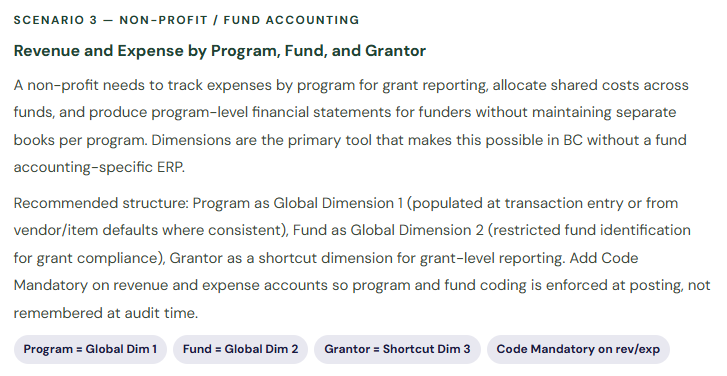
The Posting setting on each default dimension controls what happens when the dimension value is missing or conflicts. Setting it to Code Mandatory means BC will not post a transaction to that GL account without a valid dimension value — it’s a hard requirement. Setting it to Blank Allowed means the value is optional. Setting it to No Code means the dimension must explicitly be blank for posting to succeed. For the dimensions you rely on for management reporting, Code Mandatory on the relevant GL accounts is the configuration that prevents silent gaps from accumulating.
Dimension Design for Common BC Scenarios
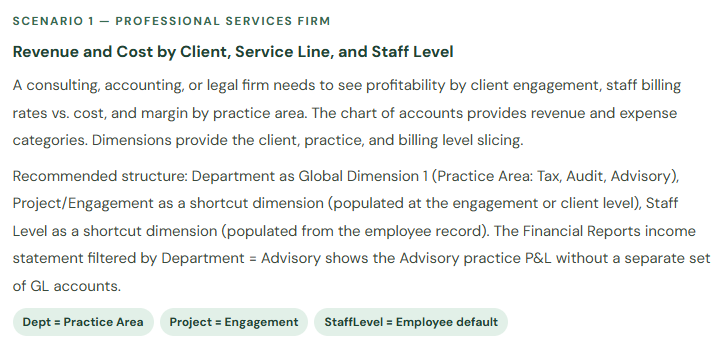
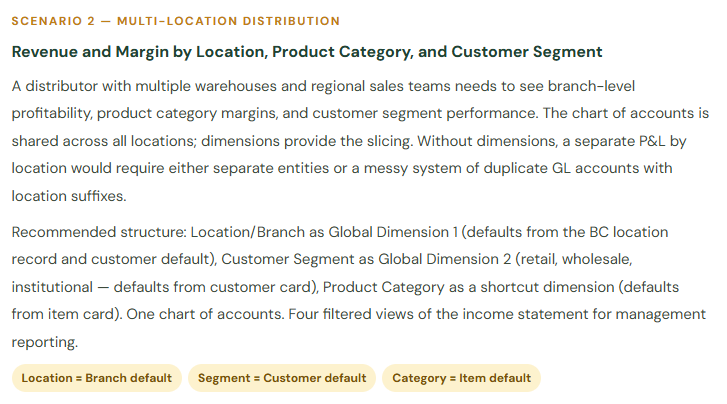
Dimension design isn’t universal — the right structure depends on what the business needs to analyze. Here are three common scenarios with the dimension structures that work for them.
Analysis by Dimensions — Turning Tags Into Reports
The reporting payoff for well-configured dimensions is the Analysis by Dimensions feature in BC, which lets you query GL balances filtered and grouped by any combination of dimensions. It’s an ad hoc analytical tool that doesn’t require building a formal Financial Report — you filter by the dimensions you want, select the accounts, choose the period, and BC shows you the matrix of balances at the intersection of those dimensions.
📊 Revenue by Region × Period
Filter revenue accounts, group by Region dimension across monthly columns. Shows each region’s monthly revenue contribution and the trend over the year. Update in real time as new invoices post — no export required.
💼 Expenses by Department
Filter expense accounts, group by Department dimension. Shows departmental expense in each category. Used for department manager accountability reporting — show each manager only their department’s line items by filtering to their dimension value.
📈 Budget vs. Actual by Segment
If budgets in BC are entered with dimension values, Analysis by Dimensions can compare actual vs. budget at the dimension level. Revenue budget vs. actual by product line, expense budget vs. actual by department — the variance analysis that management reporting requires, without a separate tool.
🔍 Drill to Transaction Detail
From any cell in the Analysis by Dimensions view, you can drill down to the individual GL entries that make up that balance. Revenue for the Northeast region in September — click it, see every invoice. An expense total that looks unexpectedly high — click it, see what it’s made of. Transaction-level transparency without leaving the analysis view.
The important caveat: Analysis by Dimensions is only as good as your dimension coding. A regional revenue analysis that shows 70% of revenue with a region assigned and 30% unassigned isn’t a regional revenue analysis — it’s a partial picture that’s less useful than no report at all, because it looks complete but isn’t. This is why Code Mandatory configuration on the GL accounts that matter for your reports is the right investment during setup. Make it structurally impossible to post without the dimension value, and the analysis is reliable. Make it optional, and it degrades gradually as the team figures out that the field can be skipped.
The Dimension Mistakes Finance Teams Regret
⚠️ Designing Dimensions Without Asking What Reports They Need to Enable
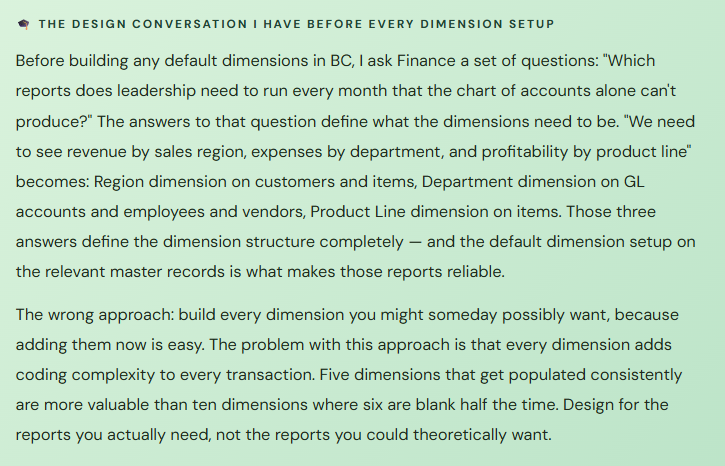
The most common dimension design mistake is picking dimension names that sound right — Department, Region, Division, Category, Project — without mapping each one to a specific report that leadership needs, that can’t be produced from the chart of accounts alone. The result is a dimension structure that nobody quite understands, that gets populated inconsistently, and that produces analysis views nobody trusts. The dimension design conversation should start with the reports and work backward to the structure — not start with the structure and hope the reports emerge.
→ Before defining dimensions, document the management reports Finance needs to produce that the chart of accounts can’t provide. Each required report identifies which dimension (or dimension combination) it needs. The required reports define the dimensions. The dimensions define the dimension values. The dimension values define where default dimensions need to be set up on master records.
⚠️ Not Setting Up Default Dimensions — Relying on Manual Entry
Dimension coding that depends on users to remember to enter values on every transaction will have gaps. Not because the team is negligent — because transaction volume is high, the field isn’t prominent, and it’s easy to miss when processing quickly. The organizations with reliable dimension data are the ones where most dimension values are pre-populated from defaults on master records. The ones with unreliable dimension data are the ones where dimension entry is a manual discipline with no systematic support.
→ For every dimension that’s important for management reporting, identify which master records (customers, vendors, items, GL accounts, employees) should carry a default value. Set up those defaults during implementation as part of master data migration, not as a post-go-live enhancement. The default dimension setup is the automation that makes dimension coding reliable at scale.
⚠️ Too Many Dimensions, All Optional
There’s a natural temptation during implementation to define every dimension that might ever be useful and leave them all optional. The problem is that optional dimensions that aren’t systematically populated produce noisy, partial analysis data. A dimension that’s populated on 60% of transactions doesn’t produce useful analysis — it produces an analysis that’s obviously incomplete and that nobody acts on. Five dimensions with 95% coding rates are worth more than ten dimensions with 60% coding rates, every time.
→ Start with the minimum number of dimensions required to answer the management questions that actually get asked every month. Make those required (Code Mandatory on the relevant accounts). Add additional dimensions only when a specific reporting need that can’t be met by the existing structure is identified. The incremental cost of adding a dimension after go-live is low; the incremental cost of cleaning up inconsistently-coded dimension data is high.
⚠️ Using Too Many GL Accounts Instead of Dimensions
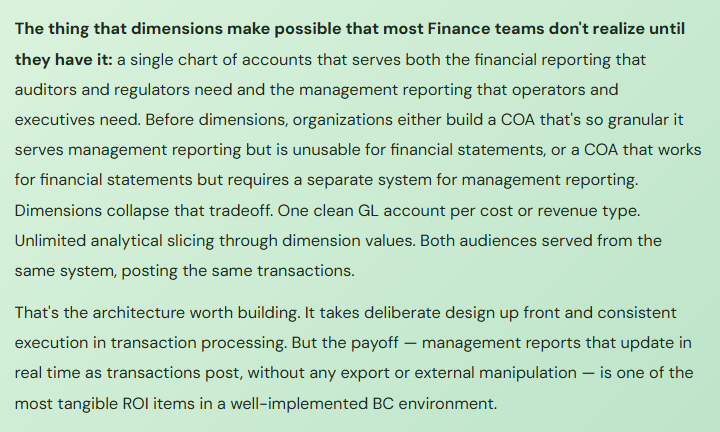
This one is the dimension problem in reverse. Organizations that create separate GL accounts for every cost center (6200-SALES, 6200-MKTG, 6200-ADMIN) because they haven’t implemented dimensions end up with charts of accounts with hundreds of lines that all mean the same thing. The financial statements become unreadable. New combinations require new accounts. Financial Reports grow unwieldy. This is the problem dimensions were designed to solve — and it’s worth solving it correctly rather than expanding the COA indefinitely.
→ If your chart of accounts review during implementation reveals large numbers of accounts that differ only by department, region, or other segment — 6200-SALES, 6200-MKTG, 6200-ADMIN — that’s a strong signal that those accounts should be consolidated into one GL account (6200 Marketing Expense) with a Department dimension. The dimension provides the segment; the account provides the cost type. Both together produce richer analysis than either one alone.
Quick Reference: Do’s and Don’ts
✓ Do This
- Design dimensions by starting with the reports leadership needs — then work backward to the structure
- Choose Global Dimension 1 and 2 carefully — they’re the most indexed, most universally useful, hardest to change
- Set up default dimensions on customers, vendors, items, and GL accounts during migration — not as a post-go-live task
- Use Code Mandatory on key revenue and expense accounts for dimensions required in management reporting
- Start with fewer dimensions, fully populated, rather than many dimensions partially coded
- Test Analysis by Dimensions with real data before go-live — confirm the reports actually produce the slices leadership needs
- Enter budgets in BC with dimension values if budget vs. actual by segment is a required report
- Review dimension coding completeness periodically — treat blank dimension values like reconciling items
- Consolidate over-segmented COA accounts into fewer GL accounts with dimensions during implementation
✗ Don’t Do This
- Define dimensions before identifying which management reports they need to enable
- Rely on manual dimension entry without defaults — coding rates will degrade over time
- Make all dimensions optional and wonder why the analysis is always incomplete
- Build ten dimensions you might someday want instead of five you definitely need now
- Continue multiplying GL accounts for segment reporting instead of implementing dimensions
- Change Global Dimension 1 or 2 after transactions are posted without a full data remediation plan
- Skip the Code Mandatory configuration on accounts where incomplete dimension data would undermine the purpose of the analysis
- Present Analysis by Dimensions reports to leadership without first verifying that dimension coding completeness is sufficient to make the report reliable
Up Next:
With the financial operations foundation complete and the analysis layer in place, we’re ready to talk about the process that closes every accounting period and makes all of it official: Period Close and Month-End in Business Central — the close sequence, period locking, the checklist that keeps things consistent every cycle, and the small habits that separate a two-day close from a ten-day ordeal. If your month-end currently looks different every cycle, this post is the one to share with your team.
Until then — design your dimensions before your chart of accounts is final, set up your defaults during migration, and add Code Mandatory to the accounts that your management reports depend on.
— Bobbi
D365 Functional Architect · Recovering Controller
Leave a Reply