

You’ve built your chart of accounts. Now the system needs to know how to use it. That’s exactly what posting groups do — and once you understand how they work, a lot of BC suddenly makes sense.

The Problem That Posting Groups Solve
You’ve done the work from the last post. You have a clean, well-organized chart of accounts — revenue accounts, expense accounts, AR, AP, inventory, all properly numbered and categorized. But here’s the thing: Business Central doesn’t automatically know which of those accounts to use for any given transaction. It needs instructions.
When a customer pays an invoice, which accounts get debited and credited? When you post a purchase order for inventory items, where does the inventory value land? When you ship an order to a customer, where does the cost of goods sold go? None of those answers are hardcoded into BC. They’re determined dynamically, at the moment each transaction posts, based on a set of rules you define during setup.
Those rules are called posting groups.
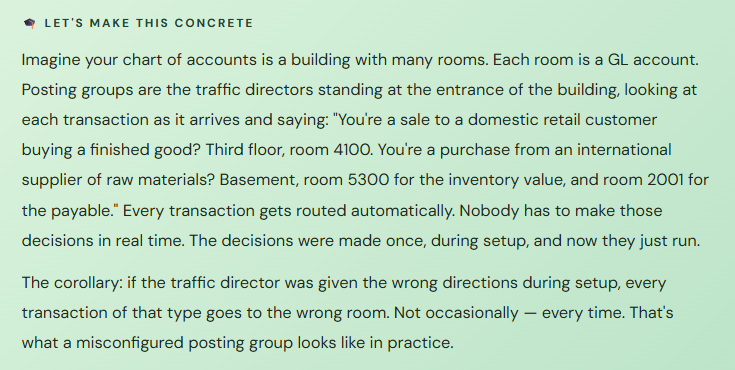
A posting group is essentially a lookup table that BC consults every time something financial happens. It looks at the entities involved in the transaction — which customer, which vendor, which item type — and finds the matching account assignments. Then it posts to exactly those accounts, automatically, without anyone having to manually select accounts on each transaction. This is the automation that makes your chart of accounts actually work.
There Are Three Types of Posting Groups in BC — and They Work Together
Here’s where people often get confused, because Business Central has multiple posting group types and they operate at different levels. They’re not alternatives — they’re layers. Understanding what each one does and how they interact is the key to understanding posting in BC.
01 Specific Posting Groups
Assigned directly to customers, vendors, and items. Control where subledger balances land on the GL — primarily AR summary, AP summary, and inventory accounts. These are the “who are you” assignments.
- Customer Posting Group:
- DOMESTIC → AR Acct 1200
- Vendor Posting Group:
- FOREIGN → AP Acct 2050
- Inventory Posting Group:
- FINISHED → Inv Acct 1320
02 General Posting Groups
Two-part labels assigned to both business entities (customers, vendors) AND products/services. The combination of these two labels is what drives revenue, COGS, purchase, and discount account routing. These are the “what kind of business, selling what kind of thing” assignments — and they live in the General Posting Setup matrix.
Gen. Bus. Group: RETAIL + Gen. Prod. Group: FINISHED → Revenue: 4100, COGS: 5100, Purchases: 6100
03 VAT / Tax Posting Groups
Control how sales tax or VAT is calculated and where tax amounts post. Like General Posting Groups, these are a two-part combination — VAT Business Group on the customer/vendor, VAT Product Group on the item — that determines the tax rate and the tax accounts. For US-based organizations using sales tax, this is where exemptions and tax codes live.
VAT Bus. Group: DOMESTIC + VAT Prod. Group: TAXABLE
→ Sales Tax Rate: 7.5%, Tax Acct: 2300
Why All Three Matter Together
A single sales invoice touches all three types simultaneously. The customer’s Specific Posting Group determines the AR account. The General Posting Setup combination determines the revenue account. The VAT combination determines the tax treatment. All three have to be configured correctly for a single transaction to post cleanly. A gap in any one of them produces an incomplete or incorrect result.Miss any one of these → wrong account, missing account, or posting error
Specific Posting Groups: Customers, Vendors, and Items
Let’s start with the straightforward ones. Specific posting groups are assigned directly to your customer, vendor, and item records, and they control where the subledger balance amounts land on the general ledger.
| Posting Group Type | Assigned To | Key Account It Controls | What Happens Without It |
|---|---|---|---|
| Customer Posting Group | Every customer record | AR summary account, prepayment account, bad debt write-off account, interest receivable account | BC will refuse to post any transaction to or from that customer — you’ll get a “posting group must be specified” error that stops the transaction cold |
| Vendor Posting Group | Every vendor record | AP summary account, prepayment account, payment discount account | Same result — the transaction won’t post. BC requires a posting group on every vendor before any AP transaction can proceed |
| Inventory Posting Group | Every item record | Inventory asset account — where the value of that item category sits on the balance sheet | Items without an inventory posting group assigned will cause inventory-related postings to fail or produce posting errors at transaction time |
| Bank Account Posting Group | Every bank account in BC | The GL account that represents that specific bank account on the balance sheet | Bank transactions can’t post. This one is usually caught early because nothing works at all until the bank account has a posting group |
| Fixed Asset Posting Group | Every fixed asset record | Acquisition cost account, accumulated depreciation account, gain/loss on disposal account — all by asset category | Asset transactions produce posting errors. Fixed assets are often set up later in an implementation and this gap can surface after go-live if asset setup wasn’t completed during testing |
The thing to notice here is that specific posting groups are required. BC enforces them. If a customer or vendor doesn’t have one, the system simply won’t let you post. This is actually a feature — it prevents misconfigured records from creating GL entries that end up in the wrong place or nowhere at all.
The practical implication for implementation: every customer, vendor, item, bank account, and fixed asset that you load into BC during data migration must have a valid posting group assigned. This has to be part of your data migration template design, not an afterthought. And the posting groups being assigned in the template have to be posting groups that actually exist and are properly configured in BC before the migration runs.
General Posting Groups: The Matrix That Controls Revenue and Expense
This is the one that requires the most explanation, because it’s genuinely different from how most people think about accounting system configuration. Stay with me.
General posting groups come in two flavors: General Business Posting Groups (Gen. Bus. Groups for short) and General Product Posting Groups (Gen. Prod. Groups). They’re two separate labels, assigned to two different types of records — and the magic happens when they intersect.
Gen. Bus. Groups are assigned to customers and vendors. They describe the type of business relationship — domestic retail, international wholesale, intercompany, government. Gen. Prod. Groups are assigned to items, resources, and GL accounts used in transactions. They describe the type of thing being bought or sold — finished goods, raw materials, services, freight.
Now here’s the critical part. The General Posting Setup is a matrix where every combination of a Gen. Bus. Group and a Gen. Prod. Group maps to a specific set of GL accounts. When a transaction posts, BC looks up the Gen. Bus. Group from the customer or vendor and the Gen. Prod. Group from the item or service, finds the intersection in the matrix, and uses those accounts.
General Posting Setup Matrix — Simplified Example
| Gen. Bus. Group → Gen. Prod. Group ↓ | DOMESTIC Domestic customers/ vendors | INTERCO Intercompany entities | FOREIGN International customers/ vendors |
|---|---|---|---|
| FINISHED Finished goods items | Rev: 4100 Domestic Product Revenue COGS: 5100 COGS – Finished Goods | Rev: 4800 Intercompany Revenue COGS: 5800 Intercompany COGS | Rev: 4200 International Revenue COGS: 5100 COGS – Finished Goods |
| RAWMAT Raw materials | Purch: 6200 Raw Material Purchases COGS: 5200 COGS – Raw Materials | Purch: 6800 IC Material Purchases COGS: 5800 Intercompany COGS | Purch: 6200 Raw Material Purchases COGS: 5200 COGS – Raw Materials |
| SERVICE Services & labor | Rev: 4300 Service Revenue Cost: 6500 Service Delivery Cost | Rev: 4800 Intercompany Revenue Cost: 6500 Service Delivery Cost | Rev: 4400 International Svc Revenue Cost: 6500 Service Delivery Cost |
Every row/column intersection maps to specific GL accounts. BC looks up this matrix automatically on every transaction — you never have to select the accounts manually.
Let me show you why this matters in practice. A domestic retail customer (Gen. Bus. Group: DOMESTIC) buys a finished good (Gen. Prod. Group: FINISHED). BC looks up row FINISHED, column DOMESTIC, finds account 4100 for revenue and account 5100 for COGS, and posts to exactly those accounts. The same customer buys a service engagement: BC looks up row SERVICE, column DOMESTIC, finds 4300 for revenue, and posts there instead. No manual account selection. No human decision in the moment. Just the matrix doing its job.
Now imagine you have an intercompany customer (Gen. Bus. Group: INTERCO) buying finished goods. BC finds row FINISHED, column INTERCO, and routes the revenue to account 4800 — a distinct intercompany revenue account — instead of the regular domestic revenue account. This is how BC keeps intercompany activity properly separated for consolidation purposes without requiring anyone to remember which account to use on every intercompany transaction.
This matrix must be complete. Every combination of Gen. Bus. Group and Gen. Prod. Group that will actually occur in your business needs a row in the General Posting Setup. If a transaction hits a combination that doesn’t have a setup row, BC will throw a posting error and the transaction won’t go through. This sounds obvious in theory. In practice, gaps in the matrix are one of the most common go-live issues I see — usually discovered when someone tries to post a transaction type that wasn’t in the test scripts.
Build your matrix systematically: list every Gen. Bus. Group you plan to use, list every Gen. Prod. Group, and make sure there’s a configured row for every realistic combination. Then test every combination with actual transactions before go-live.
Seeing It Work: A Sale and a Purchase, Step by Step
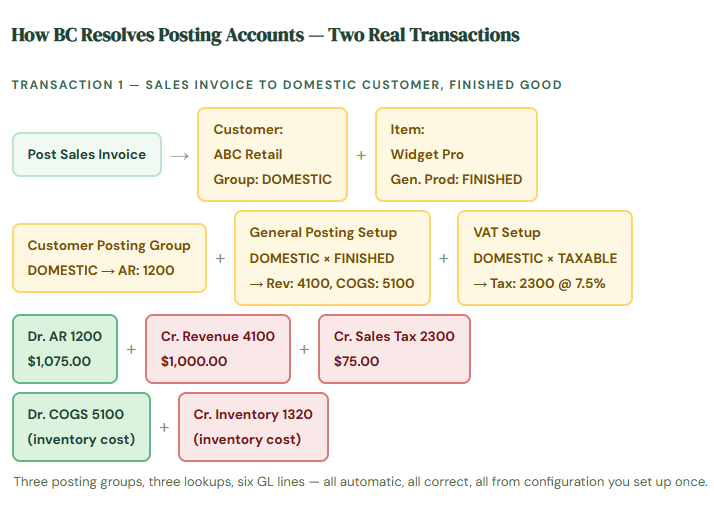
Let me walk through two real transactions so you can see all three posting group types working together in sequence. This is the “aha moment” section — once you see the whole chain, posting groups stop being mysterious.
How BC Resolves Posting Accounts — Two Real Transactions

Setting Up Your Posting Groups: The Right Sequence
Posting group setup has to happen in a specific order because each layer depends on the previous one. Configure them out of order and you’ll find yourself blocked or doing rework. Here’s the sequence that works.
01 Finalize Your Chart of Accounts First
I know — we’ve said this before. But it’s the prerequisite that keeps coming up because it keeps getting violated. Every posting group setup row points to specific GL account numbers. If those accounts aren’t finalized, you’re configuring posting groups against a moving target. Lock the COA. Then start posting group setup. In that order, every time.
02 Define Your Gen. Bus. Groups and Gen. Prod. Groups First — Just the Labels
Before you configure the matrix, create the labels. Decide how many Gen. Bus. Groups you need — DOMESTIC, FOREIGN, INTERCO, GOVT, whatever reflects your actual business relationships. Decide how many Gen. Prod. Groups you need — FINISHED, RAWMAT, SERVICE, FREIGHT, NONSTK, whatever item and service categories you actually have. Keep both lists as small as they can be while still serving your reporting requirements. Every combination you add to each list multiplies the number of matrix rows you need to configure and test.
03 Build the General Posting Setup Matrix — Every Combination You’ll Actually Use
Open the General Posting Setup page and work through every Bus. Group × Prod. Group combination that will occur in your business. For each row, specify the Sales Account, Purchase Account, COGS Account, Sales Credit Memo Account, Purchase Credit Memo Account, Sales Discount Account, and Purchase Discount Account. Work from your chart of accounts design document — not from memory. This is the configuration step that takes the most care and that has the most downstream consequences if it’s wrong.
04 Set Up Specific Posting Groups for Customers, Vendors, Items, and Banks
Create your Customer Posting Groups, Vendor Posting Groups, Inventory Posting Groups, and Bank Account Posting Groups — each pointing to the correct GL accounts for that entity type. These are simpler than the matrix but they’re required, and they need to be ready before any customer, vendor, or item records are loaded into BC.
05 Assign Groups to Every Master Record
Every customer gets a Customer Posting Group and a Gen. Bus. Posting Group. Every vendor gets a Vendor Posting Group and a Gen. Bus. Posting Group. Every item gets an Inventory Posting Group and a Gen. Prod. Posting Group. This assignment happens either during data migration (if you’re loading records from a spreadsheet) or during manual record creation. Build it into your migration templates so it can’t be omitted.
06 Test Every Posting Group Combination Before Go-Live
Post a test sales invoice for each combination of Customer Posting Group, Gen. Bus. Group, and item Gen. Prod. Group you’ve configured. Post test purchase invoices across your vendor and item combinations. Look at the resulting GL entries — specifically which accounts were debited and credited. Verify they match your intention. Every untested combination is a potential surprise at go-live. Testing is cheap. Correcting live data is not.
Posting Groups vs. Posting Profiles: A Quick BC / F&O Comparison
If you’ve also been reading the F&SCM posts in this blog, you’re probably noticing that posting groups in BC and posting profiles in F&O serve the same fundamental purpose but are structured differently. Here’s the honest comparison, because the differences matter if your organization is running both platforms or considering a migration.
| Concept | Business Central | D365 Finance / F&SCM |
|---|---|---|
| Revenue routing | General Posting Setup matrix: Bus. Group × Prod. Group → Revenue account | Inventory posting profile + item group → Sales account |
| AR summary account | Customer Posting Group → Receivables Account | AR Posting Profile → Summary Account |
| AP summary account | Vendor Posting Group → Payables Account | AP Posting Profile → Summary Account |
| Configuration location | All posting groups live under the Finance setup area — one place to manage all of them | Each module has its own posting profile page — AP, AR, Inventory, Fixed Assets are all separate |
| Complexity | Simpler overall, but the General Posting Setup matrix can grow large if you have many Bus./Prod. Group combinations | More granular and more flexible — better suited to complex multi-entity, multi-module scenarios |
| Tax handling | VAT/Tax Posting Groups integrated directly into the same posting group framework — same matrix concept for tax | Sales tax and use tax configured separately through Tax Engine — more powerful but more complex to configure |
Neither approach is better in absolute terms — they reflect the scale and complexity each platform is designed for. BC’s posting group system is elegant and, once you understand the matrix concept, relatively straightforward to manage. F&O’s posting profiles are more powerful and more granular, which is appropriate for the larger, more complex implementations that platform is designed to support.
The Mistakes I See Most Often
One Posting Group for Everything
The fastest posting group setup — and the least useful one — is to create a single Gen. Bus. Group called something like DEFAULT and a single Gen. Prod. Group called DEFAULT and configure one matrix row. Everything posts to the same accounts regardless of customer type or item type. It works, technically. But you lose all the routing differentiation that makes your financial reporting useful. Domestic and international revenue in the same account. Intercompany transactions mixed with external ones. Finished goods and raw material purchases hitting the same line. Your P&L becomes a pile instead of a picture.
→ Take the time to design your posting group structure to reflect the business distinctions that matter for your financial reporting. You don’t need thirty groups — but you probably need more than one. Start with the reports you need to produce and work backward to the groups you need to make them possible.
Missing Matrix Combinations Discovered at Go-Live
Your implementation team built and tested the matrix combinations that appeared in the test scenarios. But one item category — freight charges, or non-stock items, or a service type — wasn’t in any test transaction. Go-live arrives, someone posts the first freight invoice, and BC throws a “General Posting Setup does not exist” error. The transaction is stuck. The user is confused. You’re debugging configuration on a live system while the clock ticks.
→ Build a complete inventory of every Gen. Bus. Group and Gen. Prod. Group combination that will appear in production transactions — not just the ones in your test scripts. Walk through this list with your operations team, not just Finance. They know about the edge cases. Configure and test every row before go-live.
Assigning the Wrong Posting Group During Data Migration
This one is subtle and slow-burning. If customers are assigned to the wrong Gen. Bus. Group during migration — domestic customers accidentally in the FOREIGN group, for example — every transaction for those customers posts to the wrong revenue account. The invoices go through without errors. The GL has entries. Everything looks fine until you pull your revenue report and your domestic and international revenue are inverted. Tracing this back to a data migration error in a live system with thousands of transactions posted is a genuinely miserable exercise.
→ Build validation into your migration process. Before loading customer and vendor records, have Finance review a sample from each posting group assignment to confirm the assignments are correct. Run a post-migration report showing all customers grouped by posting group assignment and have someone who knows the customer list review it for obvious errors.
Changing Posting Groups After Transactions Have Posted
BC allows you to change a posting group assignment on a customer, vendor, or item record at any time. What it doesn’t do is retroactively repost historical transactions to reflect the change. So if you realize in month three that a vendor was assigned to the DOMESTIC posting group when they should have been in the FOREIGN group, changing the record fixes future transactions — but the three months of historical AP entries already in the GL are still in the wrong account. Correcting those requires manual journal entries, which require reconciliation, which takes time nobody budgeted for.
→ Treat posting group changes on active records as a formal change control event — not a casual edit. Before making the change, assess how many transactions have already posted under the current assignment and what the GL impact of correcting them will be. Get Controller approval. Document the rationale. And seriously consider whether the historical entries need to be corrected or whether a clean cutover going forward is more practical.
Not Configuring the Discount Accounts in the Matrix
The General Posting Setup has fields for Sales Discount Account and Purchase Discount Account in addition to the main revenue and purchase accounts. These are the accounts that capture early payment discounts, line discounts, and invoice discounts when they’re applied. Many implementations leave these fields blank because they weren’t in scope during the testing phase. The first time a customer takes a 2% early payment discount, BC either throws an error or routes the discount amount to an unintended account — usually one that’s technically valid but completely wrong for financial reporting purposes.
→ Configure discount accounts for every matrix row where discounts might realistically be applied — which is most of them. Even if your current volume of discount activity is low, the cost of setting it up correctly now is much lower than correcting misposted discount amounts after the fact. Test at least one discounted payment scenario in UAT for each relevant combination.
Forgetting That Posting Groups Live on GL Accounts Too
This is the one that surprises people most. In BC, when you post a direct journal entry or a purchase/sale that hits a GL account directly (rather than through an item), that GL account itself needs a Gen. Prod. Posting Group assigned to it. A utility expense account used on a vendor invoice line, for example, needs a Gen. Prod. Group so BC knows how to handle the transaction. If it’s missing, BC either errors on the posting or routes it through an unintended path. GL accounts used in transaction lines are items in the posting framework — not exceptions to it.
→ Review your chart of accounts and flag every GL account that will be used directly on purchase lines, sales lines, or journal lines. Assign an appropriate Gen. Prod. Posting Group to each one. This is a quick review once you know to do it — and it closes a gap that most teams only discover the first time someone tries to use one of those accounts directly in a transaction.
Quick Reference: Do’s and Don’ts
✓ Do This
- Finalize your chart of accounts before starting posting group setup
- Design your Gen. Bus. and Gen. Prod. Group labels to reflect real business distinctions that matter for reporting
- Build the full General Posting Setup matrix — every combination your business will actually use
- Configure discount accounts for every matrix row, not just the ones in active testing
- Assign Gen. Prod. Posting Groups to GL accounts used directly in transaction lines
- Include posting group assignments in your data migration templates
- Have Finance review posting group assignments in migration data before loading
- Test every Bus. Group × Prod. Group combination with real transactions before go-live
- Treat posting group changes on active records as formal change control events
- Document the business rationale behind each posting group design decision
✗ Don’t Do This
- Create a single DEFAULT group for everything just to get through setup faster
- Leave matrix combinations unconfigured and hope they don’t come up in production
- Configure posting groups against a chart of accounts that isn’t finalized
- Skip discount account setup because “we don’t do many discounts”
- Forget to assign posting groups to GL accounts used in transaction lines
- Allow posting group changes on active records without Controller review and change documentation
- Test only the most common transaction types and assume the rest are fine
- Treat posting group setup as an IT task rather than a Finance design decision
- Mix intercompany transactions with external ones by using the same posting groups for both
- Leave the setup phase without a documented, reviewed posting group design that Finance has approved
The honest summary: Posting groups are not glamorous. There is no demo-day excitement in opening the General Posting Setup page and filling in a matrix. But they are the configuration that makes everything else in BC work correctly — or not. When they’re right, your financial data is clean, your reports produce the numbers you expect, and your month-end close is predictable. When they’re wrong, everything technically “works” until someone looks closely at where the numbers actually landed.
Build them thoughtfully. Test them completely. And make sure Finance — not IT, not the project manager — makes the design decisions. The accounts in that matrix are your accounts. Own them.
Up Next:
We’ve built the foundation: chart of accounts, posting groups, the accounting infrastructure that makes BC run. Now it’s time to put it to work. The next post covers Accounts Payable in Business Central end-to-end — from vendor setup through invoice entry, approval, and payment — with all the same plain-language, real-world context. If your AP team is going live on BC, this one is for them.
Until then: build your matrix before you build anything else, test every combination, and please don’t create a DEFAULT group and call it done. Your future self — running reports six months after go-live — will be grateful you didn’t.
— Bobbi
D365 Functional Architect · Recovering Controller
Leave a Reply