

You can configure everything else perfectly and still end up with reports you don’t trust if this one piece isn’t designed thoughtfully. Let’s make sure that doesn’t happen to you.
“In my controller days, I inherited a chart of accounts that had clearly been added to by multiple people over many years, with no shared vision and apparently no one ever asking whether any of the old accounts were still needed. There were accounts for things the company hadn’t done in a decade. There were seventeen slight variations of ‘Office Supplies.’ I spent the first three months just trying to understand what I was looking at. I do not wish that experience on anyone.”
So What Is the Chart of Accounts, Really?
If you’re coming from an accounting background, you already know this one. But let’s make sure we’re on the same page, because in Business Central there are a few nuances worth naming from the start.
Your chart of accounts — your COA — is the complete list of account numbers and account names that your organization uses to categorize every single financial transaction. Every dollar that comes in or goes out, every asset on your balance sheet, every liability you owe — all of it maps to a line in your chart of accounts. It is the backbone of your entire financial reporting structure.
In Business Central, the COA is also the place where some important behavioral settings live. It’s not just a list — it’s a configuration. Each account has a type, a category, a direct posting setting, and more. Getting those things right is what separates a COA that works from a COA that technically functions but produces confusing results.
Professor Mode: Activated
Think of your chart of accounts like the filing system in a very organized office. Every transaction is a piece of paper. The COA is the folder structure — the labels on the drawers, the categories on the tabs. If your folders are thoughtfully named and logically organized, finding information is fast and your reports make sense. If the filing system is chaotic or inconsistently labeled, everything technically still gets filed — it just takes forever to find anything, and you’re never quite sure you’ve found everything. The transactions don’t lie. The structure just makes them easier or harder to understand.
How Business Central Organizes Accounts
Business Central groups accounts into six main categories. These map to the financial statements you already know — the balance sheet and the income statement. Here’s a quick orientation:
Assets
1000–1999
Cash, receivables, inventory, fixed assets — what your company owns or is owed. These live on your balance sheet.
Liabilities
2000–2999
Accounts payable, accrued expenses, loans, deferred revenue — what your company owes. Balance sheet, credit side.
Equity
3000–3999
Owner’s equity, retained earnings, common stock. What’s left after liabilities. Also balance sheet.
Income
4000–4999
Revenue from sales, services, and other income streams. Top of your income statement. The good stuff.
Cost of Goods Sold
5000–5999
The direct costs tied to what you sell — materials, labor, freight in. Lives just below revenue on your P&L.
Expenses
6000–9999
Operating expenses — salaries, rent, utilities, marketing, professional services. The costs of running the business.
Now — those number ranges I listed are just a common convention. Business Central doesn’t require you to use any specific numbering scheme. But adopting a logical, range-based numbering structure from the start makes your COA dramatically easier to navigate and report on. We’ll talk more about that in a minute.
Account Types: The Setting Nobody Talks About Enough
Here’s one of those Business Central nuances I mentioned earlier that trips people up. Every account in your COA has an Account Type setting, and it controls how that account behaves in the system. There are four:
| Account Type | What It Does | When You Use It |
|---|---|---|
| Posting | This is a real account — transactions can be posted directly to it. The vast majority of your accounts will be this type. | Any account where actual financial activity is recorded: cash, AP, revenue, expenses, etc. |
| Heading | A label used for grouping and display on reports. No transactions post here. It’s purely organizational. | Section headers like “Current Assets,” “Operating Expenses,” “Total Revenue” — the structural labels that make reports readable. |
| Total | Sums a range of accounts. Used for subtotals on financial reports. | Lines like “Total Current Assets” or “Total Operating Expenses” — the running totals that appear on your P&L and balance sheet. |
| Begin-Total / End-Total | Works as a pair to define a summing range — Begin-Total marks where the group starts, End-Total closes it and shows the sum. | Used when you need a more complex indented grouping structure on reports — particularly useful for tiered expense categories. |
Why does this matter? Because if your heading and total accounts are set up incorrectly, your financial reports won’t format the way you expect. Subtotals won’t calculate. Section breaks won’t appear. The data is right — it just doesn’t display correctly. This is one of the most common sources of the “my report looks wrong” conversations I have with clients in the first weeks after go-live.
Real talk: The Account Type is also where the Direct Posting setting comes in. If you turn Direct Posting OFF on an account, users can’t post journals or manual entries directly to it — the system requires a source document like an invoice or payment. For accounts where you want to enforce the control that all activity flows through proper documents (your AP or AR clearing accounts, for example), this is a great guardrail. For accounts where your team needs to make manual journal entries (accruals, reclassifications, period-end adjustments), make sure Direct Posting is ON, or month-end close is going to be a very frustrating experience.
Posting Groups: The Magic (and Mystery) Behind the Curtain
Alright. I promised in the last post that posting groups deserved their own moment. Here it is. Not a full deep-dive — that’s a whole separate post — but enough context that you understand why the COA and posting groups are inseparable topics.
When you post a transaction in Business Central — say, a customer invoice — you don’t manually tell the system which accounts to hit. You don’t say “debit Accounts Receivable, credit Revenue.” The system figures that out automatically. How? Posting groups.
Posting groups are configuration tables that map business entity combinations to specific GL accounts. They’re the behind-the-scenes rules that answer the question: “When a customer in posting group X buys an item in posting group Y, which accounts does that transaction hit?”
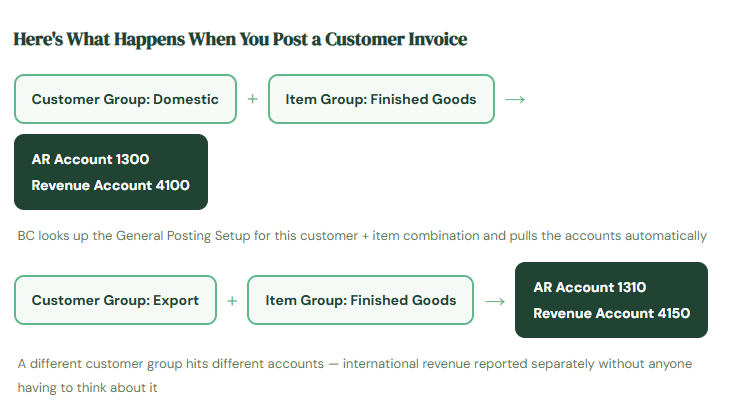
A different customer group hits different accounts — international revenue reported separately without anyone having to think about it
This is elegant when it’s set up correctly. It automates your account coding, enforces consistency, and eliminates a whole category of manual journal entry errors. It is also the source of deep confusion when the accounts in your posting groups don’t match your COA, or when posting groups were set up without understanding which accounts they feed.
The reason I’m introducing this here — in the COA post — is because your chart of accounts and your posting groups need to be designed together. You can’t finalize your COA without knowing what posting groups will feed into it, and you can’t configure your posting groups without a finalized COA. They’re two halves of the same conversation. Don’t let anyone treat them as separate workstreams.
Designing Your COA: What Good Looks Like
Let me show you a slice of what a clean, logical chart of accounts looks like in Business Central. This is a simplified example — your organization will have more accounts — but the structure is what I want you to see.
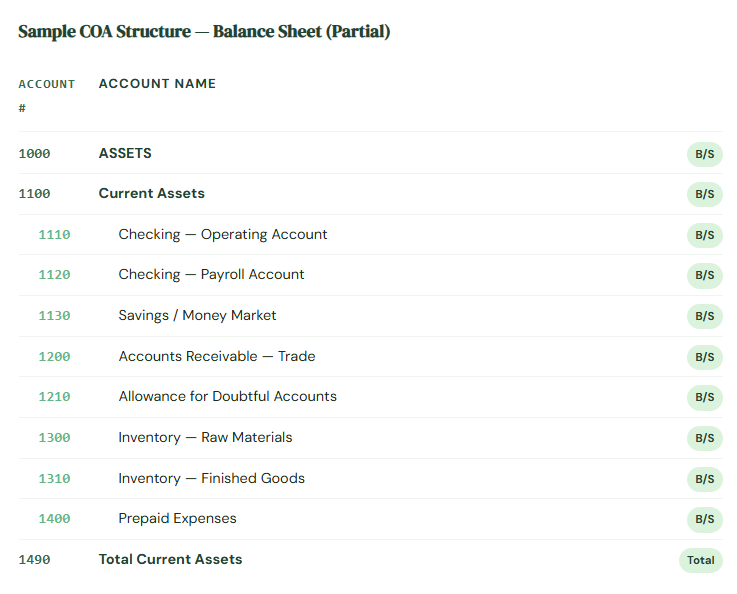
Notice a few things: the number ranges leave gaps (1110, 1120, 1130 — not 1111, 1112, 1113). That’s intentional. Gaps mean room to add accounts later without disrupting your numbering logic. Notice also that each account has a clear, unambiguous name — “Checking — Operating Account” rather than just “Checking.” When you have multiple bank accounts, clear names prevent a lot of confusion and mispostings.
The Mistakes I See Most Often — Let’s Save You From All of Them
I could write a book on COA missteps. I’ll spare you the full volume and focus on the ones that cause the most pain in Business Central specifically.
Migrating the Old COA Without Rethinking It
This is the number one missed opportunity I see during implementations. The old system had 400 accounts. So the new system gets 400 accounts — same numbers, same names, same oddly specific account for “Executive Parking” that hasn’t had a transaction in four years. Migrating everything without questioning it feels safe, but you’re just importing old problems into a new system. Worse, you’re missing the chance to clean up the structure while you have everyone’s attention and a natural forcing function for change.
→ Pull a transaction activity report on your existing accounts before migration. Any account with zero transactions in the past 24 months should require a business case to survive the migration. You will be amazed how many don’t make it.
Too Much Granularity in the Wrong Places
More accounts feel like more control — until maintaining them is a full-time job and your income statement is twelve pages long. If you have seventeen separate expense accounts for different types of office supplies, ask yourself honestly: does leadership make different decisions based on whether paper clips came out of account 6241 versus 6242? If the answer is no, those accounts should probably be one account called “Office Supplies.” Granularity has a cost in data entry errors, maintenance, and report readability. Spend it where it buys you something.
→ A useful test: for every account you’re considering, ask “who uses this for what decision?” If the answer is unclear or the decision-maker doesn’t exist, consolidate. You can always add accounts later. Collapsing them after the fact is messier.
Not Leaving Room to Grow
Numbering your accounts sequentially with no gaps — 6001, 6002, 6003, 6004 — seems tidy until you need to add a new account between existing ones and your only option is 6002b or some other number that breaks your logical flow. Leave gaps in your numbering scheme from day one. Plan for the business you’ll be in three years, not just the one you are today.
→ A common convention: number by tens for accounts within a group (6010, 6020, 6030) and by hundreds for major categories. This gives you room to add accounts logically without disrupting the sequence.
Ignoring Account Categories and Their Impact on Financial Statements
Business Central uses account categories to structure the default financial statements — Balance Sheet, Income Statement, Cash Flow. If your accounts aren’t correctly categorized, your default financial reports won’t be structured properly. This isn’t just cosmetic — it affects how BC calculates totals, where accounts appear in reports, and how the system handles year-end closing entries. Account categories are not optional cleanup you do later. They’re part of the initial COA setup.
→ Assign account categories to every posting account during COA setup. Run your default financial reports in a test environment before go-live to confirm they look the way you expect. If something’s in the wrong section, trace it back to the account category, not the account itself.
Treating COA Design as an IT Decision
I cannot say this strongly enough: your chart of accounts is a finance and accounting decision, not an IT decision. Your implementation consultant can help you understand how the system handles account types and categories. Your IT team can help you migrate the data. But the actual structure — what accounts exist, how they’re named, how they’re grouped — has to be owned by the people who prepare and use the financial statements. If your controller isn’t deeply involved in this conversation, stop. Go get them. This is their territory.
→ The COA design meeting should have your Controller, your CFO or financial leadership, and your most senior accounting staff in the room. Your implementation consultant facilitates. Your finance team decides.
A Practical Approach to Getting This Right
Here’s a process that actually works. It’s the one I walk clients through, and it consistently produces better outcomes than the “we’ll figure it out during configuration” approach.
01 Start With Your Financial Statements
Pull your current Balance Sheet and P&L. These tell you the minimum structure your COA needs to support — the line items your leadership already reads and makes decisions from. Your new COA needs to be able to produce these statements at a minimum. Work backward from the output you need.
02 Audit Your Current Account List for Activity
Run a report showing every account and its transaction volume for the past two years. Anything with zero activity is a candidate for retirement. Anything with very low activity should be reviewed — is there a reason this exists separately, or should it roll into a broader account? This is unglamorous work, but it’s the work that saves you from a bloated COA in the new system.
03 Draft Your Proposed Structure — On Paper First
Before anyone touches Business Central, lay out your proposed account structure in a spreadsheet. Account number, account name, account type (Posting / Heading / Total), account category, and a brief note on what posts to it. Review this with your Controller and CFO. Change it. Review it again. Get consensus before configuration begins — it is infinitely easier to move things around in a spreadsheet than to restructure accounts that already have test transactions posted against them.
04 Map to Posting Groups at the Same Time
As you finalize your account list, identify which accounts will be fed by posting groups — your AR accounts, AP accounts, inventory accounts, revenue accounts, COGS accounts. These need to be coordinated with your posting group design. Neither can be finalized without the other. This is the conversation where your implementation consultant needs to be in the room alongside your Controller.
05 Build and Test With Real Scenarios
Once your COA is configured in a test environment, post test transactions — a customer invoice, a vendor bill, a journal entry, a payment — and then pull your Balance Sheet and P&L. Do they look right? Are totals calculating correctly? Are the right accounts showing in the right sections? This is the only way to validate that your account types, categories, and posting groups are working together the way you designed them. Don’t wait until UAT week to find out something is off.
Quick Reference: Do’s and Don’ts
✓ Do This
- Start with your desired financial statements and work backward
- Leave gaps in account numbering (use increments of 10 or more)
- Name accounts clearly and unambiguously
- Assign account categories to every posting account
- Set up Heading and Total accounts to give reports readable structure
- Review every account for transaction activity before migrating
- Involve your Controller and CFO as the decision-makers
- Design COA and posting groups together, not separately
- Test your financial report output in a sandbox before go-live
- Turn off Direct Posting on accounts that should only receive system-generated entries
✗ Don’t Do This
- Migrate your entire old COA without reviewing it first
- Create accounts for every granular sub-category when roll-up accounts will do
- Number accounts sequentially with no gaps
- Skip account category setup and assume it doesn’t matter
- Let IT or your implementation consultant own this decision alone
- Finalize COA configuration before your posting group design is clear
- Leave ambiguously named accounts (“Misc Expense,” “Other”) without a description
- Create duplicate or near-duplicate accounts for the same purpose
- Assume you can easily restructure things after go-live without pain
The bottom line: A thoughtfully designed chart of accounts won’t make your implementation glamorous. Nobody’s going to throw a party because your account numbering scheme has logical gaps. But six months after go-live, when your Controller can pull a clean P&L in about thirty seconds that actually tells the story of the business, and your AP team isn’t making coding errors because the account names are clear and unambiguous — you will feel the benefit of every hour you put into this. It’s quiet infrastructure. It’s also absolutely foundational. Treat it that way.
What’s next?
We’re going deeper into the mechanics: Posting Groups in Business Central — Demystified. We’ll break down General Posting Setup, Customer Posting Groups, Vendor Posting Groups, and Inventory Posting Groups in plain language with real examples. If you’ve ever stared at the General Posting Setup matrix and felt your vision go a little blurry — that post is specifically for you. We’re going to make it click.
As always: take notes, involve the right people, and please do not skip the account category step. Future-you will thank present-you.
— Bobbi
D365 Functional Architect · Recovering Controller
Leave a Reply