
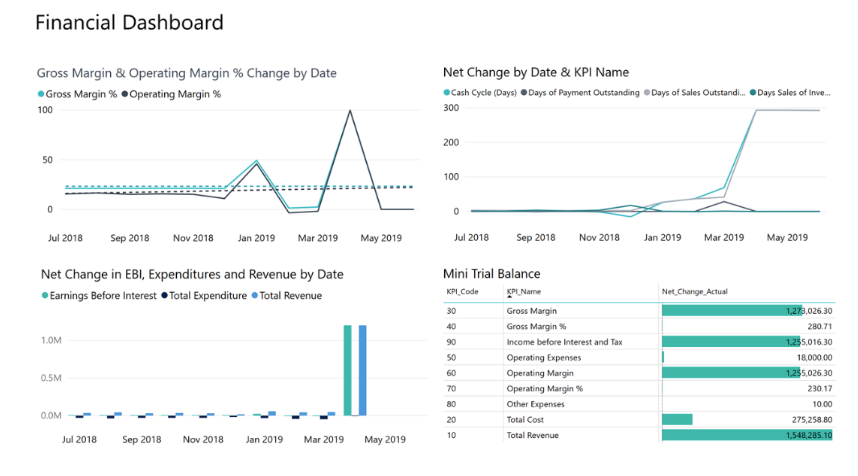
How Finance connects BC data to the Power Platform, the Finance-specific workflows Power Automate handles well, the Power BI connection methods and their trade-offs, the governance model Finance must own over every automated workflow touching BC financial data, and the mistakes that turn accessible low-code tools into financial control gaps.
How BC Connects to the Power Platform
Business Central exposes its data to the Power Platform through two primary mechanisms: the Business Central connector in Power Automate and Power Apps, and OData feeds that Power BI consumes directly. Both use BC’s API pages—pre-built or custom API pages that expose BC table data as structured REST endpoints. The Business Central connector in Power Automate handles authentication and connection management through a user’s BC credentials or a service account; Power BI connects through either the BC connector or a direct OData URL.
One structural difference from D365 F&O that BC clients often discover mid-project: BC’s connector works at the company level. If the BC environment has multiple companies, a Power Automate flow or Power BI report connected to Company A does not automatically see Company B data. Multi-company Power Platform solutions require separate connections per company or a data aggregation layer. For consolidation-level Power BI reporting across multiple BC companies, the OData approach with a Power BI dataflow that combines results from each company connection is the standard architecture.
Power Automate—The Finance Use Cases That Actually Work
Power Automate—Finance Workflows Worth Building
Power Automate’s strength in BC Finance is notification, routing, and lightweight integration—the connective tissue between BC and the collaboration tools Finance already uses (Teams, Outlook, SharePoint). The BC connector supports triggers on BC record events (when a sales order is released, when a purchase order is approved, when a payment journal is posted) and actions (create a BC record, update a field, read data from a BC page). Finance should apply Power Automate where BC’s native workflow engine doesn’t reach and where the logic is simple enough to be maintained by Finance without a developer.
- Invoice approval notification with drill-through link: When a purchase invoice in BC reaches “Pending Approval” status, send a Teams message or Outlook email to the approver with the vendor name, invoice amount, due date, and a direct link to the BC invoice approval page. Eliminates the approver’s need to log in to BC to check their approval queue—they click the link from the notification and approve directly.
- Payment run confirmation to Treasury: When a payment journal is posted in BC, trigger a flow that reads the payment total by bank account and sends a same-day summary to the Treasury team: total disbursed, bank account used, check count or ACH count, and a list of vendors paid over a defined threshold.
- Vendor master change alert: When a vendor record in BC is modified (bank account, payment terms, address), trigger a notification to the AP Manager and Controller with the specific fields changed and the user who made the change. Creates a secondary awareness control for vendor master modifications without requiring manual review of the audit log.
- Customer credit limit breach notification: When a sales order is placed that would exceed a customer’s credit limit in BC, trigger a Teams alert to the Credit Manager with the customer name, order amount, current balance, and credit limit. BC has a native credit limit hold feature; this flow adds a notification layer that reaches the Credit Manager proactively rather than waiting for them to discover the hold.
- Period close checklist tracker: A Power Automate flow connected to a SharePoint list drives the month-end close checklist: tasks are assigned, due dates trigger reminder notifications, completion is logged in SharePoint with a timestamp, and the Controller receives a summary when all tasks are marked complete. Not a BC integration—BC data can be read to pre-populate task details, but the checklist lives in SharePoint.
- New customer creation notification to Sales: When a new customer record is created and approved in BC by Finance, a Power Automate flow notifies the Sales team in Teams that the customer is now active and available for order entry. Closes the gap between Finance approving a customer account and Sales learning it is available.
Power BI—The Connection Methods and Their Trade-Offs
Power BI—Connecting to BC Financial Data
Power BI connects to BC in three ways, each with a different trade-off between data freshness, performance, and maintenance burden. Finance must choose the right connection method for each report’s requirements rather than defaulting to whichever the partner set up during implementation.
- BC Power BI Connector (Import mode): Power BI Desktop connects to BC using the Business Central connector, selects API pages to import, and loads a snapshot of the data into the Power BI dataset. The data is current as of the last scheduled refresh. Refresh can be scheduled up to eight times per day on Power BI Pro or up to 48 times per day on Premium. Import mode is fast to query because data lives in the Power BI dataset—but reports are only as current as the last refresh. Appropriate for management reports that are reviewed weekly or monthly and do not require real-time data.
- OData Direct Query: Power BI connects to BC via an OData URL and queries data live at each report interaction. Every time a report page loads or a filter is applied, a query goes to BC. Data is always current—there is no refresh lag. The trade-off: performance depends on BC OData response time, large data sets are slow, and BC OData calls count against BC’s API limits. Appropriate for operational dashboards where current data is critical and the data volume is manageable (thousands of records, not millions).
- Azure Data Lake / Business Central data export: BC can continuously export data to Azure Data Lake Storage through the Business Central to Azure Data Lake export feature (requires Azure subscription and configuration). Power BI connects to the Data Lake via Azure Synapse or a dataflow, reading from parquet files that BC updates incrementally. This architecture handles large data volumes, decouples Power BI query performance from BC application performance, and supports the most complex analytical workloads. It requires Azure infrastructure investment and ongoing maintenance. Appropriate for high-volume transaction analytics, cross-company consolidation reporting, and enterprise-scale dashboards.
Microsoft’s BC Power BI Content Packs
Microsoft publishes pre-built Power BI apps for BC on AppSource: Finance Overview, Sales, Purchasing, and others. These connect to standard BC API pages and provide a baseline set of visualizations. They are a faster starting point than building from scratch but require adaptation to match the organization’s chart of accounts structure, dimension setup, and reporting hierarchy. Treat them as a template to customize, not a finished deliverable.
The Data-As-Of Date Is Non-Negotiable
Every Power BI report used in Finance decision-making must display a data-as-of date or last-refresh timestamp prominently on the report—not buried in a tooltip or dataset properties. This single discipline prevents the scenario where stale import-mode data is presented in a management meeting as current. Configure Power BI refresh failure alerts so Finance knows within hours when a scheduled refresh fails. Stale data with no timestamp is worse than no dashboard at all.
Validating PBI Against Account Schedules
Before a Power BI financial report is used in management or board presentations, Finance must validate its totals against the Account Schedule output for the same period. Run both reports for the same closed period and compare revenue, COGS, and operating expenses at the category level. Any difference requires root cause identification before the Power BI report is trusted. Include a revalidation step in the chart-of-accounts change checklist—new accounts may not be in the Power BI data model.
Multi-Company BC Reporting in Power BI
A single Power BI report covering multiple BC companies requires a separate OData or connector connection per company, combined in a Power BI dataflow or calculated in DAX using a Company field dimension. The architecture must be planned before the report is built. An ad-hoc multi-company report that queries each company’s OData feed separately and unions the results in Power BI works for small company counts; for five or more companies the Data Lake export architecture is significantly more maintainable.
The Service Account and Permissions Question
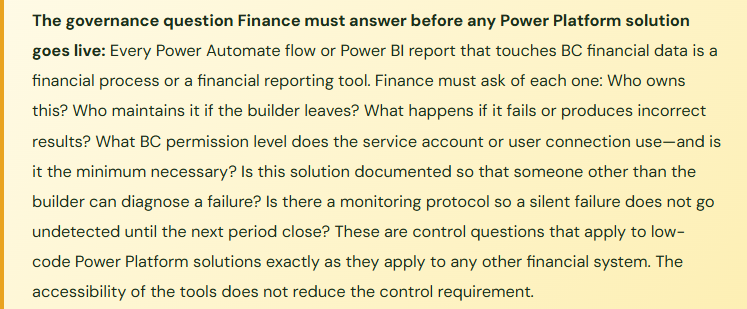
Power Automate flows that connect to BC use a connection authenticated by either a named user’s BC credentials or a dedicated service account. Using a named user’s credentials creates two problems: if the user is offboarded, the flow breaks immediately, and every action the flow takes is logged under that user’s name in BC’s audit trail, making it impossible to distinguish the user’s manual actions from the flow’s automated actions. A dedicated service account resolves both problems: the account remains active regardless of individual user changes, and the audit trail clearly attributes automated actions to the service account rather than a named user.
The service account must have the minimum BC permission set necessary for the specific actions the flow performs. A flow that only reads BC sales order data needs read access to the Sales Order API page—nothing more. A flow that creates purchase invoices needs create access to the Purchase Invoice API page. Assigning a broad permission set or SUPER to the service account because it is easier than identifying the minimum necessary permissions creates an unmonitored elevated-access account that is as much a control risk as an over-permissioned named user.
Five Power Platform Mistakes Finance Ends Up Investigating
⚠️ Power Automate Flow Bypasses Invoice Approval—Finance Discovers It During an Audit
The AP coordinator builds a Power Automate flow to “speed up” the invoice approval process for small invoices: any purchase invoice under $250 is automatically approved by the flow without routing to a human approver. The flow uses the coordinator’s own BC credentials. It has been running for seven months. Finance management was not informed. The internal audit reviews AP approval controls and finds $84,000 of invoices approved by an automated process with no documented Finance authorization for that automation. The invoices were all legitimate. The audit finding is not about the invoices—it is about the fact that a financial control was circumvented by a tool the controller did not know existed, using credentials that attribute the approvals to a coordinator rather than an authorized approver.
Fix: Power Automate flows that automate any step in a financial approval process require explicit Finance management authorization before deployment and must be documented in the process control inventory. The authorization documents what the flow does, what BC permission level it uses, what the approval threshold is, who approved the automation, and when it was reviewed. Any flow that substitutes for a human approval step in AP, AR, GL, or purchasing must be treated as a change to the internal control structure—not a convenience improvement one user decided to make. Build the authorization requirement into the Power Platform governance policy and communicate it to all Finance users who have access to Power Automate.
⚠️ Power BI Dashboard Breaks After a BC Update—Nobody Notices for Six Weeks
A BC update changes the structure of the Sales Invoice API page—a field is renamed and two fields are combined. The Power BI dataset that connects to that API page through the BC connector fails its next scheduled refresh. No failure alert was configured. Finance continues referring to the Power BI dashboard in weekly sales reviews for six weeks, not realizing the data stopped updating on the day of the BC update. When a sales manager notices that the dashboard numbers don’t match the BC sales report she ran directly, Finance investigates and discovers the six-week data gap. The dashboard is corrected, but six weeks of sales reviews were conducted on stale data that Finance had presented as current without verification.
Fix: Configure Power BI refresh failure alerts in the Power BI Service for every dataset connected to BC. The alert sends an email to the dataset owner when a scheduled refresh fails. Set up the alert at dataset creation—not after the first failure. Additionally, add a data-as-of timestamp to every report page that shows when the data was last refreshed; Finance presenters should confirm the timestamp is current before any meeting. For reports used in weekly operational reviews, add a standing agenda item: “Confirm Power BI data is current before presenting.” A 30-second timestamp check before a meeting is the entire control.
⚠️ Flow Owner Leaves—The Flow Stops Working and Nobody Can Fix It
A Finance analyst builds a Power Automate flow over two months that pulls weekly AR aging data from BC, formats it into a summary table, and posts it to the Finance Teams channel every Monday morning. It is genuinely useful—the team discusses the aging report in the Monday stand-up without anyone logging into BC. Nine months later the analyst is promoted and moves to a different team. Their Microsoft 365 account is eventually deprovisioned. The Power Automate flow, which ran under the analyst’s credentials, stops immediately. The flow is owned by the departing analyst’s account, which no longer exists. The Finance team loses access to the flow entirely—they cannot view it, edit it, or reactivate it without IT intervention to recover the flow from the deleted account. Recovery takes two weeks and requires a Power Platform administrator to reassign ownership.
Fix: Every Power Automate flow used in Finance operations must use either a dedicated service account (not a named individual’s credentials) or must have a co-owner assigned who can maintain it if the primary owner is unavailable. In Power Automate, flow ownership can be shared with a second user who has full edit and run access. Assign the Controller or Finance manager as a co-owner on every Finance-critical flow at creation. Include Power Automate flow ownership in the employee offboarding checklist: before a Finance user’s account is deprovisioned, identify every flow they own, transfer ownership to their successor or the designated Finance service account, and verify the flows continue running after the account transition.
⚠️ Power BI Income Statement Doesn’t Match Account Schedules—Management Is Using the Wrong Number
Finance builds a Power BI income statement that connects to BC’s GL Entry API. The report calculates revenue and expense totals from the GL entries directly using DAX measures. The Account Schedule income statement—which is the authoritative management report—uses account ranges defined in the row definition. A revenue account (account 4350, which was added six months ago to track a new service line) is in the Account Schedule row definition but was not added to the Power BI DAX measure that calculates total revenue. The Power BI income statement understates revenue by $28,000 per month for six months. Finance presents the Account Schedule to the CFO and the Power BI dashboard to the sales team. The sales team’s revenue number is $168,000 lower than the CFO’s for the same period. When the discrepancy surfaces in a joint leadership meeting, Finance cannot immediately explain it because they were not aware the two reports were using different account coverage.
Fix: Power BI financial reports must be reconciled to the Account Schedule for the same period and date range before they are deployed for use and after any chart-of-accounts change. The reconciliation is a formal validation, documented in writing: Power BI total revenue matches Account Schedule total revenue to within a defined rounding tolerance, for the same closed period. When new accounts are added to the chart of accounts, the Power BI data model must be reviewed and updated in the same change management step that updates the Account Schedule row definitions. The same checklist item, the same step, the same review. The Account Schedule and the Power BI model must agree or one of them is wrong—and Finance must know which one.
⚠️ Power Platform Solutions Are Treated as IT Tools—Finance Has No Inventory and No Control
Eighteen months after go-live, a departing consultant reviews the Finance team’s Power Platform environment. She finds: 14 active Power Automate flows connected to BC (Finance management can explain 6 of them), 3 Power BI datasets with scheduled refresh (one has been failing for 11 weeks without detection), 2 Power Apps connected to BC data (one was a pilot that was never officially deployed but is being used by 3 people), and 4 flows that are disabled but not deleted, one of which has pending run history from before it was disabled. None of the 14 flows are documented. None have designated backup owners. Three use named user credentials of people who are still employed but whose roles changed. The Power Platform environment is a collection of undocumented processes that Finance depends on but does not control.
Fix: Establish a Power Platform inventory for Finance—a simple register in SharePoint or OneNote that documents every active flow, dataset, and app: name, purpose, BC connection type, permission level, primary owner, backup owner, creation date, last reviewed date, and monitoring status. Review the inventory quarterly as part of the change management review. Flows that are no longer needed should be deleted, not disabled. Disabled flows with no documented retention reason should be deleted after 90 days. The inventory is Finance’s responsibility to maintain, not IT’s—because Finance is the function that depends on these tools for financial processes and Finance is the function that understands whether each one is still serving its intended purpose.
Do This / Don’t Do This
Do This
- Use a dedicated service account with minimum-necessary BC permissions for every Power Automate flow that connects to BC
- Assign a co-owner to every Finance-critical Power Automate flow at creation
- Configure Power BI refresh failure alerts on every BC-connected dataset
- Display a data-as-of timestamp on every Power BI Finance report
- Validate Power BI financial reports against Account Schedules for the same period before deployment
- Maintain a Power Platform inventory: every active flow, dataset, and app documented with owner and monitoring status
- Include Power Automate flow ownership in the employee offboarding checklist
- Require Finance management authorization before any flow that automates a financial approval step is deployed
Don’t Do This
- Allow Power Automate flows to automate financial approval steps without documented Finance management authorization
- Build flows using a named user’s BC credentials rather than a service account
- Deploy Power BI financial reports without reconciling to Account Schedule totals
- Omit refresh failure alerts from BC-connected Power BI datasets
- Present Power BI data in management meetings without confirming the timestamp is current
- Allow the Power Platform inventory to go undocumented—Finance cannot control what it cannot see
- Treat Power Platform solutions as IT tools outside Finance’s governance scope
- Disable rather than delete flows that are no longer needed—they accumulate into an unmanageable inventory
Up Next:
Power Platform integration closes the reporting and automation arc. The next post turns to a Finance capability that BC includes natively but that most implementations leave unconfigured: Cash Flow Forecasting in Business Central—how BC’s built-in cash flow forecast module works, the sources it draws from (open AR, open AP, payroll estimates, tax obligations, manual entries), the forecast variance analysis that tells Finance where the model is wrong, and the configuration decisions that determine whether the cash flow forecast is a Finance tool or a tab nobody opens.
— Bobbi
D365 Functional Architect · Recovering Controller
Thank you for reading!
If this post helped you solve a real problem, share it with a Finance colleague who is in the middle of an ERP implementation or a post-go-live optimization. If you have a topic that I haven’t covered, please reach out. There is always one more post worth writing.
If you are interested in learning more about D365, below are some of my recent posts:
Leave a Reply