
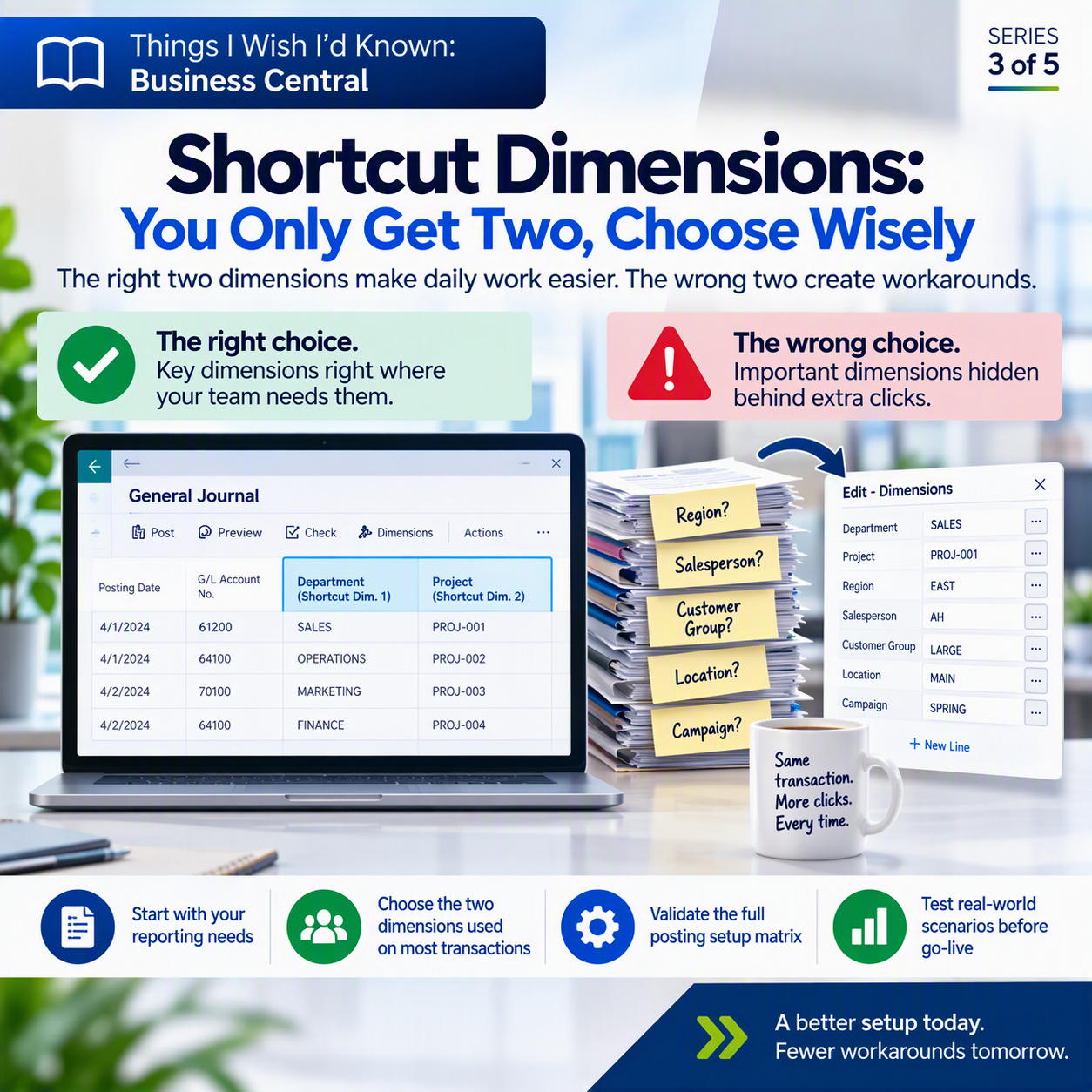
Picture your implementation team in a setup workshop, working through the dimensions list. Department. Project. Region. Salesperson. Customer group. Someone says “let’s make Department and Project the shortcut dimensions” because those are the two everyone can name off the top of their head, and the meeting moves on. Nobody stops to ask what accounting will actually need to see on every journal line six months from now.
Along with the conversations about entity set up and how that should look, dimensions are really important. When moving from legacy ERP systems, often the tendency is to want to overcomplicate dimension sets to get to reporting that wasn’t available in the past. Now, with financial tags and AI tools, we can get to the reporting we need in a much simpler fashion. This allows us to be very strategic with the shortcut dimensions we choose.
A quick, half considered pick is exactly how teams end up stuck with the wrong two dimensions in the columns that matter most.
The idea in one minute
Dimensions in Business Central let you tag transactions with extra context like department, project, or region, so you can slice your financial data later without redesigning your chart of accounts. You can define as many dimensions and dimension values as your business needs. But only two of them can be your global dimensions, and those same two are the shortcut dimensions that show up automatically, everywhere, as their own columns on journals and document lines with zero extra setup. Everything else takes more clicks. Choosing those two well, up front, saves you a lot of workaround headaches later.
What dimensions actually are, in plain English
If you’re new to the term, dimensions are just tags. When you post a transaction, you can attach labels that describe things your chart of accounts doesn’t, like which department spent the money, which project it belongs to, or which region generated the sale. Instead of creating a separate G/L account for every combination of department and project (a nightmare to maintain), you keep one account and tag the transaction. Later, you filter and report by those tags. Business Central lets you set up however many dimensions your business genuinely needs. That part is flexible.
What makes shortcut dimensions special
Here’s where it gets more restrictive. Business Central lets you use only two global dimensions, and by default, those two global dimensions are also your first two shortcut dimensions. That combination is what earns them their own dedicated columns, visible right on the journal or document line as you’re typing, with no extra clicks.
Microsoft’s own documentation puts it simply: a shortcut dimension “will be shown as a field when you are entering dimensions in a journal or document.” Any dimension that isn’t set up that way still exists and still works, but you have to open a separate Dimensions window to see or enter it. That’s one more click, every time, on every line. Multiply that by a week’s worth of transactions and you can see why it matters.
Business Central technically supports up to eight shortcut dimensions, and you can also use shortcut dimensions to filter entries pages like G/L entries or customer and vendor ledger entries for ad hoc reporting. But dimensions 3 through 8 need separate configuration and don’t carry the same automatic, everywhere-you-look presence your two global dimensions get. For the columns your team fills in every day without thinking twice, you’re really working with two.
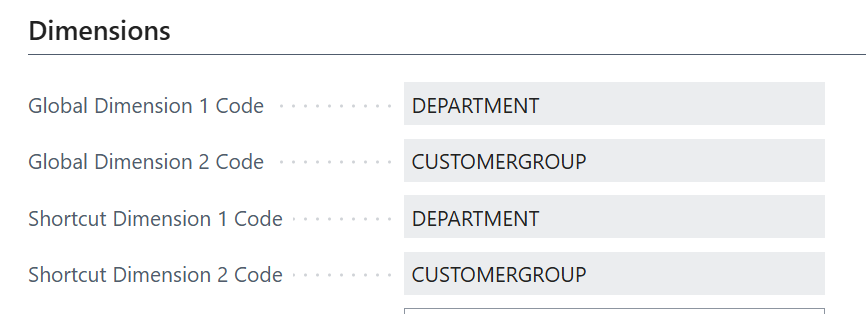
Why the choice deserves real thought
On day one of an implementation, teams often pick the two dimensions that sound the most obvious, usually Department and Project, because those show up in every demo and every template. For plenty of businesses, that’s genuinely the right call. But not always.
Ask what your team fills in on nearly every transaction, and what shows up in the reports leadership actually asks for. A retail business might care more about Location and Sales Channel than Department. A services firm might live and die by Project and Customer Group. A nonprofit might need Fund and Grant front and center. The right answer depends on how your business operates, not on what the setup wizard suggests.
A few questions worth sitting with before you commit:
✅ Which dimension does your team type in on almost every transaction, without exception?
✅ Which dimension shows up in the reports leadership asks for most often?
💡 Which dimensions could live comfortably in the Dimensions window with an extra click, because they’re used occasionally, not constantly?
Global dimensions are a long term structural decision, not a placeholder you casually swap out once transactions are posted against them. Getting it right early beats working around it later, so if you’re not sure yet, test your choice in a sandbox before locking it in across the live company.
Thank you for reading!
Next up in this series, we’re talking about a setting that feels harmless until it isn’t: permission sets. Post #4, “Permission Sets: The SUPER Habit You’ll Regret,” is coming next. (And if you missed it, post #2 covered another quiet setup screen with big consequences: “Posting Groups: Small Setup Screen, Big Consequences.”)
Sources
- Work with dimensions to track and analyze data – Business Central | Microsoft Learn
- Set up global and shortcut dimensions – Business Central Training | Microsoft Learn
- Introduction – Set up dimensions and dimension values – Business Central Training | Microsoft Learn
- Use shortcut dimensions in G/L entries for financial reporting – Dynamics 365 Release Plan | Microsoft Learn
Interested in learning more? Below are some of my latest posts:




Leave a Reply