

The full sequence Finance runs at fiscal year-end, how BC’s income statement closing process works, the retained earnings entry, the prior-year audit adjustment window, the new fiscal year setup, and the mistakes made in year-end close that carry forward into the first quarter of the new year.
How BC Handles Fiscal Years—The Foundational Architecture
BC manages fiscal time through Accounting Periods, configured under Finance → Accounting Periods. Each accounting period has a starting date, a name, and a New Fiscal Year flag that marks the first period of each fiscal year. There is no separate “fiscal year” object—the fiscal year is defined implicitly by the sequence of accounting periods and the New Fiscal Year markers. Finance creates accounting periods for the new fiscal year before the current year ends, which is what allows BC to accept transactions in both the current year and the new year simultaneously during the rollover window.
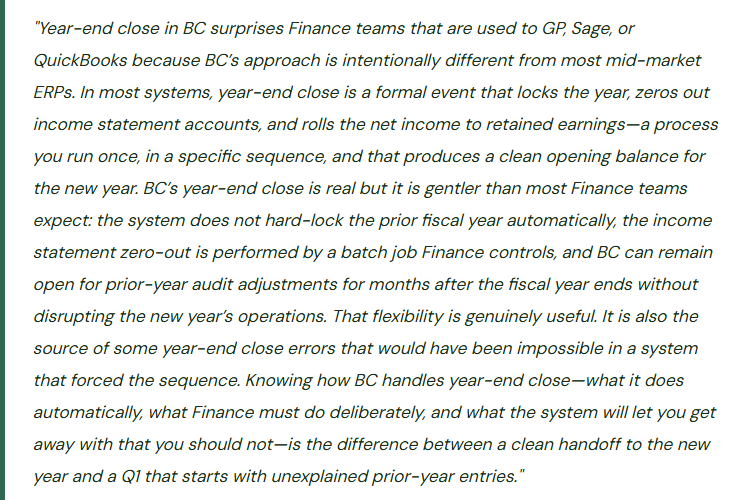
Unlike many ERP systems, BC does not automatically zero out income statement accounts at year-end. The income statement accounts (revenue, expense, COGS) carry their balances continuously across fiscal years in the GL until Finance explicitly runs the Close Income Statement batch. Before that batch runs, an income statement account’s balance in BC represents all postings since the account was created, not just the current year—but BC’s financial reports filter by date range and accounting periods to show only the current-year activity when requested. The raw GL balance and the reported current-year balance are different things. Finance must understand this distinction because it affects how you read the trial balance during the close process.
The Year-End Close Sequence—All Twelve Steps in Order
BC Year-End Close—Complete Sequence for Finance
The checklist to keep on-hand and share with others
- Complete All Period-End Procedures for the Final Month
- Before year-end close begins, the final month of the fiscal year must be fully closed: all accruals posted, bank reconciliations complete, AR and AP aging reconciled to GL, deferred revenue recognized, cost adjustments run (if inventory-based), and fixed asset depreciation posted. Year-end close does not replace the period-close checklist for the final month—it follows it. A year-end close that starts on an incompletely closed final period will produce an incorrect retained earnings entry and an unreliable opening balance sheet.
- Create Accounting Periods for the New Fiscal Year
- Finance creates the accounting periods for the new fiscal year before closing the current year (Finance → Accounting Periods → Create Year action). Set the starting date to the first day of the new fiscal year, the number of periods (12 for monthly, 4 for quarterly), and the period length. The New Fiscal Year checkbox on the first period marks the year boundary. Creating new periods does not affect current-year processing—BC will accept transactions in both the current year and the new year once the new periods exist. Create the new periods at least two weeks before fiscal year-end so the team can begin posting in the new year immediately after close.
- Run All Year-End Adjusting Entries
- Post all year-end adjusting entries in the closing fiscal year: accruals that span year-end, audit-required adjustments, bonus accruals, tax provision entries, depreciation true-ups, and any entries the external auditors identified during their preliminary fieldwork. All entries must be in the closing fiscal year with posting dates on or before the last day of the fiscal year. Once the Close Income Statement batch runs (Step 7), posting new entries into the closed year requires reopening the period—get all adjustments in before that step.
- Run Final Reconciliation Package
- With all adjustments posted, run the complete year-end reconciliation package: trial balance, all balance sheet account reconciliations, inventory-to-GL reconciliation (if applicable), AR aging to GL, AP aging to GL, bank statements to GL, fixed asset register to GL, and deferred revenue to deferral schedule totals. Confirm the trial balance is in balance. Document the reconciliation package—it becomes the auditor’s starting point for field work and the Finance team’s evidence that the year-end financial statements are supportable.
- Lock the Closing Year’s Periods from Routine Posting
- Update the User Setup for all Finance users: set the Allow Posting To date to the last day of the closing fiscal year, preventing new transactions from being posted in the new fiscal year accidentally before the close is complete. Simultaneously, restrict the Allow Posting From date to prevent new transactions in closed prior months. Only the Controller or designated administrator should retain unrestricted posting dates during the close window.
- Print / Export the Closing Year Financial Statements
- Before running the Close Income Statement batch, export or print the final income statement and balance sheet for the closing fiscal year. These are the financial statements as of close—the document that captures the year’s results before the income statement accounts are zeroed and the net income is transferred to retained earnings. Store these in the year-end document archive. Once the Close Income Statement batch runs, the Account Schedule will show zero balances for income statement accounts in the closing year (because their balances have been moved); having the pre-close export ensures the historical record is preserved independently.
- Run the Close Income Statement Batch
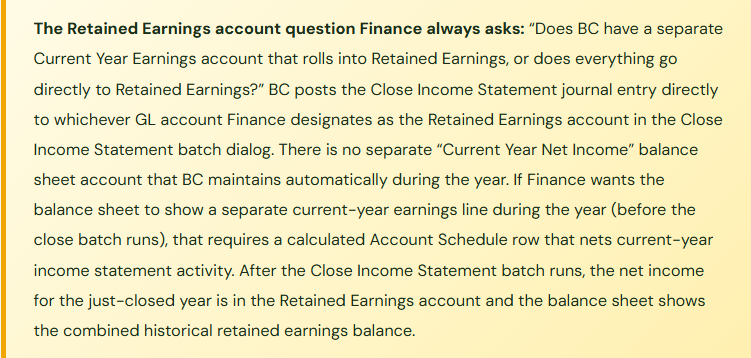
- This is the core year-end close action in BC (Finance → Periodic Activities → Close Income Statement). The batch reads all income statement account balances for the closing fiscal year, creates a general journal that nets the total to zero by posting the offsetting amount to the designated Retained Earnings account, and creates the journal entries with the specified closing date. Finance must specify: the fiscal year ending date, the general journal template and batch to use, the posting description, and the Retained Earnings account number. Review the generated journal before posting—it should show a credit to every revenue account (reversing the credit balance) and a debit to every expense account (reversing the debit balance), with the net amount posting to Retained Earnings as either a credit (profitable year) or debit (loss year). Post the journal after confirming the entries are correct.
- Verify the Retained Earnings Entry and Opening Balance Sheet
- After posting the Close Income Statement journal, verify three things: the income statement accounts for the closing fiscal year now show zero balances when filtered to that year, the Retained Earnings account has increased (or decreased) by the net income (or loss) for the year, and the opening balance sheet for the new fiscal year shows all balance sheet accounts with their correct carried-forward balances. Run the balance sheet report filtered to the first day of the new fiscal year and confirm it reflects the prior year-end balances carried forward correctly.
- Formally Close the Fiscal Year in BC
- In the Accounting Periods list, mark the closing fiscal year as closed by selecting the year and using the Close Year action. This sets the Closed flag on all periods in the year and the Date Locked flag that prevents further posting without an explicit override. BC will warn users who attempt to post into a formally closed year. This step is separate from the Close Income Statement batch—the batch moves the income, the Close Year action marks the periods as locked. Both steps are required. Many Finance teams run the batch and skip the Close Year action, leaving the year’s periods technically open to accidental posting.
- Set Up the Audit Adjustment Window
- After the fiscal year is formally closed, Finance typically keeps a controlled window open for audit adjustments—entries the external auditors require after completing field work. In BC, this window is managed by giving only the Controller access to post in the closed year (via User Setup Allow Posting From/To overrides for the Controller only) while all other users are restricted to the new fiscal year. Document the audit adjustment window policy: who can post, what requires Controller approval, and when the window closes (typically after the auditor issues the final opinion and management letter).
- Post Audit Adjustments and Re-Run Close If Material
- When the external auditors issue required adjusting journal entries, post them into the closed fiscal year through the Controller’s unrestricted access. If the audit adjustments are material enough to change the net income that was transferred to retained earnings, run the Close Income Statement batch again for the closed year—BC will produce a supplemental closing entry for the net effect of the audit adjustments. This supplemental entry updates the Retained Earnings balance to reflect the audited net income. Document each audit adjustment entry with the auditor’s reference and the audit firm’s approval.
- Permanently Lock the Closed Year and Open the New Year Fully
- After the audit opinion is issued and all audit adjustments are posted, permanently restrict posting access to the closed fiscal year for all users including the Controller. Update User Setup to set Allow Posting From to the first period of the new fiscal year for all users. The closed year is now read-only. Update the new year’s budget (if loaded annually), confirm the new year’s accounting periods are all open and correctly configured, and brief the Finance team that Q1 of the new year is the active posting window.
What BC Does and Does Not Do Automatically
What BC Does Automatically
- Carries all balance sheet account balances forward into the new fiscal year with no manual entry required—assets, liabilities, and equity open at their prior year-end balances the moment the new year’s accounting periods exist.
- Filters financial reports by date range and fiscal year—income statement reports for the new year start at zero without any close action, because they filter only current-year postings.
- Warns users who attempt to post in a formally closed fiscal year period.
- Allows transactions in both the old and new fiscal year simultaneously once new periods are created—useful for the overlap window when some teams are still closing and others have begun new-year activity.
What Finance Must Do Deliberately
- Run the Close Income Statement batch—income statement accounts do not zero out automatically. Without this step, the raw GL balances on income statement accounts accumulate all historical postings indefinitely.
- Mark the fiscal year as closed using the Close Year action—the batch alone does not lock the year’s periods from further posting.
- Create the new fiscal year’s accounting periods—they do not appear automatically when the calendar year rolls over.
- Load the new year’s budget into BC—budgets are not rolled forward automatically and the new year’s Account Schedule budget comparison will show zero until Finance loads the new budget.
- Update User Setup posting date restrictions to reflect the new active posting window after close is complete.
Five Year-End Close Mistakes That Carry Into Q1
⚠️ Close Income Statement Batch Run Before All Adjustments Are Posted—Retained Earnings Is Wrong
Finance runs the Close Income Statement batch on December 31 before the external auditors have completed preliminary field work. The batch posts the net income of $1,840,000 to Retained Earnings. Three weeks later, the auditors identify a required $120,000 revenue recognition correction and a $45,000 accrual entry. Both entries need to post into the closed fiscal year. Finance posts them through the Controller’s unrestricted access. The income statement for the year is now correct, but the Retained Earnings account has not been updated—the close batch posted $1,840,000, and the audit adjustments changed the actual net income to $1,975,000 (the corrections were net income increases). The balance sheet shows a $135,000 discrepancy between the sum of the year’s income statement and the Retained Earnings movement. Finance must run the Close Income Statement batch a second time to post the supplemental $135,000 closing entry. This is not catastrophic—BC supports it—but it creates a two-entry closing history in the GL that requires explanation to the auditor and to anyone who reviews the GL in future years.
Fix: Run the Close Income Statement batch only after all adjusting entries are finalized for the fiscal year. For companies with external auditors, this means running the batch after the preliminary audit field work is complete and all auditor-identified adjustments are posted—not on the last day of the fiscal year. The practical close sequence: complete internal close entries by fiscal year-end, leave the year open for audit adjustments during the audit window (typically four to eight weeks), run the Close Income Statement batch after the auditor confirms adjustments are complete, then formally close the year. The batch takes less than a minute to run. The flexibility to wait until adjustments are finalized costs nothing and prevents the two-entry closing journal pattern.
⚠️ New Fiscal Year Accounting Periods Not Created Before Year-End—New-Year Transactions Cannot Post
Finance completes the December close on January 3. On January 4, the sales team begins entering January sales orders. Order entry fails with a “posting date outside allowed posting period” error because Finance has not yet created the new fiscal year’s accounting periods in BC. The sales team cannot post shipments or invoices for the new year. The operations team cannot post purchase receipts. Finance is mid-close on the December year-end and is not yet ready to set up the new year. The business is operationally halted on January 4 waiting for Finance to create accounting periods. Every hour of the halt costs the organization in delayed order processing, strained customer relationships, and accumulated transaction backlog that Finance will need to catch up when the periods are finally created.
Fix: Create the new fiscal year’s accounting periods before the current fiscal year ends—ideally in November or December, at the latest by December 28. Creating the new periods does not affect current-year processing; transactions in the current year continue posting normally. Once the new periods exist, users can post into the new year the moment the calendar year turns, without waiting for Finance to complete the year-end close process. The accounting period creation is a two-minute task in BC. Completing it in November is the trivial investment that prevents a January 4 operational halt. Add it to the November close checklist as a standing year-end preparation item.
⚠️ Fiscal Year Closed in BC Without Running Close Income Statement—Income Statement Accounts Show Multi-Year Balances
Finance marks the fiscal year as closed using the Close Year action (Step 9) but never runs the Close Income Statement batch (Step 7). The year’s periods are locked and the year appears closed. However, the income statement accounts—revenue, COGS, operating expenses—carry their cumulative balances from the closed year forward into the GL. When Finance runs an income statement report for the new fiscal year filtered to the new year’s date range, the report shows zero (because the filter excludes prior-year postings). But the raw GL trial balance shows multi-year cumulative balances on the income statement accounts, not period-specific balances. Anyone who looks at a GL account balance without a date filter sees a number that makes no sense. The auditor asks for the retained earnings roll-forward and finds no closing entry—the net income was never formally moved to retained earnings. The balance sheet for the new year shows the correct balance sheet account balances (which carry forward automatically) but no Retained Earnings movement, producing a balance sheet where the accounting equation appears to fail.
Fix: The Close Year action and the Close Income Statement batch are two separate and both required steps. Neither substitutes for the other. The Close Year action locks the periods. The Close Income Statement batch transfers the net income. Finance should complete them in sequence: batch first (Step 7), Close Year second (Step 9). Build both steps into the year-end close checklist with an explicit checkbox for each. If Finance discovers after the fact that the Close Year action was run without the batch, the remedy is to temporarily reopen the year’s periods (using the Reopen Accounting Period action available to users with sufficient permissions), run the Close Income Statement batch, and re-close the year.
⚠️ New Year’s Budget Not Loaded—Q1 Budget vs. Actual Reports Show Zero Budget All Quarter
Finance completes the year-end close sequence correctly. The new fiscal year opens cleanly. On January 15, the CFO asks for the January budget-vs-actual report as part of the monthly package preparation. The Account Schedule budget column shows zero for all accounts. The CFO asks Finance to explain. Finance investigates and discovers that the new year’s budget was finalized and approved in November but was never loaded into BC’s GL Budget for the new fiscal year. The budget exists in the Board-approved Excel workbook; it never made it into BC. Every management meeting in Q1 is conducted with actual results but no budget comparison. The budget-vs-actual analysis the CFO relies on for variance investigation is not available for the first three months of the year because the budget loading step was not on the year-end close checklist.
Fix: Budget loading for the new fiscal year is a year-end close task, not a separate January task. Add it to the year-end close checklist: after the new accounting periods are created (Step 2) and before the close sequence begins, confirm the budget import into BC’s GL Budget for the new year is scheduled and assigned. Ideally, load the preliminary budget in November or December so Q1 budget-vs-actual reports are available from day one of the new year. If the final approved budget changes after the preliminary load, update the BC budget entries to reflect the approved version. BC’s GL Budget import accepts Excel-format budget files; Finance does not need to enter each account’s budget manually. The import process for a standard chart of accounts takes 30 minutes.
⚠️ Prior-Year Entries Post in Q1 Without Controller Approval—Comparative Statements Are Wrong
After the audit window closes, Finance updates User Setup posting date restrictions for most users but neglects to restrict the AP coordinator’s posting dates. In February, a vendor sends a corrected invoice dated November of the prior fiscal year. The AP coordinator posts it in BC with the November date because “that’s what the invoice says.” The November period is closed but not hard-locked (the Close Year action was run, but the AP coordinator’s User Setup still allows posting in the closed year). The entry posts. The prior-year financial statements are now different from the audited statements. The auditor who signed off on the November figures signed off on statements that no longer match what is in BC. When Finance prepares the comparative balance sheet for the annual report—showing prior year alongside current year—the prior-year column does not match the audited financial statements.
Fix: After the audit window closes and the final audit opinion is issued, update User Setup for every BC user (including AP, AR, billing, and any other posting-access users) to set Allow Posting From to the first period of the current fiscal year. No user except the Controller should retain the ability to post in a closed fiscal year after the audit opinion is issued. The Controller’s unrestricted access should require explicit documentation of any post-audit prior-year entry: what it is, why it is necessary, what the auditor’s position is, and whether the audited financial statements must be revised. Post-audit prior-year entries that change audited figures are a serious matter; they should not happen casually because an AP coordinator had unrestricted posting dates.
Do This / Don’t Do This
Do This
- Create new fiscal year accounting periods in November—before the current year closes
- Run the Close Income Statement batch after all audit adjustments are finalized, not on fiscal year-end day
- Run both the Close Income Statement batch (Step 7) AND the Close Year action (Step 9)—they are separate required steps
- Export and archive the final income statement and balance sheet before running the close batch
- Load the new year’s budget into BC’s GL Budget before Q1 begins
- Restrict all user posting dates to the new fiscal year after the audit window closes
- Keep a controlled audit adjustment window open (Controller-only posting access to closed year) until the final opinion is issued
- Document each audit adjustment entry with the auditor’s reference before posting
Don’t Do This
- Run the Close Income Statement batch on fiscal year-end day before preliminary audit work is complete
- Run the Close Year action without running the Close Income Statement batch first
- Wait until January to create new fiscal year accounting periods—Q1 posting will be blocked
- Forget to load the new budget—a Q1 with zero budget comparison is not useful to any management team
- Leave any user’s posting dates unrestricted after the audit window closes
- Allow prior-year entries to post after the audit opinion is issued without explicit Controller authorization and documentation
- Confuse the date-filtered income statement report (which always shows zero for closed years) with the raw GL balance (which accumulates until the close batch runs)
Up Next:
Year-end close is the annual event Finance owns completely. The next post addresses the ongoing governance calendar that Finance must maintain throughout the year: Release Wave Planning—What Finance Must Own—how BC’s twice-yearly release waves work, what changes in each wave Finance should evaluate before the update arrives, the testing and validation process Finance must run on Finance-specific functionality, and how to build a release wave readiness practice that prevents the “something changed after the update” discovery cycle that wastes close time every April and October.
— Bobbi
D365 Functional Architect · Recovering Controller
Thank you for reading!
If this post helped you solve a real problem, share it with a Finance colleague who is in the middle of an ERP implementation or a post-go-live optimization. If you have a topic that I haven’t covered, please reach out. There is always one more post worth writing.
Interested in learning more? Below are a few of my latest posts:
Leave a Reply