
Build Your First Agent in Copilot – Part 3 of 5
The 5-part series
- Period-Close Q&A – Copilot (Live)
- Coding Assistant – Claude (Live)
- Customer/Vendor Hold Check – Copilot (Now Live)
- Variance Narrative – Claude (7.21.26)
- Live Data Agent – Copilot (7.22.26)

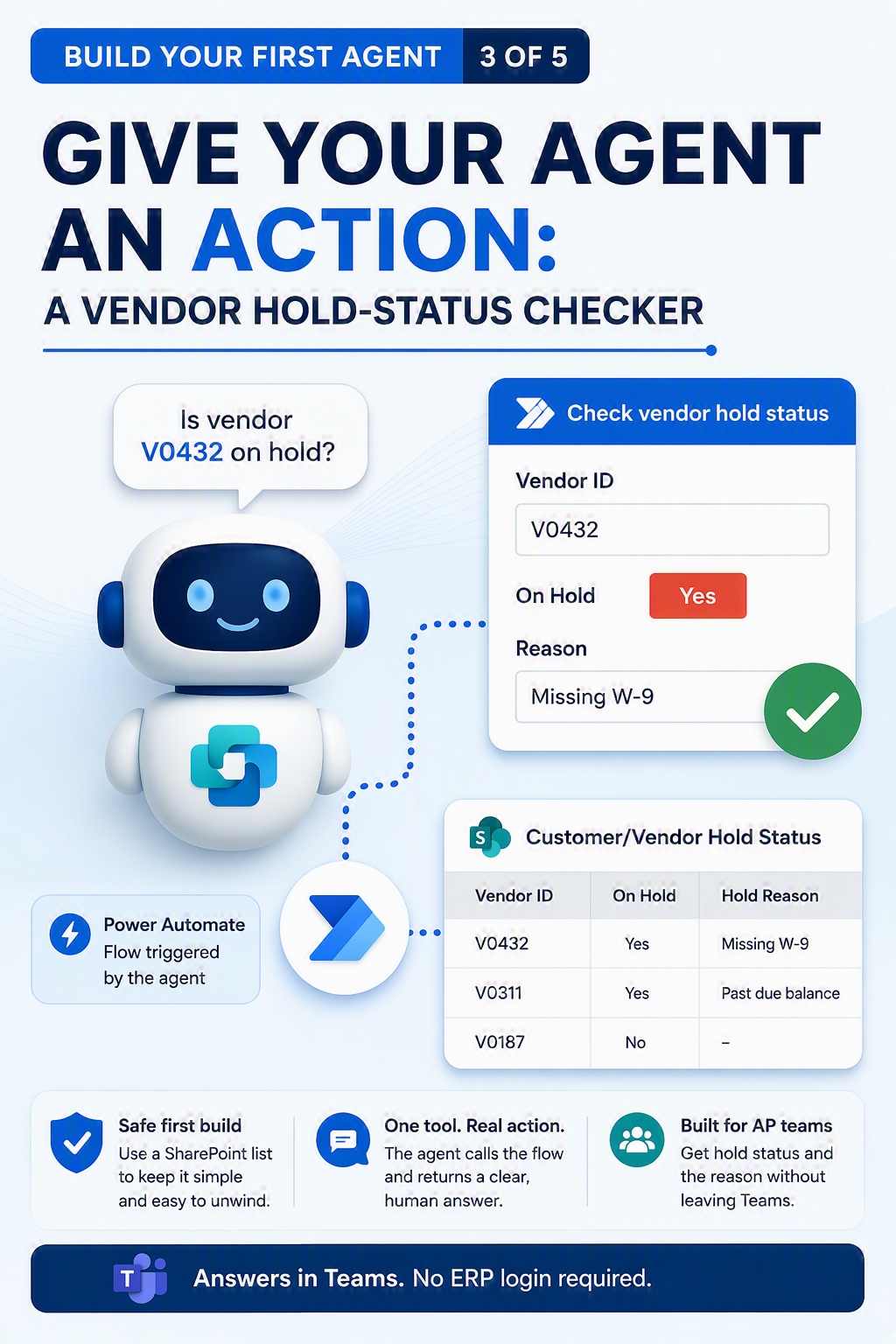
An agent that answers from a document is handy. An agent that checks a live status is a step up. In this post we give a Copilot Studio agent a single action so someone in AP can ask “is this vendor or customer on hold?” and get the answer in Teams, without logging into the ERP.
To keep the first version safe and easy to unwind, we point the action at a simple list rather than production data. The pattern is what matters. Once it works, you can repoint it at whatever source your organization actually uses.
What you are building:
A Copilot Studio agent with one tool, a Power Automate flow, that takes a Customer ID/Vendor ID or name and returns the hold status and reason. The agent decides when to call the tool based on the question, runs it, and reports back in plain language.
Before you start:
- Copilot Studio access with permission to add tools and actions.
- Adding connectors and flows usually goes beyond the lightweight tier, so check with your admin about your environment and licensing before you build.
- A simple data source to read.
- Easiest first build: a SharePoint list with columns
- Customer or Vendor Name
- CustomerId or VendorID
- OnHold
- HoldReason, plus a few sample rows.
- In production you would read Dataverse or a D365 connector, but a list keeps the first version clean and safe to delete.
- Easiest first build: a SharePoint list with columns
- A Power Automate connection to that source.
Step by step
1. Prep the data. Create a SharePoint list called “Customer/Vendor Hold Status” with those four columns and a handful of rows so you have something to test against.
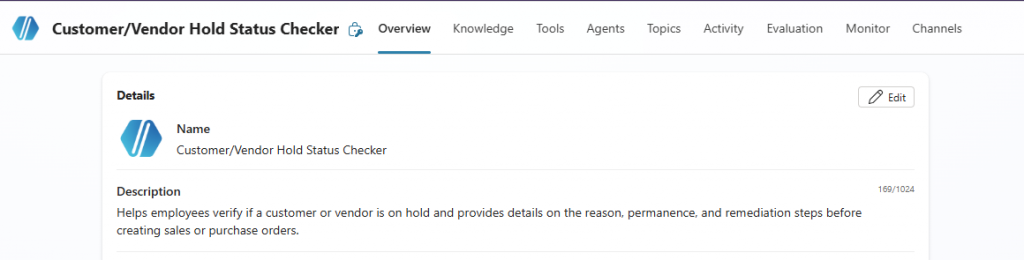
2. In Copilot Studio, Create an agent
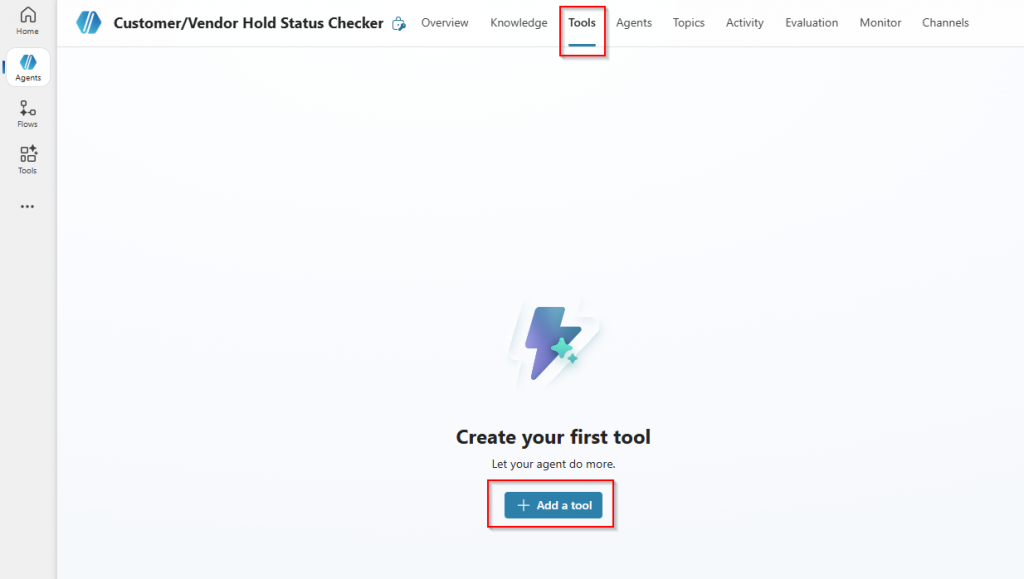
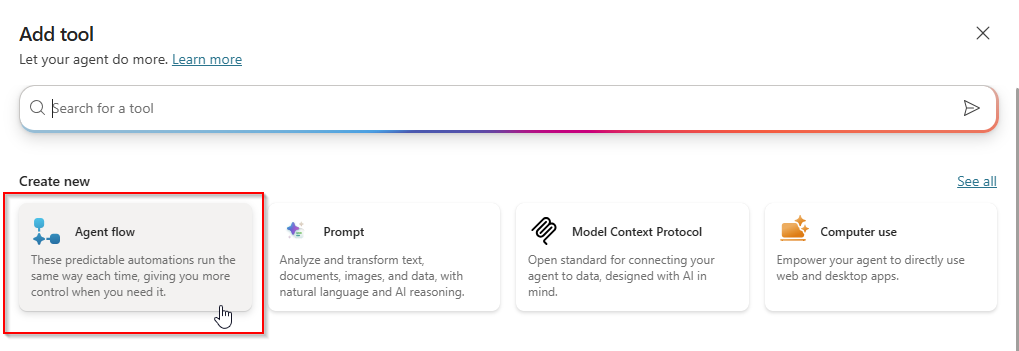
3. then go to Tools (some environments label it Actions). Choose Add a tool, then create a new flow.
- Build the flow. Trigger: “When an agent calls the flow.” Add one input named VendorId (text). Add a Get items step against your SharePoint list, filtered to that VendorId. Return two outputs, OnHold and HoldReason. Save.
- Back in the agent, name the tool clearly (“Check vendor hold status”) and write a specific description: “Returns whether a vendor is on hold and the reason, given a vendor ID.” That description is how the agent decides when to reach for the tool, so be precise. Map the input so the agent passes the vendor ID it heard.
- Add a line to the agent instructions: “When someone asks whether a vendor or customer is on hold, use the Check vendor hold status tool and always show the reason. If nothing comes back, say the vendor was not found.”
- Test it. Ask “Is vendor V0432 on hold?” and watch the activity map to confirm the agent actually called the flow. If it does not, the input mapping or the tool description is usually the culprit.
- Publish to Teams once it behaves consistently.
Give it a real test
- Try: Is vendor V0432 on hold?
- Try: Why is V0311 blocked?
- Try: Check hold status for V9999.
That last one should return your “not found” message, not a made-up answer. Confirming the empty case behaves correctly is as important as confirming the happy path.
Make it better
- Return a sentence, not raw fields. “V0432 is on hold for a missing W-9” reads better than a table of column values.
- Add a second tool later, for example an open PO count, each with its own clear description.
- Swap the source for production when you are ready. Replace the SharePoint step with a Dataverse or D365 action and keep the same tool description, so the agent behaves the same.

You now have an agent that reaches into a system and reports back. Next we switch to Claude for a different kind of work: not looking something up, but writing, turning a variance table into board-ready commentary.
Part of the Build Your First Agent series. Each post stands on its own, so start with whichever job would save your team the most time this month.
Up Next: Turn statement variances into board commentary with Claude
Thank you for reading!
Interested in learning more? Below are some of my latest posts:




Leave a Reply