

Have you ever opened a list in Business Central, scrolled past six columns you never look at, and hunted for the one that actually matters to your day? Maybe it’s a due date buried three columns over, or a status field that never made the cut when someone first set up the page. You scroll, you squint, you find it. Every single time.
That’s not a you problem. That’s a default-screen problem, and it has a fix that takes about five minutes.
The idea in one minute: Business Central lets each user reshape almost any page to fit how they actually work: add fields, hide the ones you never use, reorder columns, move parts around. It’s called personalization, and it’s built into every page in the system. You do it once, from the Settings gear icon, and it sticks with you across every device you log in from. An administrator can also roll a similar layout out to a whole team through the profile (role) a group of users share. This post walks through both.
Why this matters more, not less, right now ⏳
Here’s the thing about AI doing more of the routine first pass on your work: matching invoices, flagging exceptions, drafting entries. It’s genuinely useful. But it doesn’t remove your job, it changes what your job looks like. More of your time goes to review: does this look right, does this need a second look, does this get approved. And review is only fast when the screen in front of you shows what you need and nothing else.
If your page is still set up the way it was the day IT deployed it, with every field on, in whatever order made sense to someone else, you’re doing the hardest part of your job (the judgment part) through a cluttered window. Clean up the window. That’s the whole point of this tip.
Getting into personalization mode 💡
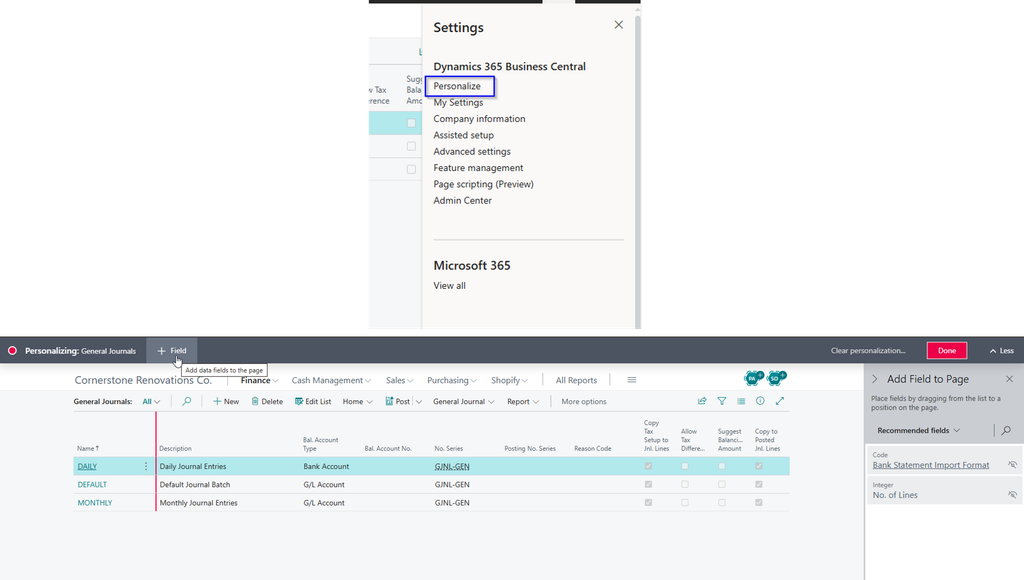
Open any page you want to change. In the upper-right corner, select the Settings gear icon, then choose Personalize. A banner reading “Personalizing” appears across the top of the page, letting you know you’re now in edit mode. Everything you do from here is saved to your own profile, not anyone else’s.
What you can actually change
Once you’re in personalization mode, quite a lot is fair game:
- Move things. Point at a field, column, tile, action, or part (a labeled section of a page, like a FactBox or a chart area), and drag it where you want it. A line shows you where it’ll land.
- Hide what you don’t use. Select an element, choose the arrowhead, and pick Hide. Hidden actions show up grayed out with italic text while you’re still in edit mode, so you can always find and restore them later.
- Add fields you want to see. Select the + Field action in the Personalizing banner. It opens an “Add Field to Page” pane where you can browse available fields and drag the ones you want straight onto the page.
None of this needs a developer or a support ticket. It’s a menu and a mouse.
If you get it wrong
You won’t break anything permanently. The Personalizing banner has a Clear personalization option with a few levels: clear just your navigation menu changes, just your action bar changes, just your fields and columns, or everything at once, back to the page’s original layout. Worth knowing that clearing can’t be undone, so if you like part of a layout, leave that part alone and only clear what’s actually bothering you.
One nice detail: your personalization follows you. Change a page on your desktop, and it looks the same way the next time you log in from your laptop or a browser somewhere else.
When it’s not just you ✅
If an entire team keeps asking IT for the same field to be added or the same column moved, that’s a sign it should be built in for everyone, not personalized one login at a time. That’s where an administrator can step in and customize a page for a profile (role), the group of users who share that role in the system. Search for Profiles (Roles), open the one you need, choose Edit, then Customize pages. From there it works much like personalization, except changes apply to everyone assigned to that profile, and administrators can even surface fields that aren’t on the page by default at all.
Two tools, same underlying idea: the screen should match the work, not the other way around.
Thank you for reading!
Next up in this series: Save Yourself the Re-Filtering, a look at a small habit that saves you from rebuilding the same filtered view over and over again.
Sources
- Personalize your workspace – Business Central | Microsoft Learn
- Customize pages for profiles – Business Central | Microsoft Learn
Interested in learning more? Below are some of my latest posts:




Leave a Reply