
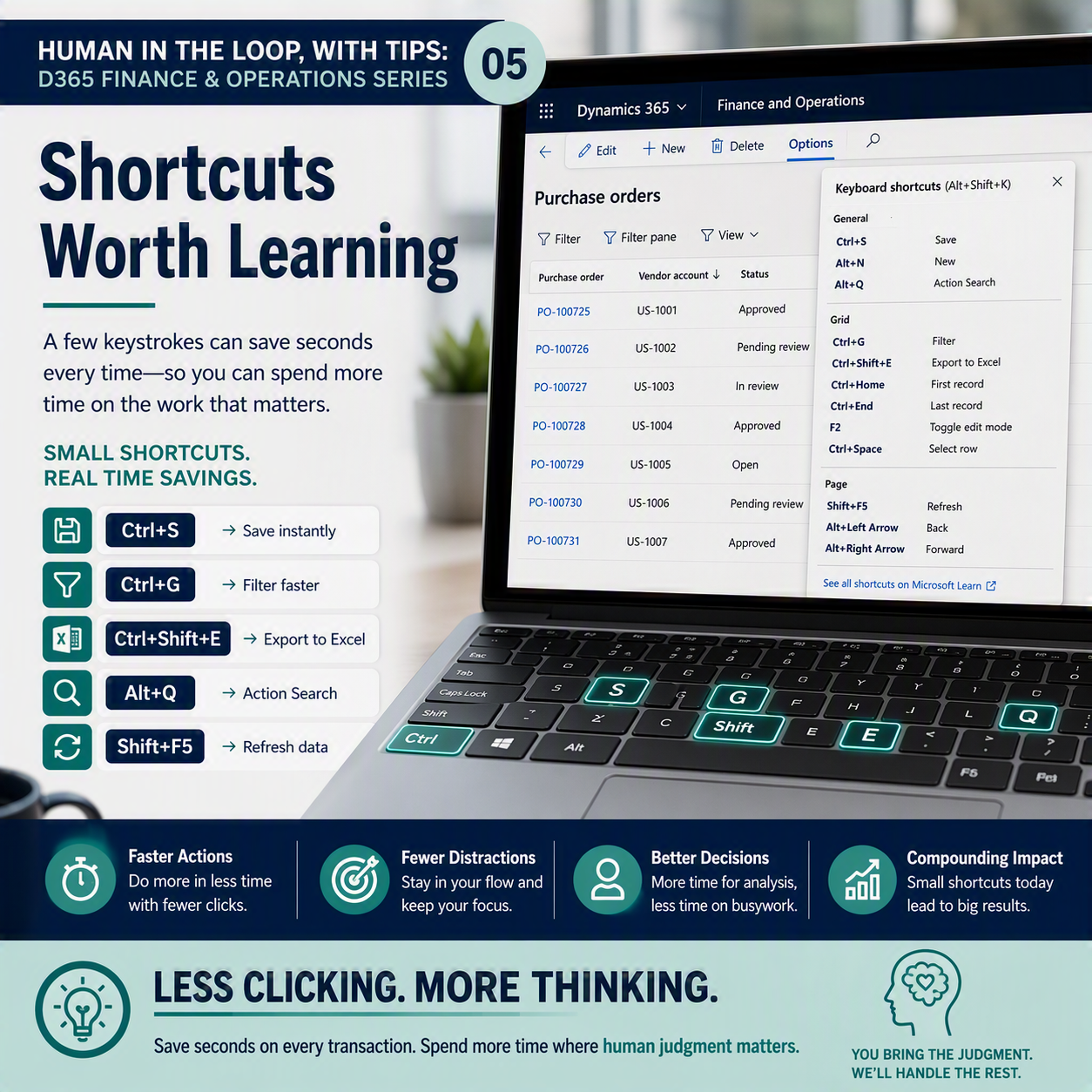
Think about how many times a day you reach for the mouse. Click into a field, click save, click the filter icon, click the next row. None of those clicks are hard, but add them up over a week and you’ve spent real time on motions a keyboard shortcut would have done in half the time.
This is post five, the last one, in “Human in the Loop, With Tips: D365 Finance & Operations.” Last time, in “Don’t Wait and Watch: Alerts That Do the Watching for You,” we looked at letting the system tell you when something needs attention instead of you checking for it yourself. Today’s tip is smaller and more mechanical than anything else in this series, and that’s the point. It’s keyboard shortcuts in Dynamics 365 Finance and Operations (F&O).
The idea in one minute: F&O has a full set of documented keyboard shortcuts for moving through grids, saving records, filtering, and navigating between pages without touching the mouse. Most people know one or two. Learning a handful more shaves seconds off tasks you repeat dozens of times a day, and those seconds add up to real minutes back in your pocket.
The shortcuts actually worth learning
You don’t need to memorize the whole list on the Microsoft Learn page. A handful of these will cover most of your day.
- Ctrl+S or Alt+S: save the record you’re on, no matter where the save button scrolled off to.
- Alt+N: create a new record on the current page.
- Ctrl+G: open filtering for whatever column your cursor is in, right in the grid.
- Ctrl+Shift+E: export the current grid straight to Excel.
- Ctrl+Home and Ctrl+End: jump to the first or last record in a grid instantly.
- Shift+F5: refresh the data on the page without a full reload.
- F2: toggle edit mode on a field or grid cell.
- Alt+Q or Ctrl+’: open action search, one of the fastest ways to jump to any page by typing part of its name.
- Alt+Shift+K: pulls up the shortcuts available on whatever page you’re on, so you don’t have to memorize this list either.

There’s a longer list too. Ways to move between FastTabs without clicking, multi-select rows in a grid with Ctrl+Space, jump straight to the date picker’s “today” option by pressing T. You don’t need all of it on day one. Pick two or three from the list above, use them for a week until they’re automatic, then add a couple more.
Why this is worth five minutes of practice
A shortcut doesn’t decide whether a journal entry looks right or flag a vendor payment that’s out of pattern. What it does is get you through the mechanical part of your day faster, so more of your attention is left for the part that actually needs a human brain.
That’s been the thread through this whole series. Personalizing your workspace so it fits how you work. Saved views so you stop rebuilding the same filters every morning. A live Excel connection so you can dig into data instead of squinting at a grid. Alerts so the system watches for you instead of you watching the screen. And now shortcuts, the smallest tip here and maybe the easiest to start using today.
D365 is picking up more AI agents that draft entries, flag anomalies, and surface exceptions for you to review. That’s good, it means less typing. But it also means your value shifts toward the calls that still need a person: is this exception actually a problem, does this transaction need a phone call, does this number pass the smell test. AI can surface those questions. It can’t answer them for you. Time you get back from a faster save or a faster filter is time you can spend sitting with those questions instead of rushing past them.
Try this for a week. Pick three shortcuts from the list above and force yourself to use them instead of reaching for the mouse, even when it feels slower at first. By the end of the week they’ll be automatic. ✅ None of these tips individually change your job. Together, they add up to a little less friction in the parts that don’t need your judgment, and more room for the parts that do.
Thank you for reading!
That wraps up “Human in the Loop, With Tips: D365 Finance & Operations.” If you missed any of the earlier posts, personalization, saved views, Excel, or alerts, they’re all worth a look, each one is a small, practical change you can make this week. And if your organization runs on Business Central rather than Finance and Operations, check out the companion series, “Human in the Loop, With Tips: Business Central,” for the same idea tailored to that platform. 💡
Sources
Interested in learning more? Below are some of my latest posts:




Leave a Reply