
Be honest. How many times this week did you open a record just to check “did this change yet?” A vendor invoice waiting on approval. A purchase order stuck in review. A batch job you kicked off before lunch and haven’t thought about since, except to wonder if it actually finished. You click in, look, find nothing new, and click away. Multiply that by every day of the month, and you’ve spent real hours just checking.
Here’s the thing. D365 has had a way to stop that for years. It’s called an alert, and if you’re not using it, you’re doing a computer’s job by hand.
The idea in one minute
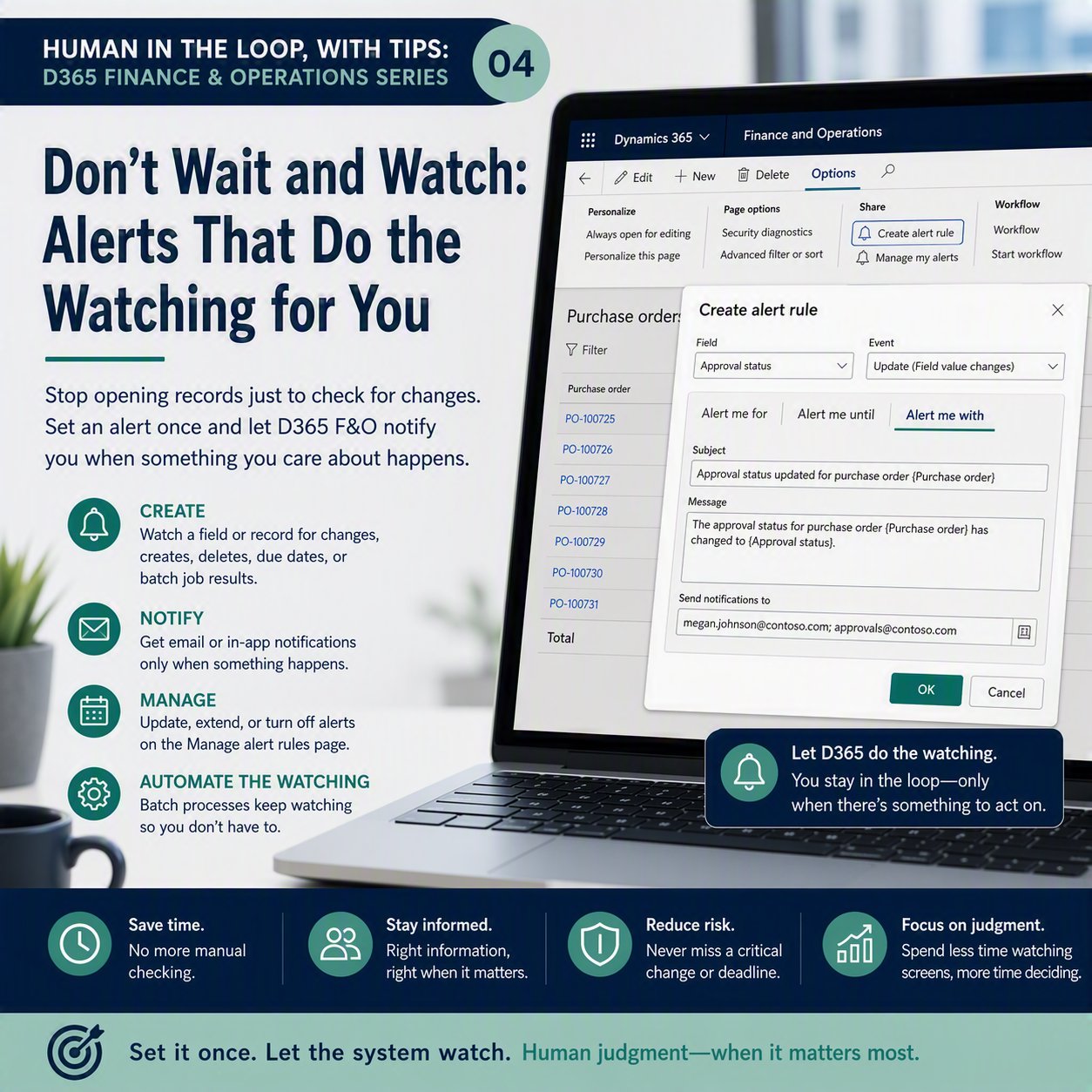
Alerts let you tell Dynamics 365 Finance and Operations to watch a field or a record for you and let you know the moment something you care about happens: a value changes, a record gets created or deleted, a due date arrives, or a batch job finishes, fails, or gets canceled. You set the rule once. The system does the watching. You get a message, by email or in-app, only when there’s actually something to look at. No more refreshing a screen out of hope.
How you actually set one up
You don’t need IT for this. Open the page with the record or field you want to keep an eye on (a specific purchase order, a customer record, anything with an Action Pane). On the Options tab, in the Share group, click Create a custom alert. That opens a dialog where you pick two things: the Field you want watched, and the Event that should trigger the alert.
D365 recognizes a few event types here. Create and delete events fire when a record shows up or disappears. Update events fire when data in a specific field changes, like a price or a status. Due date events fire when a date you’re tracking arrives, useful for anything with a deadline attached.
From there, a few FastTabs let you fine-tune the rule. Alert me for lets you choose whether the rule applies to just the record you currently have open or to every record that matches. Alert me until lets you set an expiration date, so a rule for, say, a specific project doesn’t keep pinging you after the project closes. And Alert me with is where you write the subject line and message that will actually land in your inbox or notification feed, plus who receives it.
In this example, I want to set up an alert to let me know any time a Vendor credit rating has changed. In All Vendors -> Options -> Share -> Create Custom Alert. I’ve called out the Field, the Event, and that I’ve chosen “All records in Vendors.”

Where to find and manage the alerts you’ve already set
Once you’ve created a rule, it doesn’t just vanish into the system. It lands on the Manage alert rules page, which you get to the same way you created it, through the Alert me button on the Options tab. This is your control panel. Go back and adjust the event, change who gets notified, update the expiration date, or turn a rule off once it’s no longer useful. Give it a periodic look, the same way you’d clean out a filter folder in your inbox. Rules pile up, and not every one you set six months ago still matters.
One practical note: change-based and due-date alerts don’t fire instantly. They ride on scheduled batch processing that your system administrator sets up under System administration, and that job has to actually be running for your alerts to reach you. If your alerts have gone quiet, that’s a fair first question for your D365 support team, before you assume you set the rule up wrong.
There’s also a version of this built specifically for batch jobs themselves. If you run a recurring process overnight, like a bank reconciliation import or a large posting job, set up an alert to notify you when that job ends, ends in error, or gets canceled, by email or as a notification in the Action center. No more opening D365 every morning just to check whether last night’s job actually completed.
This is human in the loop, before AI ever showed up
Everyone’s talking about AI agents flagging things for a human to review before they act. Alerts have been doing exactly that in D365 for years, without any AI behind them. You define what matters, the system watches continuously, and it brings the exception to you instead of asking you to go looking for it. You stay in the loop, but only when there’s an actual decision to make.
You don’t need an AI agent to start thinking this way. You can set it up today, on the three or four things that actually keep you checking screens out of habit.
Thank you for reading!
Last time, in “Excel Is Still Your Best Friend,” we talked about leaning on the tool you already trust instead of fighting D365 on its own turf. Next up, post five: “Shortcuts Worth Learning,” a few small moves that save you real time once they’re in your hands.
Sources
- Create alert rules – Finance & Operations | Dynamics 365 | Microsoft Learn
- Alerts overview – Finance & Operations | Dynamics 365 | Microsoft Learn
- Batch processing of alerts – Finance & Operations | Dynamics 365 | Microsoft Learn
- Set up alerts – Finance & Operations | Dynamics 365 | Microsoft Learn
- Batch processing overview – Finance & Operations | Dynamics 365 | Microsoft Learn
Interested in learning more? Below are some of my latest posts:



Leave a Reply