
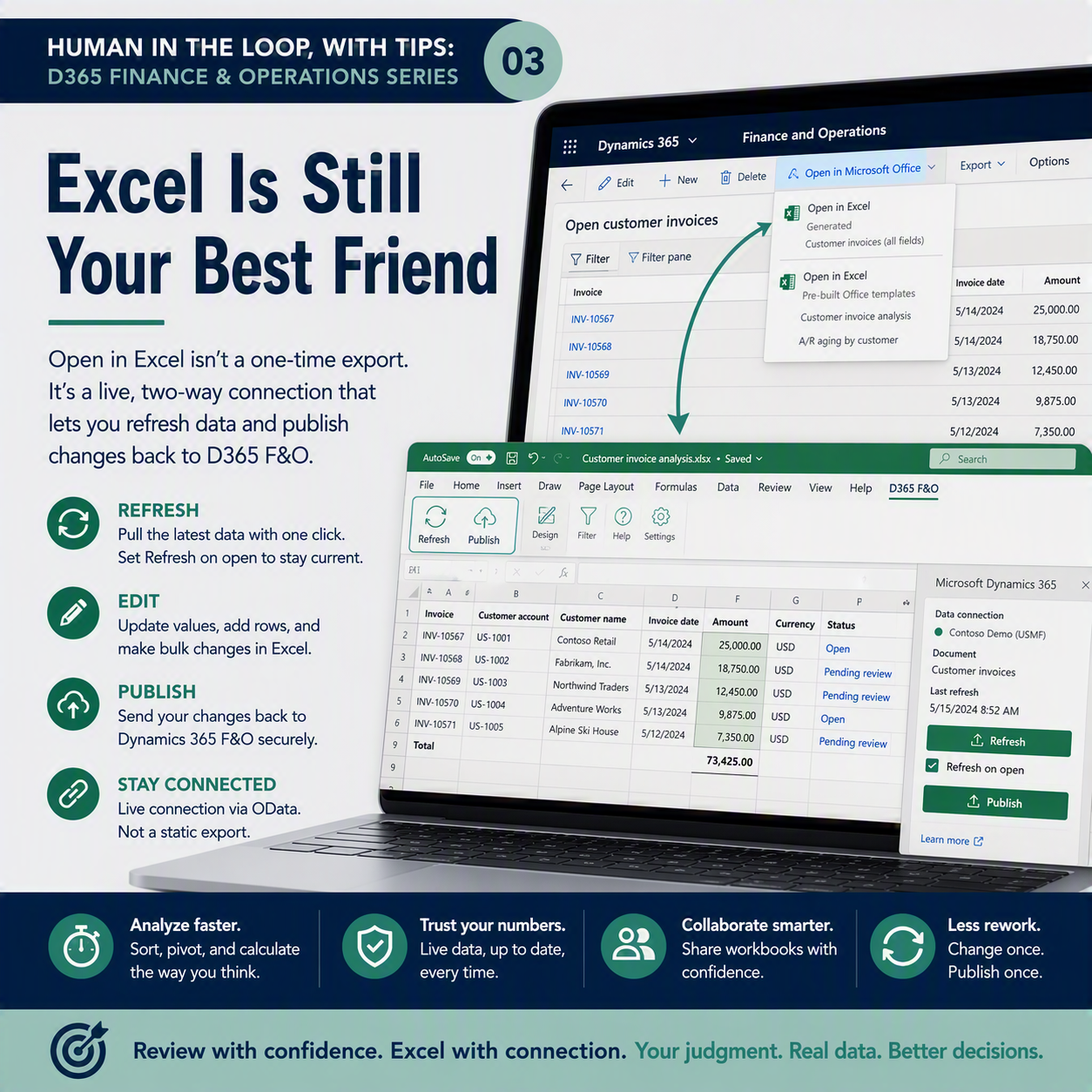
You know that moment when someone hands you a report and asks “does this look right to you?” You don’t read every line top to bottom. You sort it, pivot it, and throw a quick sum at the bottom to see if it matches what you expected. That instinct is exactly what a screen full of data inside Dynamics 365 doesn’t let you do very well. Grids are fine for a handful of records. They’re not built for the kind of digging you need before you trust a number.
This is post three in “Human in the Loop, With Tips: D365 Finance & Operations.” Last time, in “Save Yourself the Re-Filtering,” we looked at saved views so you stop rebuilding the same filters every morning. Today’s tip is one people half-know about but rarely use fully: Open in Excel isn’t a one-time export. It’s a live, two-way connection.
The idea in one minute: Dynamics 365 Finance and Operations lets you send grid data straight into Excel through built-in Office integration, and that workbook isn’t a static snapshot. It stays connected to your environment through an Excel add-in, so you can refresh it to pull the latest data, and for many entities you can edit the data right in Excel and publish those changes back into the system. As more first-pass data entry gets handled by automation and AI agents, the tool you already trust for sanity-checking a dataset is still sitting right there, and you don’t have to give it up.
What “Open in Excel” actually gives you
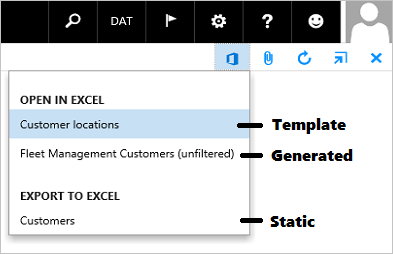
From most grids in Finance and Operations, go to Open in Microsoft Office and choose Open in Excel. Depending on the page, you might see a generated option built automatically from the entity behind that grid, or a pre-built template someone on your team designed with specific fields already laid out. Either way, the workbook that downloads is wired up with an environment pointer and a reference to the Excel add-in, not just a dump of the rows you were looking at.
That distinction matters. A plain export gives you a snapshot frozen at the moment you clicked. This one keeps talking to your environment through OData, the protocol D365 uses to expose its tables to outside tools like Excel.
Refresh: pulling the latest data in
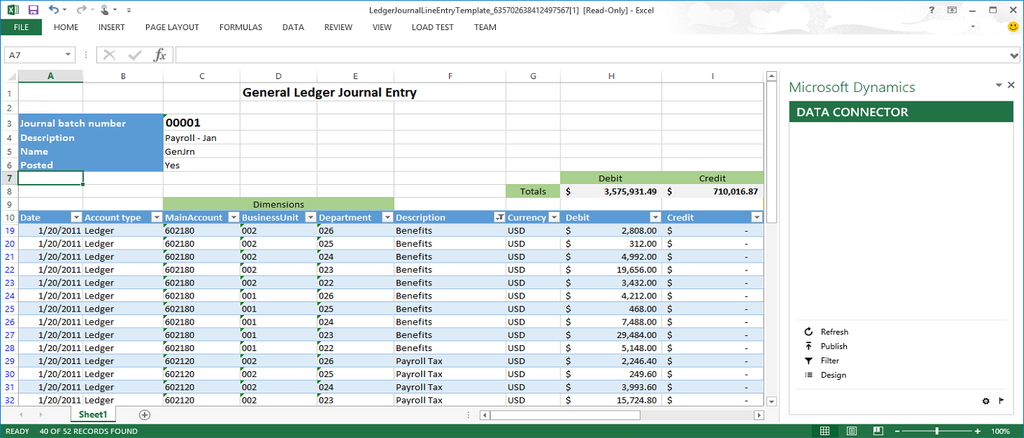
Here’s where it stops being a static file. Click Refresh in the Excel add-in’s task pane, and the workbook goes back to the server and pulls current data for that same query. Someone posted a journal entry five minutes ago? Refresh, and it shows up. You can even set Refresh on open so the workbook checks automatically every time you open it, instead of you remembering to click the button.
People treat Open in Excel like a one-shot export and then wonder why their numbers are stale an hour later. Keep the workbook open, refresh before you review, and you’re always looking at current data in the tool you’re fastest in.
Publish: sending your edits back
For entities that support it, editing goes both directions too. Change a value in a cell, add a new row, or update a batch of records right there in the grid, then click Publish. The add-in sends those changes back through OData and updates the actual records in Dynamics 365. ✅
Two practical notes before you rely on this. Key fields, the ones that uniquely identify a record, can’t be edited once that record exists. And larger publishes get sent back to the server in batches, with an administrator able to set that batch size.
Why this fits the human-in-the-loop idea
The theme running through this series is that as automation handles more of the routine entry work, your job shifts toward review and judgment. That’s a good trade, but only if you have a real way to do the review. Scrolling through a grid, one page at a time, is a slow way to catch the outlier that doesn’t belong. Dropping the same data into Excel, where you can sort by amount, pivot by vendor, or drop in a formula to flag anything outside a normal range, is how you actually catch it.
This connection stays live. You refresh instead of re-exporting, publish instead of retyping changes into the system. Excel isn’t a workaround here, it’s a supported part of the workflow. You keep the tool you already think in, and the data stays real.
☕ Next time you’re staring at a grid trying to decide if something looks off, don’t fight the small window. Open it in Excel, spread it out, and let your spreadsheet instincts do what they’re good at.
Thank you for reading!
Next up in the series: “Don’t Wait and Watch: Alerts That Do the Watching for You,” where we’ll look at how to stop babysitting a screen for changes and let the system tell you instead.
Sources
- Office integration – Finance & Operations
- Edit data in Excel and publish to Finance & Operations
- Use the Excel add-in with finance and operations apps
Interested in learning more? Below are some of my latest posts:





Leave a Reply