
What the Budget Module Can and Cannot Do

What BC’s Budget Module Is
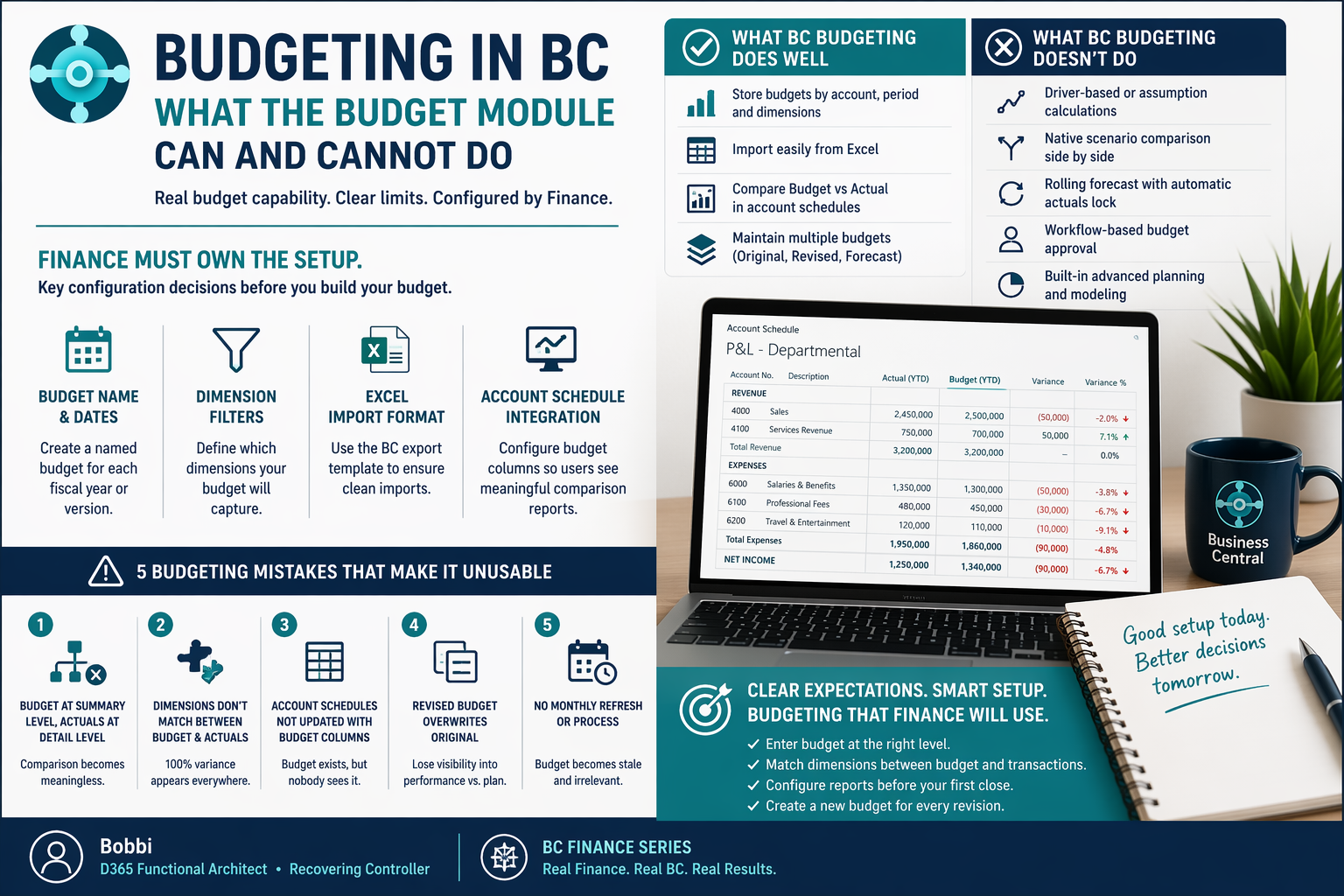
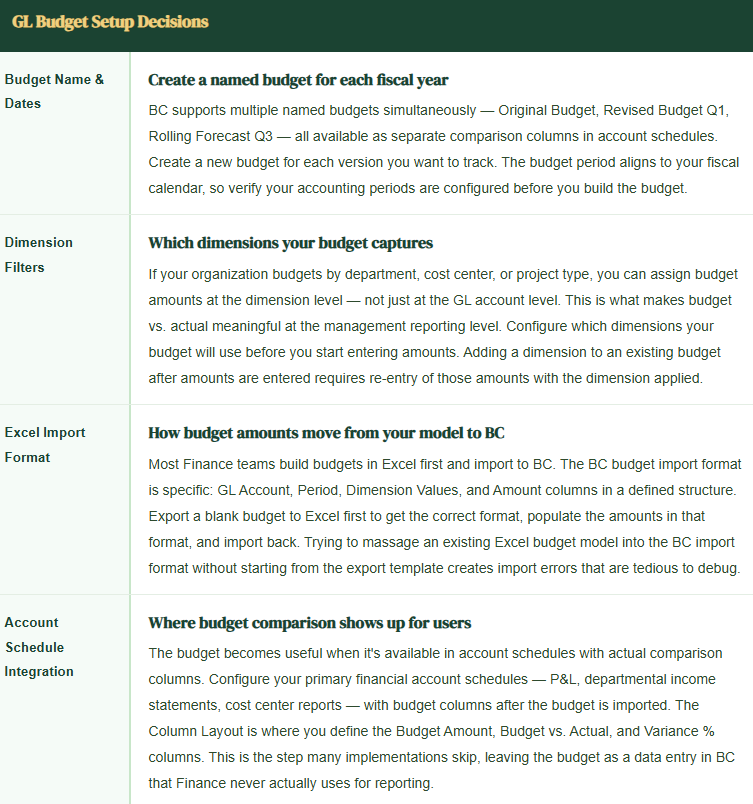
BC’s budgeting lives in the G/L Budgets page. A budget in BC is a set of expected GL account balances by period, optionally filtered by dimension values. You enter budget figures directly into the budget, or import them from Excel using the Export to Excel / Import from Excel workflow. The budget then becomes available in account schedules as a comparison column — Budget, Actual, Variance, and Variance % are all native account schedule columns once a GL budget exists.
That’s the core capability: budget amounts stored at the GL account and dimension level, available for account schedule comparison. It’s simple, it’s fast to configure, and for organizations with straightforward budget structures, it’s sufficient.
Budget Configuration Finance Must Do
What BC Budgeting Does Well
For organizations with straightforward budget structures — revenue by account, expense by department, comparison at the GL level — BC budgeting is genuinely useful. The account schedule comparison is clean, the Excel import workflow is practical once you’ve done it once, and the ability to maintain multiple named budgets (original, revised, rolling forecast) without extra tools is a real capability that most mid-market systems don’t handle this cleanly.
The reporting is the strong point. Once the budget is in BC and the account schedules are configured, Finance can run a budget vs. actual P&L by department, by period, by period-to-date, or by year-to-date without any external tool. For a controller who wants a monthly management package without leaving BC, that’s a meaningful quality-of-life improvement over a prior system that required exporting to Excel and manually assembling the comparison.
What BC Budgeting Doesn’t Do
Be honest with yourself and your leadership about these limitations before you configure:
Driver-Based Budget Models
BC doesn’t support assumption-driven budget calculation. If your revenue budget is headcount times average revenue per employee, or units times average selling price by product line, that calculation has to happen outside BC. BC stores the result — the dollar amount — not the drivers. If the calculation needs to update when an assumption changes, it updates in Excel and reimports to BC.
Scenario Planning
You can create multiple named budgets (Base Case, Upside, Downside), but there’s no native scenario comparison report that shows all three side by side at the account schedule level without custom configuration. Scenario analysis at scale is a Power BI use case, not a native BC budget use case.
Rolling Forecasts with Actuals Lock
A rolling 12-month forecast that replaces actuals for completed periods isn’t a native BC budget feature. You can maintain a separate Forecast budget and manually update it each month, but the process is manual. If your organization runs a rolling forecast as a primary management tool, evaluate Power BI + BC integration or a dedicated planning tool like Jet Reports or Prophix before committing to native BC budgeting.
Workflow-Based Budget Approval
There’s no native budget approval workflow in BC. Budget amounts can be entered by anyone with access to the G/L Budgets page. If your budget process requires department manager submission, Finance review, and CFO approval before the budget is finalized, that workflow happens outside BC — in email, in Teams, in a shared Excel file — and the approved version imports when the process is complete.
Five BC Budgeting Mistakes
Five Mistakes That Make the BC Budget Unusable Within One Quarter
- Budget entered at summary account level, actuals post to detail accounts
- If your budget is entered at Account Group level (e.g., 6000 — Operating Expenses) but your actuals post to individual expense accounts (6010, 6020, 6030), the account schedule comparison is meaningless at the detail level. The budget shows on the summary row, actuals show on the detail rows, and the variance column is wrong everywhere. Enter budget amounts at the same level of account detail where actuals will post.
- Budget dimensions don’t match actual transaction dimensions
- You built the budget with Department dimension values. Actuals post without a Department dimension — or with different dimension values — because the dimension defaults weren’t configured on GL accounts. The budget vs. actual comparison at the department level shows 100% variance everywhere because the dimension filter finds actuals and budget amounts in different dimension buckets. Fix: configure dimension defaults before the first transactions post, and validate that dimension values used in the budget match the values applied to transactions.
- Account schedules not updated to include budget columns
- The budget is imported and Finance never sees it again because nobody configured the account schedule column layouts to show budget comparison columns. The budget exists in BC as a data table that’s never surfaced to anyone who needs it. Configure your account schedule column layouts with Budget Amount, Actual Amount, and Variance columns immediately after import — before the first monthly close where you want to use the comparison.
- Revised budget overwrites original instead of being stored separately
- A mid-year reforecast is imported and overwrites the original budget amounts. Now Finance can’t compare actuals to the original budget — only to the revised version. The original budget analysis that leadership needs for the board discussion on year-to-date performance is gone. Always create a new named budget for each revision. Storage is not a constraint in BC. Version history is.
- Budget process ends at import with no monthly refresh cycle
- The budget is imported in January and nobody touches it again until next January’s budget cycle. The rolling forecast that leadership actually uses for decision-making is a separate Excel file that Finance maintains manually and never connects to BC reporting. If BC isn’t the source of truth for the current financial plan, the account schedule comparison becomes decorative. Either build a monthly budget refresh process — or be explicit that BC holds the annual budget and the rolling forecast lives elsewhere.
Up Next:
Budgeting within a single entity is manageable. Budgeting and accounting across multiple entities in BC introduces a layer of complexity that deserves its own treatment: Intercompany Accounting in BC—How the IC Inbox and Outbox Work and What Finance Must Configure for Multi-Entity Accuracy—the intercompany setup Finance must complete before the first cross-entity transaction, how the IC inbox and outbox workflow keeps transactions in sync across entities, and the five intercompany mistakes that create elimination headaches at consolidation time.
— Bobbi
D365 Functional Architect · Recovering Controller
Thank you for reading!
If a post helped you solve a real problem, share it with a Finance colleague who is in the middle of an implementation or a post-go-live optimization. If you have a topic the blog series did not cover, reach out. There is always one more post worth exploring.
If you are interested in learning more, below are some of my latest posts:


Leave a Reply