

Picture this. You pull up a report, or maybe you ask a Copilot-style assistant to summarize the month, and it hands you a number: total expenses are $40,000 over budget. Clean, confident, done.
Except it’s not done. Your first question is going to be “which department did that?” Or which project, or which region, or which salesperson. A single total almost never answers the question you actually have. It just raises the next one.
This is where a genuinely useful, slightly under-discussed pair of Business Central tools earns its keep: dimensions and Analysis Views. They’re the reason you can answer “which department” yourself in about thirty seconds, instead of emailing IT and waiting for a custom report.
The idea in one minute
Dimensions let you tag every transaction with extra context beyond the account it posted to, things like department, project, or region. Analysis Views take those dimension tags and pre-organize them so you can slice and compare the numbers instantly, without rerunning a heavy report every time you want a different cut of the data. Together they turn a flat total into a story you can actually read.
What dimensions really are 💡
Your chart of accounts tells you what happened financially. It does not tell you where or for whom. That’s the job of dimensions. A dimension is a value you attach to a transaction, like Department, Project, or Area, so you can track and analyze it later without building a separate G/L (general ledger) account for every combination of department and project you’ll ever need.
That framing matters: dimensions help you avoid a chart of accounts that’s exploded into hundreds of near-duplicate accounts just to capture “which office” or “which job.” You keep one clean account for Travel Expense, and you tag each entry with the dimension values that say who spent it and where.
Setting them up is straightforward. You define your dimensions (Department, Project, Area, whatever your business needs) and the values under each one, hierarchically if that helps, so Area might roll North America and Pacific up into a single Americas total. You get two global dimensions, which show up as filters across reports and batch jobs, and up to eight shortcut dimensions, which sit right on your journal lines and documents so you can tag a transaction without leaving the page. You can also set default dimensions on accounts, customers, or items, so the tag fills in automatically and you only override it when something’s unusual.

Where Analysis Views come in ⏳
Tagging transactions is only half the job. The other half is being able to ask questions of that tagged data fast, without Business Central having to recalculate everything from scratch each time you open a screen.
That’s what an Analysis View does. It’s a saved, pre-aggregated slice of your general ledger data, built around up to four dimensions you choose. Once it’s set up, pulling a comparison by department or project is nearly instant, because the heavy lifting already happened in the background instead of at the moment you go looking for an answer.
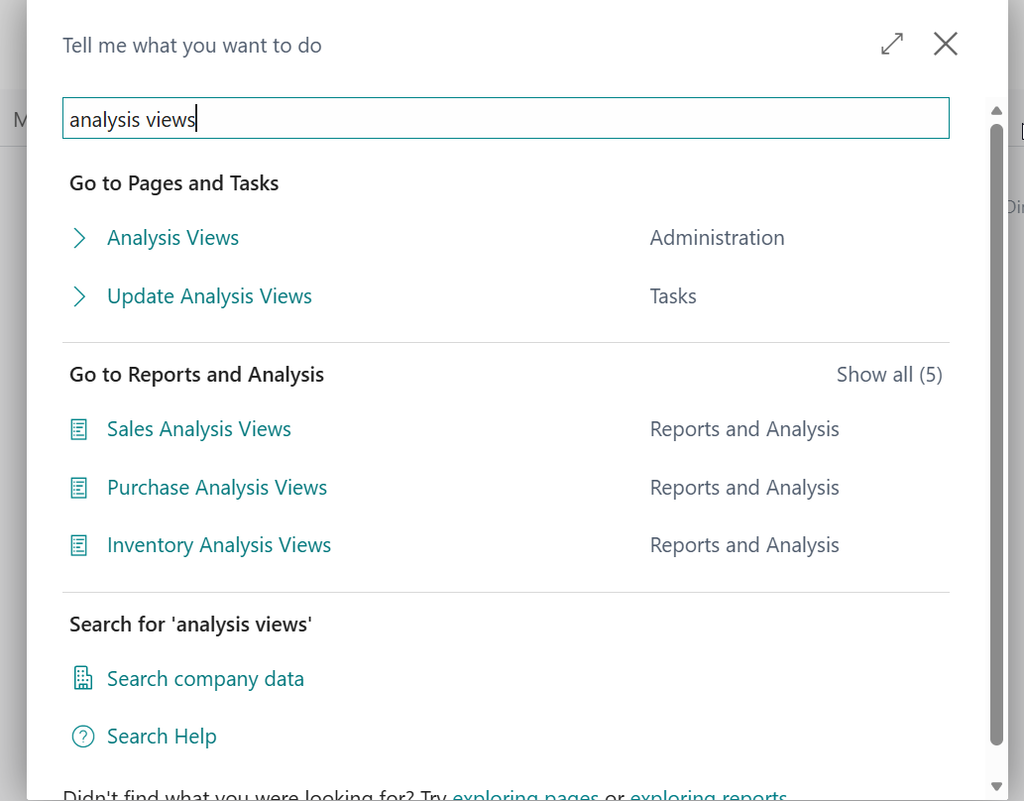
Setting one up takes a few minutes. Search for Analysis Views, choose New, and on the Dimensions section pick the dimensions this view should be built around, department and project, say. Check Update on Posting to keep it current automatically as transactions post, or run the Update Analysis Views batch job on your own schedule. From there, open the Analysis by Dimensions action and choose Show Matrix: dimension values down the side, time periods or accounts across the top, flippable with Reverse Lines and Columns. Click any number in the matrix and it drills straight into the underlying entries.
If you just need a quick gut check without building a full view, the Set Dimension Filter action on the Chart of Accounts does something similar on the fly, filtering account totals by a dimension value right there on the page.
The human-in-the-loop part ✅
An AI agent or a canned report can hand you a total in seconds. What it usually can’t do is decide which cut of that total actually matters to your business this month, that judgment call is yours. Dimensions and Analysis Views are what let you make it yourself, right when the question comes up, instead of putting in a ticket and waiting for someone else to build the report you needed twenty minutes ago.
Thank you for reading!
Last time, in post #3, “Excel Is Still Your Best Friend,” we talked about why your spreadsheet still has a place at the table even in a world of AI-assisted reporting. Next up, post #5: “Shortcuts Worth Learning,” a few small habits that save you real time in Business Central once they’re second nature.
Sources
- Set up dimensions – Business Central
- Analyze data by dimensions – Business Central
- Create analysis views and reports – Business Central
Interested in learning more? Below are some of my latest posts:




Leave a Reply