

It’s 8:15 on a Tuesday. You open Dynamics 365 Finance and Operations, and before you can even look at the exceptions your AI agent flagged overnight, you’re rebuilding the same filter you built yesterday. Status equals “Pending review.” Sort by amount, descending. Hide the columns you never look at. Five minutes gone, and you haven’t reviewed a single transaction yet.
If that sounds familiar, I have good news. D365 F&O already has a fix for this, and it’s been sitting in your grid this whole time.
The idea in one minute
Saved views let you set up a grid exactly how you want it (filters, sort order, columns, even which sections are expanded) and save that whole configuration under a name. Next time, you don’t rebuild anything. You click the view name and you’re back to exactly where you left off. Views can be personal, just for you, or published so a whole team lands on the same setup automatically.
What a saved view actually saves
A saved view isn’t just a bookmark. On pages with the larger, more prominent view selector at the top (think list pages like open customer invoices or vendor payments), it captures your filters and sort order along with your personalization choices, like column widths and which columns show at all. On smaller pages, it saves the personalization but not the filters. Either way, the point is the same: you set it up once, and the system remembers.
Creating one is genuinely three clicks
Here’s the actual process. Go to your page and set it up the way you want: apply your filters, sort your columns, adjust widths, whatever gets you to the view you’ll use every day. You’ll notice an asterisk pop up next to the current view name once you’ve made a change that isn’t saved yet. That’s your cue.
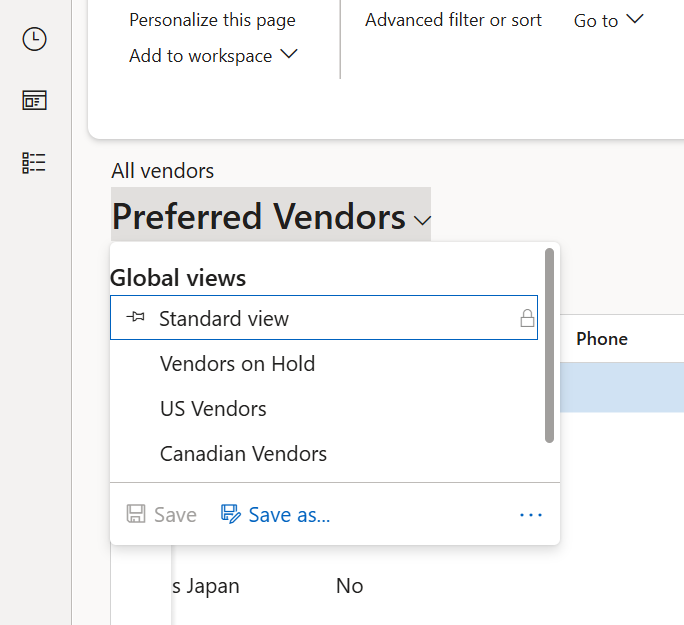
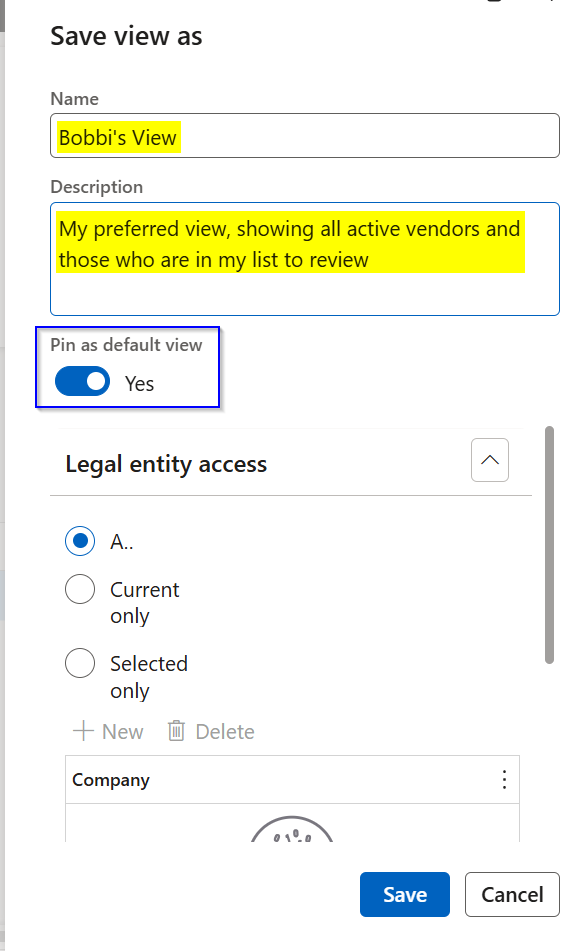
Click the view name near the top of the page to open the view selector, then choose Save as. Give it a clear name (something like “My AI Review Queue” beats “View 3”), add a description if you want, and if this is a view you’ll use constantly, check the option to pin it as your default. Hit save, and you’re done. That configuration is now one click away, permanently.
Switching between views is just as fast
Click the view name at the top of the page again. You’ll see your options split into two groups: views tied to your current legal entity and global views available across all of them. Click the one you want, and the page updates instantly to match. A padlock icon means it’s a published view you can look at but not edit. A personal view has no lock, because it’s yours to change whenever you like.
Personal today, shared tomorrow
You don’t need admin rights to build a personal saved view for yourself. But if you land on a setup your whole team should use (say, the exact filtered queue of items flagged for human review), someone with the Saved views administrator role can publish it. Once published, it’s locked so nobody accidentally breaks it, and it shows up automatically for everyone in the right security role, including people who join the team later. Nobody has to walk the new hire through building the filter from scratch.
Where this fits the human-in-the-loop picture
In my last post, “Make the System Work Like You Do,” I talked about making the system work like you do instead of forcing yourself to work around it. Saved views are a small, concrete example of that. If part of your job now includes checking a queue of items an AI agent flagged (invoices that need a second look, transactions outside normal parameters, anything that needs your judgment) a saved view of that exact filtered list means your morning starts with the review, not the setup. ✅
That’s really the whole point of human-in-the-loop work. The judgment part is yours and it should be. The clicking-and-filtering part shouldn’t eat into it every single day.
Thank you for reading!
Next up in the series: “Excel Is Still Your Best Friend,” because for all the AI and automation talk, sometimes the smartest move is exporting to a spreadsheet you already know how to use.
Sources
- Saved views – Finance & Operations | Microsoft Learn
- Build forms that fully utilize saved views – Finance & Operations | Microsoft Learn
Interested in learning more? Below are some of my latest posts:




Leave a Reply