
Imagine someone hands you a car with an incredible autopilot. It parks itself, it merges, it reads the road better than you do on a Monday morning. Would you actually relax into that seat if there was no brake pedal? Probably not. You’d want the option to grab the wheel, even if you never needed to.
That’s basically the deal Microsoft is offering with the AI agents in Business Central. In the last post, “Auditing What Your Agents Actually Did,” we talked about the permission logs and history that let you look backward and confirm nothing weird happened. This post is about the other half of the story. It’s about the controls that let you see and steer what an agent is doing right now, while it’s happening, not just after the fact.
The idea in one minute
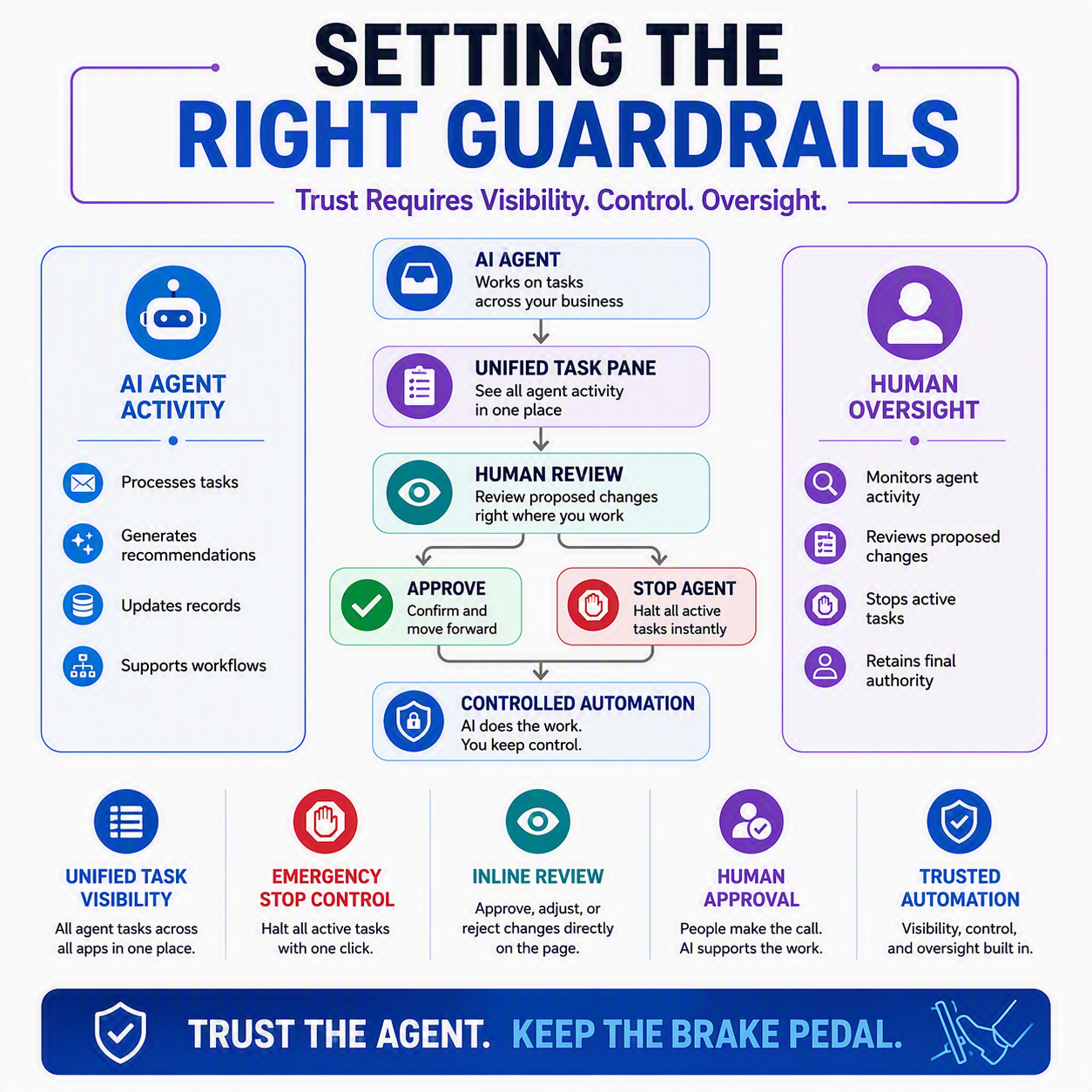
Trust in AI agents doesn’t come from hoping they behave. It comes from knowing you can watch them and stop them if you need to. Business Central’s 2026 wave 1 release adds three pieces that do exactly that: a task pane that pulls every agent’s work into one place, a one-click way to stop a misbehaving agent cold, and the ability to review what an agent wrote or changed right where you’re already working, instead of hunting down a separate approval screen. Put together, these are the guardrails that let you hand more responsibility to an agent without handing over your ability to pull it back. ✅
One place to see everything, every agent
Right now, if you’ve got agents working across finance, sales, purchasing, and operations, their notifications can end up scattered across different pages. You miss one, and a task sits waiting for you longer than it should. The new dedicated task pane fixes that by gathering every agent’s tasks, suggestions, validations, and follow-ups into a single consolidated view you can open from anywhere in Business Central. Click into a task and it takes you straight to the affected record. Finish reviewing something and you complete or dismiss it right there.
Microsoft is pretty direct about who this helps: accountants, salespeople, and managers who interact with multiple agents throughout the day. If that’s you, this is the difference between chasing down five different notification bubbles and having one list you can actually work from.

The emergency brake ⏳
Here’s the scenario that keeps people up at night: an agent goes off the rails, maybe it’s misreading data, maybe it’s stuck in a loop, and it’s actively working through a stack of tasks while you figure out what’s wrong. Waiting for each one to finish or canceling them one by one is exactly the wrong amount of friction for that moment.
Microsoft’s answer is the ability to stop all active tasks for a selected agent with a single action. You select the agent, confirm you actually want to do this (there’s a confirmation step so a stray click doesn’t wipe out real work), and every task it’s currently running comes to a stop. Microsoft frames the point of this plainly: it’s for when “something goes wrong,” and it lets you “quickly regain control” instead of manually troubleshooting each task on its own.
This is the piece that makes the rest of the trust equation work. You can hand an agent real responsibility because you know there’s a full stop available if it needs one.
Reviewing content where you already are
The third piece changes where review happens, not just how much you can see. Instead of leaving your page to check what an agent drafted somewhere else, you can now review content agents generate directly on the page it’s on. A description an agent wrote, a field it filled in, a suggestion it made: you evaluate it in context, right there, using an interaction pattern Business Central already uses for autofill suggestions. No separate task pane, no context switching.
Keeping review inside the page you’re already on reduces clicks and keeps you in your actual workflow. In practice, that means you’re more likely to actually read what changed instead of rubber-stamping it to get back to what you were doing. 💡
Visibility before, during, and after
Line these up next to the audit post, and you get the fuller picture. Permissions and audit logs tell you what already happened. The task pane, the stop control, and inline review tell you what’s happening right now and give you a way to shape it. Neither one replaces the other. You need both if you actually want to trust an agent with real work instead of just hoping for the best.
Thank you for reading!
Next time, we’re wrapping up this series by looking past the agents themselves: “The Human Skills That Get More Valuable as AI Takes Over the Busywork” is about what you get to focus on once the routine stuff is handled for you.
Sources
- Manage tasks from all agents in a dedicated task pane | Microsoft Learn
- Stop all active tasks for a selected agent | Microsoft Learn
- Review content generated by agents directly on pages | Microsoft Learn
- Supervise agent tasks – Business Central | Microsoft Learn
Interested in learning more? Below are some of my latest posts:



Leave a Reply