
Picture your AP inbox on a Monday morning. Forty invoices came in over the weekend. Thirty-eight are from vendors you’ve paid a hundred times before. Two are from someone you’ve never heard of. Do you really want to review all forty the same way?
That’s the exact question Microsoft is answering with a new setting in the Payables Agent, and it’s a great case study for something I talked about in my last post: human in the loop isn’t a switch you flip once. It’s a dial. You decide how far to turn it, sender by sender, and you can always turn it back.
The idea in one minute
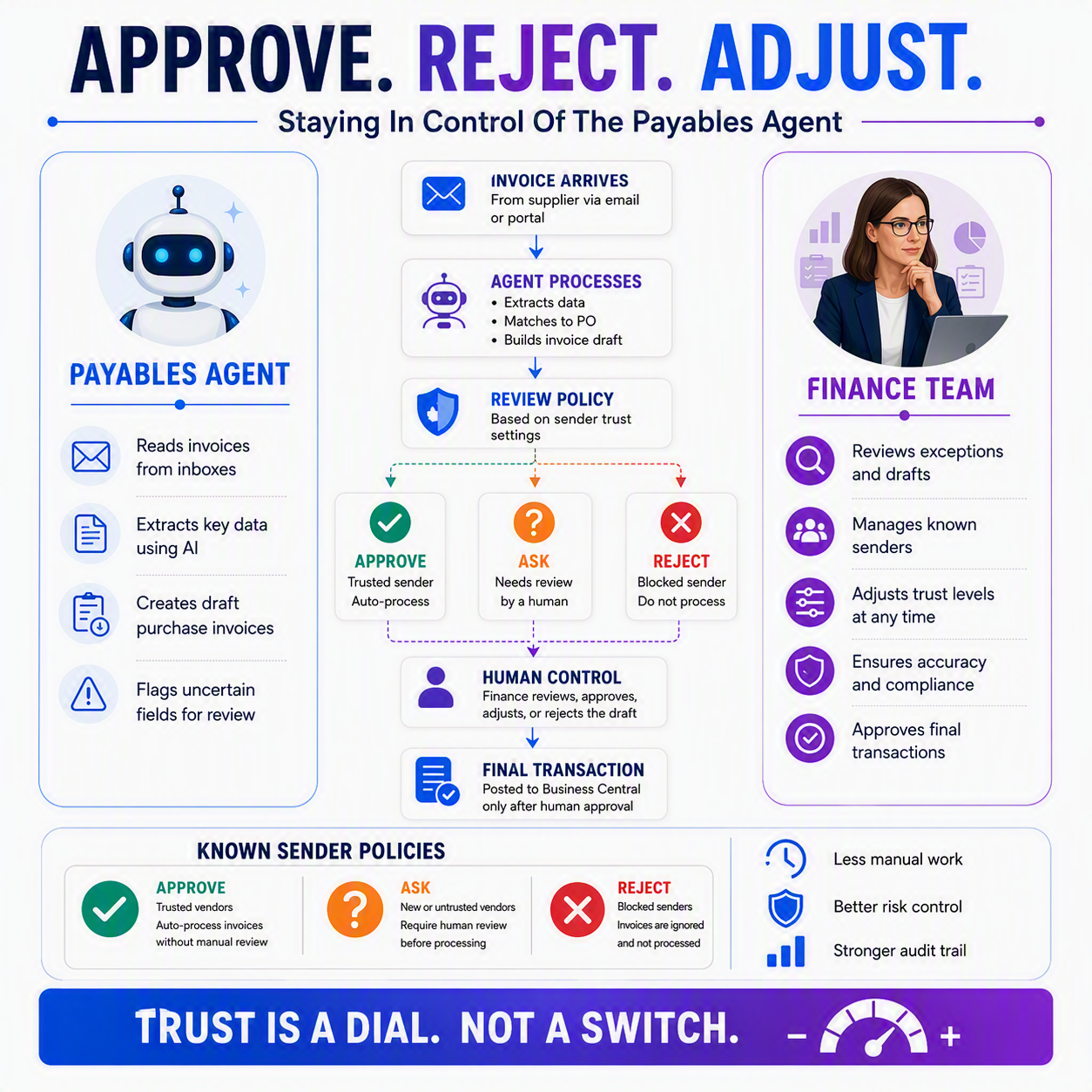
The Payables Agent reads vendor invoices that land in a monitored inbox, pulls out the header and line data, and drafts the invoice for posting. Before it posts anything, it hands that draft to a person for a look. That’s human in the loop, plain and simple. The new piece is a feature called Known Senders, and it lets you tell the agent which senders it should stop bothering you about, which ones it should still flag every time, and which it should reject outright. You’re not choosing between “review everything” and “review nothing.” You’re setting a policy, and the agent applies it consistently while you keep your hand on the dial.
☕ What the agent is actually doing
Nothing here is magic. The Payables Agent watches a mailbox, recognizes an invoice attachment, and extracts the vendor, amount, dates, and line items into a draft purchase invoice. It doesn’t post that invoice on its own. It shows you the draft, tells you what it changed and why, and waits for a “Confirm” before moving forward. If a field looks uncertain, Business Central marks it with a confidence icon, orange for “look at this one closely,” so you know where to focus your attention instead of re-checking every single field on every single invoice.

📒 Setting your review policy
This is where the dial lives. You choose one of three email review settings for the agent overall:
- Always: every invoice email needs your approval before the agent touches it, no matter who sent it.
- Never: nothing gets flagged for review. The agent just processes what comes in.
- Only if untrusted: only emails from senders who aren’t on your known senders list get pulled into review. Everyone else flows through automatically.
Microsoft calls “Only if untrusted” the recommended setting for most organizations, and it’s easy to see why. It gives you the middle ground: your regular vendors stop clogging your review queue, but anything unfamiliar still lands in front of a human before it becomes a posted invoice.
How the trusted list actually builds
Here’s the part I like best. You don’t have to build your known senders list by hand. When email review is set to manage per sender, the agent starts everyone off needing review. Each time you approve an invoice from a sender you haven’t seen before, that sender gets added to your known senders list automatically. Approve them a few times and the queue quiets down on its own, because the agent is learning who you already trust based on what you’ve already told it.
For each known sender, you can also set a specific action instead of a blanket rule: Ask keeps requiring your review, Approve lets the agent post without you, and Reject blocks that sender’s attachments from processing at all, useful if a sender turns out to be fraudulent or you simply don’t want their invoices auto-processed. ✅

The dial goes both ways
None of this is permanent. If a trusted vendor changes their billing process, or you get a weird invoice from a sender you’d normally approve without a second look, you can move them back to Ask, or even Reject, at any time. Trust isn’t a one-time decision you make and forget. It’s something you keep adjusting as your relationship with that vendor, or that inbox, changes. That’s the whole point of a dial instead of a switch: you get to be as cautious or as hands-off as the situation actually calls for, not as some fixed setting demands. 💡
This feature is planned for general availability in August 2026, and it builds directly on the review workflow already available in the Payables Agent today.
Thank you for reading!
Next time, we’ll look at what happens after you’ve approved all these invoices: how you can actually audit what your agents did, so “I trust it” doesn’t have to mean “I stopped checking.” That’s post #3, Auditing What Your Agents Actually Did.
Sources
- Speed up processing with Known Senders in Payables Agent (Business Central 2026 release wave 1)
- Supervise agent tasks in Business Central
- Business Central 2026 release wave 1 planned features
Interested in learning more? Check out some of my latest posts:




Leave a Reply